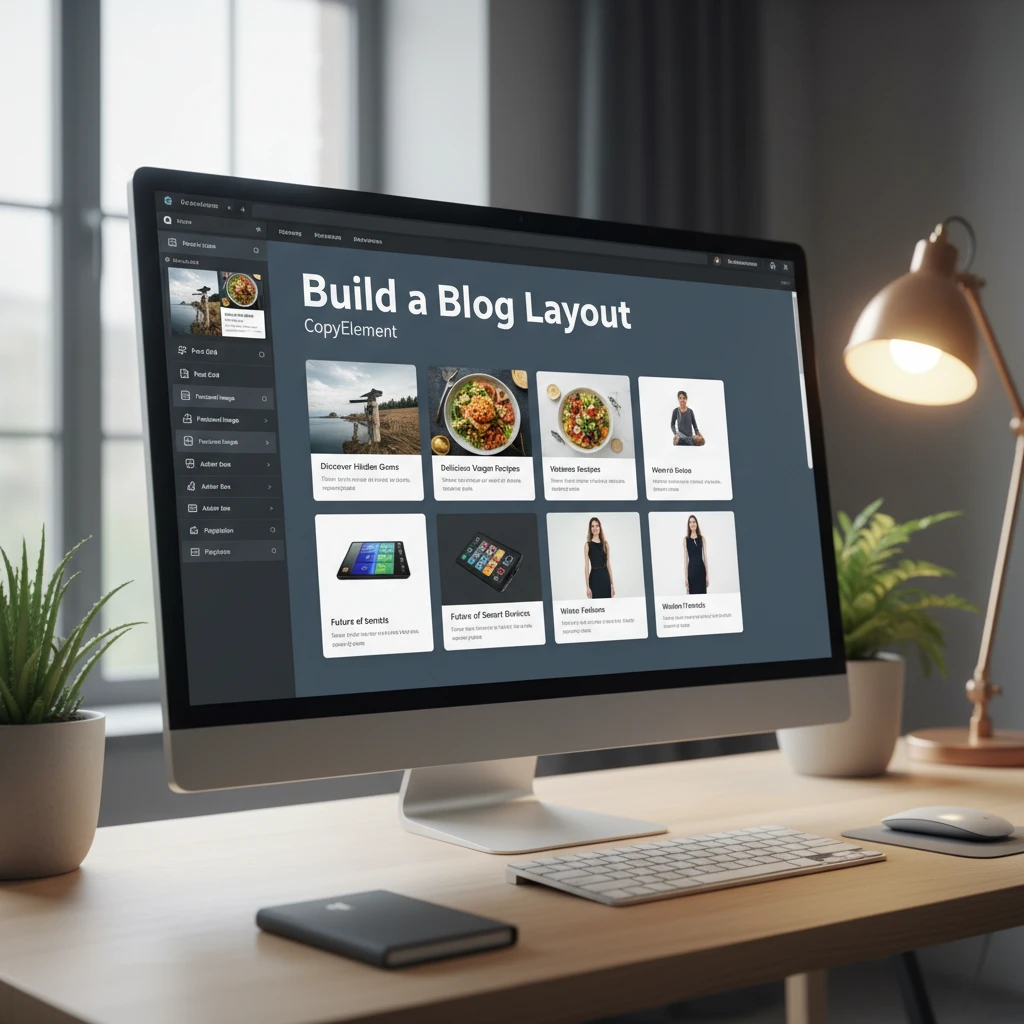
Building a compelling blog layout in Elementor can be challenging. While Elementor offers powerful customization features, crafting a truly unique and engaging blog design often requires significant time and effort. The default styling options can feel limiting, leading to blog layouts that blend in rather than stand out.
Fortunately, tools like CopyElement exist to bridge this gap, providing an extensive library of pre-designed components and templates specifically tailored for Elementor. This opens up possibilities for creating visually stunning and highly functional blog layouts without needing to code from scratch. Let’s explore how CopyElement can revolutionize your blog design process.
Tired of Generic Website Designs? Unlock Unique Blog Layouts with Elementor
The limitations of default Elementor blog styling
Elementor’s default blog styling, while functional, can often lead to a feeling of sameness across websites. The built-in widgets offer basic customization options for elements like post titles, excerpts, featured images, and metadata. However, achieving a truly distinctive look and feel requires significant manual tweaking and custom CSS, which can be time-consuming and technically challenging, especially for beginners. A primary pitfall is the lack of advanced layout options directly within the core Elementor functionality. You’re largely limited to standard grid or list views, which may not effectively showcase your content or align with your brand’s aesthetic.
Another limitation lies in the difficulty of creating consistent styling across multiple blog pages. Applying the same design elements to each page manually becomes repetitive and prone to errors. This often results in a disjointed user experience, impacting readability and engagement. Furthermore, responsive design can be tricky. Ensuring your blog looks great on all devices using only the default Elementor settings requires careful adjustments and testing, potentially leading to inconsistencies or design flaws on smaller screens. Ultimately, achieving a polished, professional blog layout with default Elementor settings demands considerable time, effort, and technical expertise.
How CopyElement helps overcome these limitations
CopyElement addresses the limitations of default Elementor blog styling by providing a vast library of pre-designed, fully customizable components and templates. Instead of starting from scratch, you can browse and import professionally crafted blog layouts, sections, and individual elements, significantly accelerating the design process. This allows you to achieve a unique and visually appealing blog design without extensive coding or manual tweaking.
The CopyElement library offers a wide range of blog layout styles, including grid, list, masonry, and carousel layouts, each with multiple variations. You can easily filter and search for components based on specific keywords, design elements, or industries, ensuring you find the perfect fit for your blog’s content and branding. Furthermore, CopyElement components are designed with responsiveness in mind. They are optimized for various screen sizes, ensuring a seamless user experience across all devices. By leveraging CopyElement, you can create a consistent, engaging, and visually stunning blog layout with significantly less time and effort compared to relying solely on default Elementor features. As we mentioned in our recent guide to building websites quickly with Elementor and CopyElement, the platform streamlines the entire process.
Planning Your Elementor Blog Layout: Key Design Considerations for 2026
Understanding your target audience and their content needs
Before diving into the design process, it’s crucial to understand your target audience and their content consumption habits. Consider their demographics, interests, and technological proficiency. Are they primarily accessing your blog on desktop or mobile devices? What type of content resonates most with them – long-form articles, short-form updates, videos, or infographics? Answering these questions will inform your layout choices, typography, and overall design aesthetic. For example, if your audience primarily uses mobile devices, you’ll need to prioritize a mobile-first design approach, ensuring your blog is easy to navigate and read on smaller screens.
Furthermore, understanding their content needs is essential. What information are they seeking from your blog? What problems are they trying to solve? The layout should facilitate easy discovery and consumption of relevant content. Consider using clear headings, subheadings, and bullet points to break up text and improve readability. Implement a robust search functionality to help users quickly find specific information. Analyze website analytics to understand which content performs best and adjust your layout accordingly. By focusing on your target audience’s needs and preferences, you can create a blog layout that enhances engagement and encourages repeat visits.
Defining your blog’s primary goals (lead generation, brand awareness, etc.)
Clearly defining your blog’s primary goals is crucial for creating an effective layout. Is your main objective lead generation, brand awareness, driving sales, or establishing thought leadership? Each goal requires a different design approach. If lead generation is a priority, your layout should prominently feature calls to action (CTAs), such as signup forms, free downloads, or webinar registrations. As discussed in our article on conversion-focused call-to-action design, strategic placement is key.
For brand awareness, focus on creating a visually appealing layout that reflects your brand’s identity and values. Use consistent branding elements, such as colors, fonts, and imagery, throughout your blog. If driving sales is the goal, your layout should showcase your products or services in a compelling way, with clear product descriptions and pricing information. You might also incorporate customer testimonials or case studies to build trust and credibility. Alternatively, if you want to establish thought leadership, your layout should emphasize the quality and depth of your content, showcasing your expertise in your niche. By aligning your layout with your blog’s primary goals, you can maximize its effectiveness and achieve your desired outcomes.
Choosing the right visual aesthetic and brand voice
Your blog’s visual aesthetic and brand voice should align with your overall brand identity and target audience. Consider the colors, fonts, imagery, and overall design style that best represent your brand’s personality and values. A clean, minimalist design might be suitable for a professional service, while a more vibrant and playful design might be appropriate for a creative agency. Ensure that your chosen visual elements are consistent with your brand guidelines and create a cohesive and recognizable brand image.
Equally important is your brand voice. Is your blog’s tone formal or informal, serious or humorous? The language and writing style should resonate with your target audience and reflect your brand’s personality. Maintain a consistent brand voice throughout your blog, from the headlines and body text to the calls to action and social media promotions. A well-defined visual aesthetic and brand voice will help you create a memorable and engaging blog experience, fostering brand recognition and loyalty. Tools like CopyElement can help achieve this consistency by providing pre-designed templates that maintain visual harmony throughout your blog, as explored in our piece on Elementor website wireframing.
Installing and Configuring the CopyElement Plugin for Elementor
Step-by-step guide to installing CopyElement
Installing CopyElement is a straightforward process. First, purchase the CopyElement plugin from the official CopyElement website. Once purchased, you will receive a downloadable ZIP file containing the plugin. Next, log in to your WordPress dashboard and navigate to “Plugins” > “Add New.” Click the “Upload Plugin” button and select the ZIP file you downloaded. Click “Install Now” and wait for the plugin to upload and install.
After the installation is complete, click the “Activate Plugin” button to activate CopyElement. You should now see CopyElement listed in your installed plugins. Ensure that Elementor is also installed and activated on your WordPress website, as CopyElement is an add-on for Elementor. Failing to activate both plugins will result in CopyElement not functioning correctly. Make sure your Elementor installation is up to date to maintain compatibility with CopyElement.
Activating your license and accessing the component library
Once CopyElement is activated, you need to activate your license to access the component library. Navigate to the “CopyElement” section in your WordPress dashboard. Enter your license key in the designated field and click the “Activate License” button. Your license key can be found in your CopyElement account dashboard or in the purchase confirmation email you received after purchasing the plugin.
Upon successful license activation, you will gain access to the full CopyElement component library within the Elementor editor. When editing a page or post with Elementor, you will see a new “CopyElement” tab in the Elementor panel. This tab contains a wide range of pre-designed components, sections, and templates that you can easily drag and drop onto your page. A valid license key is required to use these features. For assistance with license activation, refer to the CopyElement documentation or contact their support team.
Troubleshooting common installation issues
Occasionally, users may encounter issues during the installation or activation process. A common problem is uploading a ZIP file that is too large. If this happens, try increasing the maximum upload size in your WordPress settings or contact your hosting provider for assistance. Another issue can arise if your server doesn’t meet the minimum requirements for CopyElement. Ensure that your server is running a compatible version of PHP and has sufficient memory allocated to WordPress.
If you encounter an error message during license activation, double-check that you have entered the correct license key. If the issue persists, contact CopyElement support, providing details of the error message and your purchase information. Deactivating other plugins temporarily can sometimes resolve conflicts that prevent CopyElement from functioning correctly. Remember to clear your browser cache after installation or activation to ensure you are seeing the latest version of the plugin. These troubleshooting steps will help resolve common installation and activation issues.
Exploring CopyElement’s Pre-built Blog Layout Components and Templates
Overview of different blog layout styles available (grid, list, masonry)
CopyElement offers a diverse range of pre-built blog layout styles to suit various content formats and design preferences. The grid layout is a classic choice, displaying posts in a visually organized grid pattern. This is ideal for blogs with a strong emphasis on visual content, such as photography or design portfolios. Grid layouts provide a clean and balanced aesthetic, allowing users to quickly scan through multiple posts.
The list layout presents posts in a vertical list format, typically with a featured image, title, excerpt, and metadata. This layout is well-suited for blogs that prioritize textual content and readability. List layouts are easy to navigate and provide a clear hierarchy of information. The masonry layout arranges posts in a dynamic, asymmetrical grid, filling in gaps and creating a visually engaging mosaic effect. This layout is perfect for blogs that want to showcase their content in a unique and creative way. Each style provides various options for customization, allowing you to tailor the layout to your specific needs and preferences. Experimenting with these various layout options ensures a visually appealing and user-friendly blog experience.
Filtering and searching for specific components based on keywords or design elements
CopyElement makes it easy to find the perfect components for your blog layout with its robust filtering and search functionality. Within the Elementor editor, you can filter components by category, style, and design elements. This allows you to quickly narrow down your search and find components that match your specific requirements. For example, you can filter for components related to “blog headers,” “post summaries,” or “pagination.”
The search bar allows you to search for components by keywords, such as “featured posts,” “recent articles,” or “category listings.” This is particularly useful if you have a specific design element in mind. CopyElement also provides a preview of each component, allowing you to see how it will look on your page before you import it. Furthermore, components are categorized by industry or niche, making it easier to find relevant components for your specific blog topic. These powerful filtering and search tools save you time and effort, ensuring you can quickly locate the components you need to create a stunning blog layout.
Importing and customizing pre-built templates for rapid prototyping
CopyElement’s pre-built templates offer a rapid prototyping solution, allowing you to quickly create a complete blog layout with minimal effort. To import a template, simply browse the CopyElement library within the Elementor editor and select the template you want to use. Click the “Import Template” button, and the entire template will be added to your page. The templates are fully customizable, allowing you to modify the colors, fonts, images, and content to match your brand and style.
You can also easily rearrange the sections and elements within the template to create a unique layout. CopyElement templates provide a solid foundation for your blog design, saving you time and effort compared to starting from scratch. They also serve as a valuable source of inspiration, showcasing best practices in blog design and layout. Moreover, CopyElement templates are designed with responsiveness in mind, ensuring your blog looks great on all devices. Use these templates as a starting point and customize them to create a truly unique and engaging blog layout. You can even implement micro-interactions to improve UX, similar to what we discussed in our guide to improving website UX with micro-interactions.
Step-by-Step: Building a Custom Blog Listing Page with CopyElement Components
Creating a new page and adding a CopyElement blog post grid component
To begin, create a new page in WordPress and open it with Elementor. From the Elementor editor, locate the CopyElement section within the elements panel. Here, you’ll find a variety of pre-designed blog post grid components. Drag and drop your preferred blog post grid component onto the page. Consider your website’s existing design and choose a grid layout that complements your brand. For example, if you’re going for a minimalist look, a simple grid with clear spacing might be best. If your brand is more vibrant, a component with more visual flair might be a better choice. Make sure to choose a component that’s responsive, ensuring it looks good on all devices. The process of selecting the correct component can greatly improve the initial visual appeal of your blog.
Before settling on a grid, take a moment to consider the overall design philosophy of your website. Is it modern, classic, or something else entirely? Choosing a component that doesn’t align can lead to a jarring experience for your visitors. Remember to preview the component on different screen sizes after you place it on the page to guarantee responsiveness. Always keep user experience (UX) at the forefront of your decision-making process.
Configuring the grid layout (number of columns, spacing, etc.)
Once you’ve added the CopyElement blog post grid, the next step is to configure its layout to your liking. Most grid components allow you to adjust the number of columns, the spacing between posts (both horizontally and vertically), and the aspect ratio of the featured images. A common approach is to use a three-column grid for desktop, transitioning to a two-column grid on tablets, and a single-column layout on mobile devices. Pay close attention to the spacing – too much space can make the grid feel disjointed, while too little space can make it look cluttered. Remember to consider the visual hierarchy and adjust the spacing to guide the user’s eye. A crucial part of the configuration is making sure the images maintain a consistent aspect ratio; otherwise, your grid will look uneven and unprofessional. Using consistent aspect ratios for images gives a clean look.
Experiment with different column configurations to determine the optimal arrangement for your content. A two-column layout can be effective for showcasing longer, more in-depth posts, while a four-column layout works well for visually-driven content. The key is to strike a balance between aesthetics and readability. Also, be aware of the page loading speed; having too many columns with high-resolution images can negatively impact performance. See this guide for optimizing Elementor website speed.
Styling individual post elements (featured image, title, excerpt, metadata)
The styling of individual post elements greatly influences the overall aesthetic and user experience of your blog listing page. With CopyElement, you have granular control over each element within a post. This includes the featured image, title, excerpt, metadata (date, author, categories), and read more button. When styling the featured image, ensure that all images are of consistent dimensions and resolution. The title should be readable, using a font size and color that contrasts well with the background. You can also control the length of the excerpt to provide a concise summary of the post’s content. The metadata provides context and should be styled to be informative without being visually distracting. Consider using different font weights and colors to differentiate between different metadata elements. The read more button should be prominent and clearly indicate that it leads to the full post.
For example, use a custom color palette that aligns with your brand identity. If your website has a modern design, consider using sans-serif fonts for the title and excerpt. For a more classic look, serif fonts might be a better choice. If your blog focuses on visual content, consider displaying larger featured images and minimizing the amount of text. Think of the impact on SEO, and make sure all images have alt text that is related to the topic of the post. By carefully styling each element, you can create a visually appealing and user-friendly blog listing page.
Designing a Stunning Single Post Template with Elementor and CopyElement
Creating a dynamic template using Elementor Pro’s Theme Builder
To create a dynamic single post template, you’ll need Elementor Pro. Navigate to the Theme Builder (Templates > Theme Builder) in your WordPress dashboard and select “Single Post.” This allows you to design a template that will automatically apply to all your blog posts (or a specific category if you choose). Begin by setting up the basic structure of your template, including sections for the header, content, sidebar (optional), and footer. The most crucial part is inserting the “Post Content” widget, which dynamically pulls the content of each individual post. Consider using Elementor’s “Conditions” feature to assign specific templates to different categories or types of posts. This offers flexibility in tailoring the design to suit different content formats. Remember to save your template and preview it with various blog posts to ensure it looks consistent and works as expected.
A common pitfall is overlooking the responsiveness of your single post template. Make sure to thoroughly test it on different devices (desktop, tablet, mobile) and adjust the layout accordingly. Prioritize readability on mobile devices by using a clear font size and line height. Furthermore, optimize the template for search engines by using appropriate heading tags (H1, H2, H3) and ensuring that the content is well-structured. Think about how you can use custom fields to add elements, as discussed on this page.
Inserting CopyElement components for headers, content sections, and footers
Once you have the basic single post template structure in place, you can enhance its design and functionality using CopyElement components. CopyElement offers a wide range of pre-designed headers, content sections, and footers that you can easily insert into your template. For the header, choose a component that prominently displays the post title, featured image (if desired), and metadata (author, date, categories). CopyElement makes it easy to add these pre-designed elements. For the content section, you can insert components that feature specific formatting styles, such as callout boxes, image galleries, or embedded videos. The footer component typically includes copyright information, links to important pages, and social media icons. By using CopyElement components, you can significantly speed up the design process and create a visually appealing and professional single post template. Always ensure that the components you choose align with your website’s overall branding and design aesthetic.
Before finalizing your single post template, consider the user journey. How do you want visitors to interact with your content? For example, include relevant elements like internal links. As mentioned on this post, micro-interactions can boost engagement. Also, a thoughtfully designed single post template can significantly increase user engagement and time on site.
Implementing related posts and author bio sections using CopyElement widgets
To further enhance the user experience, include related posts and author bio sections at the end of each blog post. CopyElement offers dedicated widgets for both. The “Related Posts” widget dynamically displays a list of posts that are related to the current post based on categories or tags. You can customize the appearance of the widget, including the number of posts displayed, the layout (grid or list), and the styling of the title and excerpt. The “Author Bio” widget displays information about the author of the post, including their name, profile picture, and a short biography. This helps to build credibility and connect with your audience on a more personal level. It is a good idea to promote the author so readers will read more posts. You may also link the author to their social media, or even give them a contact form so people can reach out to them. This helps create a two way connection.
For the related posts section, experiment with different layout options to find what works best with your website’s design. A common approach is to use a three-column grid for desktop and a single-column layout for mobile. For the author bio section, ensure that the profile picture is of high quality and that the biography is concise and engaging. Keep the author bio focused on the author’s expertise and relevance to the blog’s content. Regularly updating the author bio will encourage them to stay up to date and contribute more frequently.
Optimizing Your Elementor Blog Layout for SEO: Best Practices for 2026
Ensuring mobile responsiveness and user-friendliness
In 2026, mobile-first indexing is paramount. Google prioritizes the mobile version of your website for ranking. Therefore, your Elementor blog layout must be fully responsive. Use Elementor’s responsive editing mode to preview your layout on different screen sizes (desktop, tablet, mobile). Adjust font sizes, column widths, and image sizes as needed to ensure readability and a seamless user experience on all devices. Avoid using fixed-width layouts or elements that don’t scale properly. Test your website on real mobile devices to identify any potential issues. Prioritize loading speed on mobile, as slow loading times can significantly impact your ranking. Also remember to make the page mobile friendly, as mobile is often people’s first point of contact with the website.
Pay close attention to the touch-friendliness of your blog layout. Ensure that buttons and links are large enough to be easily tapped on mobile devices. Use sufficient spacing between interactive elements to prevent accidental clicks. Use features such as “display conditions” to hide elements on mobile if they are not essential to the user experience. This can also help improve loading times. For example, if your article links to managed it services, a customer should be able to view that on the phone. Focus on a great user experience.
Implementing schema markup for rich snippets
Schema markup is essential for helping search engines understand the content of your blog posts. Implement schema markup to provide search engines with additional information about your articles, such as the title, author, date published, and featured image. This can result in rich snippets in search results, which can improve your click-through rate. Use schema.org vocabulary to define the different properties of your blog posts. You can use plugins like Yoast SEO or Rank Math to easily implement schema markup in Elementor. Test your schema markup using Google’s Rich Results Test tool to ensure it’s implemented correctly. Make sure to keep your schema markup up-to-date with the latest guidelines from search engines. Using Schema properly greatly increases your chances of having your content rank highly in the search results.
A common mistake is using incorrect or incomplete schema markup. This can actually hurt your ranking. Make sure to accurately represent the content of your blog posts in your schema markup. Regularly monitor your search console to identify any issues with your schema markup and address them promptly. Consider using JSON-LD format for implementing schema markup, as it’s the preferred format by Google. Also, if you are providing any product reviews, be sure to add that to the schema, as this will help Google understand if the article is a review and if it is accurate.
Optimizing image sizes and filenames for faster loading times
Large image files can significantly slow down your blog’s loading time, which can negatively impact your SEO. Optimize your image sizes to reduce file sizes without sacrificing quality. Use tools like TinyPNG or ImageOptim to compress your images. Choose the appropriate image format (JPEG for photos, PNG for graphics). Use descriptive filenames for your images that include relevant keywords. Add alt text to your images to provide search engines with context. Leverage lazy loading to only load images when they are visible in the viewport. This can significantly improve initial page load time. You can also use a CDN to deliver images from servers closer to your users, improving loading times for visitors from different geographic locations.
A common pitfall is using unnecessarily high-resolution images. Most images don’t need to be larger than 1920 pixels wide. Also, when images are taken directly from cameras, they often have identifying information that is not necessary for display. Remove this extra data. Optimize your images for the web before uploading them to WordPress. Regularly audit your image library to identify and optimize any large or unoptimized images. Images should be optimized for the web. Remember, slow loading times can frustrate users and negatively impact your search engine rankings. Refer to best practices in website speed optimization.
Using clear and concise headings and subheadings
Clear and concise headings and subheadings improve the readability of your blog posts and help search engines understand the structure of your content. Use heading tags (H1, H2, H3, etc.) to organize your content logically. Use keywords in your headings where appropriate, but avoid keyword stuffing. Ensure that your H1 tag (the main heading of your post) accurately reflects the topic of your content. Use subheadings (H2, H3, etc.) to break up your content into smaller, more manageable sections. This makes it easier for readers to scan your posts and find the information they’re looking for. Use a consistent heading structure throughout your blog. Write headings to be conversational and engaging to draw the reader in. Make sure to use keywords, as AI Powered SEO in 2026-2027 relies on this.
A common mistake is using heading tags improperly. For example, using an H3 tag before an H2 tag. This can confuse search engines and negatively impact your SEO. Make sure to use a logical and hierarchical heading structure. Also, a well-structured blog post with clear and concise headings is more likely to be shared on social media and linked to by other websites. If the article links to a source such as GTA Cybersecurity, make sure to use a correct heading that will indicate what is happening with the link. Regularly review your blog posts to ensure that your headings are clear, concise, and properly formatted. Also, ensure the headings provide enough context for search engines to understand the article, while still capturing the attention of the users.
Enhancing User Engagement with Interactive Blog Elements (using CopyElement)
Adding social sharing buttons and comment sections
Social sharing buttons encourage readers to share your blog posts on their social media platforms, increasing your reach and driving traffic to your website. CopyElement offers social sharing widgets that you can easily add to your blog posts. Place the buttons in a prominent location, such as at the top or bottom of the post, or in a floating sidebar. A comment section allows readers to engage with your content and share their thoughts and opinions. Use a commenting system like Disqus or the built-in WordPress commenting system. Moderate comments to ensure that they are relevant and respectful. Respond to comments to foster a sense of community. Be sure to make the social sharing buttons and comment section easy to find so users can easily share and communicate.
A common mistake is using too many social sharing buttons or placing them in a distracting location. Focus on the most popular social media platforms for your target audience. Make sure that your social sharing buttons are visually appealing and easy to use. When replying to comments, remember to remain professional and helpful. Encourage constructive criticism and avoid getting into arguments. Make sure that readers are able to provide their contact information when commenting to build community.
Implementing call-to-action buttons and lead capture forms
Call-to-action (CTA) buttons encourage readers to take a specific action, such as subscribing to your newsletter, downloading a free ebook, or contacting you for a consultation. Lead capture forms allow you to collect contact information from your readers, such as their name and email address. CopyElement offers a variety of CTA button and lead capture form components that you can easily add to your blog posts. Place CTAs strategically within your content, such as at the end of a paragraph or section. Use persuasive language in your CTAs to encourage readers to take action. Make sure that your lead capture forms are easy to fill out and that you clearly explain how you will use the collected information. The better the call to action is, the more conversions you will receive.
For CTAs, consider using A/B testing to determine which colors, text, and placement perform best. Experiment with different types of lead magnets (e.g., ebooks, checklists, templates) to see which ones are most effective at generating leads. Ensure that your lead capture forms are GDPR compliant and that you have a clear privacy policy in place. A/B Testing is a key element in digital marketing so you can find what works the best for your target demographic. Make sure the CTA is something desirable, as the better it is the more likely people are to perform it.
Integrating interactive elements like quizzes or polls
Interactive elements like quizzes and polls can significantly increase user engagement on your blog. Quizzes can test readers’ knowledge of a particular topic or help them discover something new about themselves. Polls can gather readers’ opinions on a specific issue. CopyElement may offer components or integrations with third-party plugins that allow you to easily add quizzes and polls to your blog posts. Make sure that your quizzes and polls are relevant to the topic of your blog. Keep them short and engaging. Provide clear results and explanations for each question. Promote your quizzes and polls on social media to drive traffic to your blog. When incorporating interactive elements, it is vital to ensure they work properly on all devices, offering a seamless experience regardless of the platform used.
Before implementing interactive components, test them thoroughly to guarantee they are functioning correctly and are mobile-friendly. Consider offering a small incentive for completing a quiz or poll, such as a discount code or a free resource. Also, analyze the results of your quizzes and polls to gain insights into your audience’s interests and preferences. This valuable data can then inform future content strategy and marketing decisions. Ensure that all interactive elements are compliant with data privacy regulations and transparent about how user data will be handled.
Boosting Blog Performance: Optimizing Elementor and CopyElement for Speed
Website speed is a critical ranking factor and directly impacts user experience. When using Elementor and CopyElement to build your blog, optimizing for performance is paramount. Slow loading times can lead to higher bounce rates and lower search engine rankings. This section explores techniques to ensure your blog loads quickly and efficiently, providing a smooth experience for your visitors. Proper optimization involves a multi-faceted approach, addressing caching, code efficiency, image optimization, and hosting solutions.
Leveraging caching plugins and CDN services
Caching plugins are essential for improving website loading speed. They store static versions of your pages, reducing the load on your server. Consider using plugins like WP Rocket or W3 Total Cache, configuring them for optimal performance. A Content Delivery Network (CDN) further enhances speed by storing your website’s files on servers around the world, delivering content to users from the closest server location. Cloudflare is a popular CDN option that offers both free and paid plans. Using both caching and a CDN can significantly reduce load times, especially for users geographically distant from your server. Neglecting these tools will almost guarantee a sluggish experience, negating design efforts.
Minimizing HTTP requests and optimizing code
Each element on your webpage, such as images, stylesheets, and scripts, requires an HTTP request. Reducing the number of these requests can drastically improve loading times. You can achieve this by combining CSS and JavaScript files, and by using CSS sprites to group multiple images into a single image file. Also, make sure to minify your code. This removes unnecessary characters from your CSS, JavaScript, and HTML files without affecting their functionality. Elementor and CopyElement can sometimes introduce unnecessary code, so regularly audit your website’s code to ensure it’s clean and efficient. Utilizing a plugin like Autoptimize can automate much of this process.
Lazy loading images and videos
Lazy loading is a technique that defers the loading of images and videos until they are about to enter the viewport. This means that only the content visible on the screen is loaded initially, reducing the initial page load time. Elementor offers built-in lazy loading options for images. Activate these settings within the Elementor settings panel. For videos, consider using a plugin that supports lazy loading or embedding videos from platforms like YouTube or Vimeo, which typically handle lazy loading automatically. Implementing lazy loading significantly improves perceived performance, especially on pages with numerous images or videos.
Choosing performance-optimized hosting
Your choice of hosting provider significantly impacts your website’s performance. Shared hosting can be affordable, but it often comes with limitations in terms of resources and performance. Consider upgrading to a Virtual Private Server (VPS) or managed WordPress hosting for better performance. Managed WordPress hosting providers, such as Kinsta or WP Engine, offer optimized server configurations, caching, and security features tailored specifically for WordPress websites. When selecting a hosting provider, prioritize those with fast servers, reliable uptime, and good customer support. Ensure your hosting is located geographically close to your target audience for the best possible speeds.
Troubleshooting Common Elementor and CopyElement Blog Layout Issues
Even with careful planning, issues can arise when building your blog layout with Elementor and CopyElement. This section covers common problems and provides solutions to ensure a smooth and functional blog. Addressing these issues promptly maintains a professional appearance and prevents user frustration. Identifying the root cause of the problem is the first step toward finding an effective solution. Remember to test changes in a staging environment before applying them to your live site.
Fixing layout breaks and responsiveness problems
Layout breaks and responsiveness issues are common problems, particularly when using complex layouts or custom CSS. These issues can occur due to conflicting CSS rules, incorrect element settings, or plugin conflicts. Start by checking your Elementor settings to ensure that your breakpoints are correctly configured for different devices. Use the Elementor’s responsive editing mode to preview your layout on various screen sizes and adjust element settings accordingly. If you suspect a CSS conflict, use your browser’s developer tools to identify the conflicting rules and adjust your custom CSS to resolve the issue. Sometimes, simply clearing your website’s cache can fix minor layout glitches.
Addressing plugin conflicts and compatibility issues
Plugin conflicts can cause a wide range of issues, from layout breaks to functionality errors. If you experience unexpected problems after installing or updating a plugin, suspect a conflict. Deactivate your plugins one by one, testing your website after each deactivation to identify the conflicting plugin. Once you’ve identified the culprit, consider finding an alternative plugin or contacting the plugin developer for support. Keeping your plugins and themes updated can prevent many compatibility issues. Before updating, it’s wise to create a backup of your website. It can also be helpful to review the plugin’s changelog for compatibility information before updating.
Resolving slow loading times and performance bottlenecks
Slow loading times can stem from various factors, including unoptimized images, excessive HTTP requests, and server-side issues. Use tools like Google PageSpeed Insights or GTmetrix to analyze your website’s performance and identify bottlenecks. Focus on optimizing images by compressing them and using appropriate file formats (e.g., WebP). Minimize HTTP requests by combining CSS and JavaScript files, and consider implementing lazy loading for images and videos. If you suspect server-side issues, contact your hosting provider for assistance. Remember to regularly monitor your website’s performance and address any issues promptly. As previously discussed, caching plugins and CDNs can significantly alleviate loading time problems. Internal linking can also improve user experience, as seen on the blog page about micro-interactions on Elementor.
Advanced Customization: Extending CopyElement’s Functionality with Custom CSS
CopyElement provides a vast library of pre-designed components, but sometimes you’ll need to add custom CSS to achieve a unique look or functionality. Understanding how to effectively use custom CSS allows you to tailor CopyElement’s components to perfectly match your brand and design vision. This section explores techniques for adding custom styles, overriding defaults, and implementing advanced animations.
Adding custom styles to specific components
To add custom styles to specific components, use CSS selectors that target the desired elements. Inspect the HTML structure of the component using your browser’s developer tools to identify the appropriate CSS classes or IDs. For example, if you want to change the color of a specific button in a CopyElement section, you might use a selector like `.copyelement-section .my-custom-button { color: 007bff; }`. Add your custom CSS in the Elementor’s custom CSS panel or in your theme’s stylesheet. Specificity is key; ensure your selectors are specific enough to override the default styles, but not so specific that they become difficult to manage. You can read more about utilizing Elementor and CopyElement, and using the pre-built UI components, on this blog page.
Overriding default styles to match your brand
Overriding default styles allows you to create a consistent brand identity across your entire website. To override default styles, use CSS selectors that target the elements you want to modify. For example, you can change the default font family, colors, or spacing of CopyElement components. Use the `!important` declaration sparingly to ensure your styles take precedence over the default styles. However, overuse can make your CSS difficult to maintain. Instead, try to increase the specificity of your selectors to achieve the desired effect. Document your CSS changes to ensure consistency throughout your website.
Implementing advanced animations and transitions
Advanced animations and transitions can add a touch of interactivity and visual appeal to your blog layout. Use CSS transitions to create smooth animations when elements change state (e.g., on hover). Use CSS animations to create more complex animations that run continuously. Elementor also offers built-in animation options that you can combine with custom CSS for more advanced effects. Remember to use animations sparingly and thoughtfully, as excessive animations can distract users and negatively impact the user experience. Consider using the `transition` property for simple animations, and the `@keyframes` rule for more complex, multi-step animations. Micro-interactions, as discussed on our blog, are a good example of effective use of animation.
Case Studies: Inspiring Blog Layout Examples Built with CopyElement and Elementor
Examining real-world examples can provide valuable insights into effective blog layout design. This section showcases several hypothetical case studies of blogs built using CopyElement and Elementor, highlighting different industries, design styles, and user experience considerations.
Showcasing different industries and design styles
Example: Tech Blog – A tech blog uses a clean, minimalist design with a focus on readability. The layout features a prominent header with a clear navigation menu, a featured articles section, and a sidebar with recent posts and categories. The color scheme is predominantly white and blue, with subtle use of animation to highlight key elements. The design is responsive, ensuring a seamless experience on all devices. The tech blog also has a great internal linking structure to help users find the content they are looking for. AI-powered SEO is used to ensure content is easily found.
Highlighting key design elements and user experience considerations
Example: Food Blog – A food blog uses a visually rich design with large, high-quality images of food. The layout features a grid-based structure with each recipe showcased as a separate card. The color scheme is warm and inviting, with a focus on natural colors. The user experience is enhanced through clear calls to action, such as “View Recipe” and “Save to Favorites.” The blog also includes a search bar and category filters to help users find specific recipes. Responsive design ensures optimal viewing on all devices, crucial for on-the-go recipe access. As an alternative to visual styling, the CopyElement form styling can also improve user experience.
Analyzing the results and performance of successful blog layouts
Example: Travel Blog – A travel blog uses a storytelling approach, with long-form articles accompanied by stunning photographs and videos. The layout features a full-width header with an immersive image or video, followed by a detailed article with embedded media. The color scheme is inspired by nature, with earthy tones and vibrant accents. The user experience is enhanced through interactive maps and travel planning tools. The blog’s success is measured by increased user engagement, longer session durations, and higher conversion rates for affiliate travel products. By using Elementor, leveraging custom fields for dynamic content, as covered on the blog, has increased their readership and user engagement.
In summary, building a stunning and high-performing blog layout with Elementor and CopyElement requires a combination of design skills, technical expertise, and a focus on user experience. By optimizing for speed, troubleshooting common issues, customizing the design with CSS, and learning from successful examples, you can create a blog that engages your audience and achieves your goals.