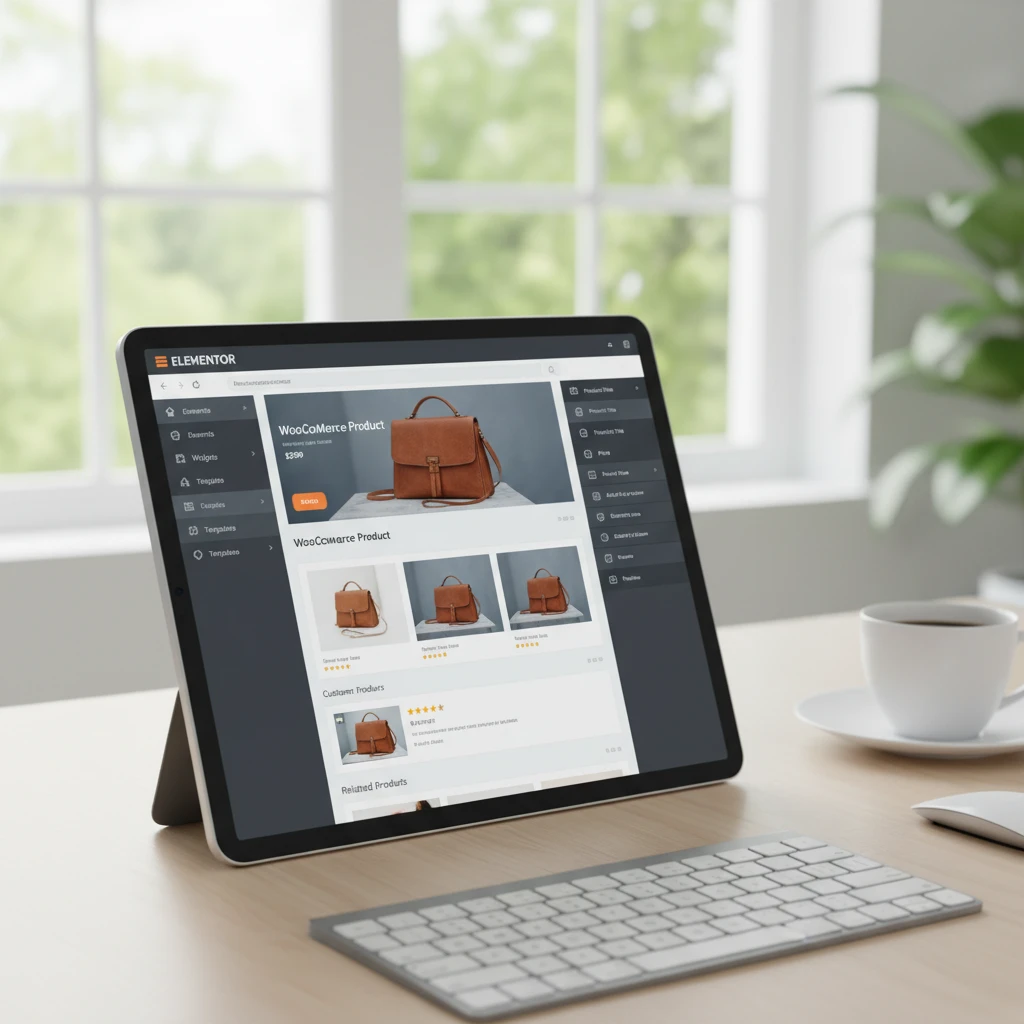
WooCommerce provides a fantastic platform for selling online, but its default product page can feel a bit generic. To truly stand out and create a shopping experience that reflects your brand, customizing your product pages is essential. Elementor, with its drag-and-drop interface, empowers you to design unique, conversion-focused product pages without writing a single line of code.
This guide will walk you through the process of building a custom WooCommerce product page using Elementor Theme Builder, highlighting the benefits and providing practical tips along the way. By the end of this article, you’ll be equipped to create product pages that not only look great but also drive sales.
Beyond Basic Templates: Unleash the Power of Custom WooCommerce Product Pages with Elementor (in 2026)
In the ever-evolving landscape of e-commerce, standing out from the competition is crucial. As we move further into 2026, generic, cookie-cutter product pages simply won’t cut it. Customers demand visually appealing and informative experiences that guide them through the purchase process. Elementor’s Theme Builder provides the tools to create highly tailored WooCommerce product pages that convert browsers into buyers. This means crafting a layout that highlights your product’s key features, embedding high-quality images and videos, displaying customer reviews prominently, and optimizing the call to action. This goes beyond simply choosing from a pre-designed template; it’s about building a product page that reflects your brand’s unique identity and caters specifically to your target audience.
Why Customize Your WooCommerce Product Page with Elementor?

Customizing your WooCommerce product page with Elementor offers several key advantages over relying on default templates or limited theme options.
Improved User Experience & Conversion Rates
A well-designed product page guides users through the information they need to make a purchase decision. By strategically placing key elements like product descriptions, images, pricing, and “Add to Cart” buttons, you can significantly improve the user experience. For example, consider a scenario where a customer is looking for a specific feature in a product. With Elementor, you can create a dedicated section highlighting that feature with compelling visuals and clear explanations. This targeted approach reduces friction and increases the likelihood of a conversion. Furthermore, A/B testing different layouts and content variations within Elementor allows you to optimize your product pages based on real user behavior, leading to higher conversion rates. Optimizing images with Elementor’s features, as discussed here, also directly impacts user experience by decreasing load times.
Enhanced Branding & Design Consistency
Your product pages are an extension of your brand. Customizing them with Elementor allows you to maintain a consistent design language across your entire website. You can incorporate your brand colors, fonts, and imagery to create a cohesive and professional look. For example, if your brand is known for its minimalist aesthetic, you can create a clean and uncluttered product page design with ample white space and subtle typography. Conversely, if your brand is more playful and vibrant, you can use bold colors, dynamic elements, and engaging visuals. The goal is to create a product page experience that reinforces your brand identity and resonates with your target audience.
Greater Control over Layout and Functionality
Elementor provides unparalleled control over the layout and functionality of your product pages. You’re not limited by the constraints of your theme or pre-defined templates. You can add custom fields, integrate with third-party plugins, and create unique elements that enhance the shopping experience. For instance, you could add a size chart for clothing items, a shipping calculator, or a live chat widget to provide immediate customer support. The possibilities are virtually endless, and Elementor’s flexible design options ensure that your product pages are tailored to your specific needs. This level of control is particularly important for businesses with complex product offerings or unique sales processes.
Prerequisites: Ensure Your Setup is Ready
Before you start building your custom product page, ensure you have the following prerequisites in place:
Active WordPress Installation & WooCommerce Plugin
You’ll need a working WordPress website with the WooCommerce plugin installed and activated. WooCommerce is the foundation for your online store, providing the core e-commerce functionality you need to sell products online. Make sure you have at least one product created in WooCommerce before proceeding.
Elementor (Free or Pro) Installed & Activated
Elementor is the page builder that will enable you to design your custom product page. While the free version of Elementor offers basic design capabilities, the Pro version provides access to the Theme Builder, which is essential for creating custom templates for WooCommerce product pages. Consider upgrading to Elementor Pro for full control over your product page design.
A Compatible WooCommerce Theme (or Elementor Theme Builder)
While Elementor can override many theme styles, it’s still important to have a compatible theme installed. Many WordPress themes are designed to work seamlessly with WooCommerce and Elementor. Alternatively, you can use Elementor’s Theme Builder to create a completely custom theme from scratch, giving you even greater control over the overall look and feel of your website. Choose a theme that provides a solid foundation and doesn’t conflict with Elementor’s functionality. It’s worth noting you can also build custom headers and footers using Elementor, as shown here, to further customize the overall look.
Step-by-Step: Creating a Custom Product Page Template with Elementor Theme Builder
Now that you have the necessary prerequisites in place, let’s walk through the process of creating a custom product page template using Elementor Theme Builder.
Accessing the Elementor Theme Builder Interface
First, navigate to your WordPress dashboard. Hover over “Templates” in the left-hand menu and click on “Theme Builder.” This will take you to the Elementor Theme Builder interface, where you can manage all your custom templates for different parts of your website. From here, you can create templates for headers, footers, single posts, archive pages, and, most importantly, single product pages.
Selecting the ‘Single Product’ Template Type
In the Theme Builder interface, click on the “Add New” button (usually located in the top right corner). A modal window will appear asking you to choose the type of template you want to create. Select “Single Product” from the dropdown menu. This tells Elementor that you’re creating a template specifically for WooCommerce product pages. Selecting the correct template type is crucial, as it determines which dynamic content options are available to you within the Elementor editor. You could also use AI to generate a basic website mockup using Elementor’s AI integration as a starting point, discussed here.
Naming and Creating Your New Template
After selecting “Single Product,” you’ll be prompted to give your template a name. Choose a descriptive name that will help you easily identify it later, such as “Custom WooCommerce Product Page” or “Product Page – Minimalist Design.” Once you’ve entered a name, click the “Create Template” button. This will launch the Elementor editor, where you can begin designing your custom product page layout from scratch or choose from a pre-designed template from the Elementor library.
Beyond Basic Templates: Unleash the Power of Custom WooCommerce Product Pages with Elementor (in 2026)
In the rapidly evolving landscape of e-commerce, standing out from the competition is paramount. By 2026, generic, out-of-the-box WooCommerce product pages will no longer suffice. Customers will expect a personalized, engaging, and highly functional shopping experience. Elementor empowers you to transcend the limitations of standard templates and craft unique product pages that captivate your audience, boost conversions, and solidify your brand identity.
Why Customize Your WooCommerce Product Page with Elementor?
Customizing your WooCommerce product page with Elementor offers numerous advantages over using the default WooCommerce template or relying solely on your theme’s styling.
Improved User Experience & Conversion Rates
A well-designed product page guides customers through the purchasing process seamlessly. With Elementor, you can strategically place key elements like product images, descriptions, pricing, and “Add to Cart” buttons to optimize the user flow and encourage conversions. By tailoring the layout and presentation to your specific products and target audience, you can significantly improve the overall shopping experience and increase sales. Clear calls to action and easily accessible information will lead to happier customers and higher conversion rates.
Enhanced Branding & Design Consistency
Your product page is an extension of your brand. Customizing it with Elementor allows you to maintain a consistent design aesthetic across your entire website, reinforcing your brand identity and creating a cohesive user experience. Use your brand colors, fonts, and imagery to create a visually appealing product page that reflects your unique brand personality and resonates with your target audience. This consistent branding fosters trust and recognition, making your brand more memorable to potential customers.
Greater Control over Layout and Functionality
Elementor gives you unparalleled control over the layout and functionality of your product pages. You can easily rearrange elements, add custom sections, and incorporate advanced features like product videos, customer reviews, and related product recommendations. This level of control allows you to create a product page that perfectly showcases your products and provides customers with all the information they need to make informed purchasing decisions. You can also integrate with other plugins and services to further enhance the functionality of your product pages.
Prerequisites: Ensure Your Setup is Ready
Before diving into the customization process, make sure you have the following prerequisites in place:
Active WordPress Installation & WooCommerce Plugin
You’ll need a working WordPress website with the WooCommerce plugin installed and activated. WooCommerce is the foundation upon which your online store is built, providing the essential e-commerce functionality you need to sell products online. If you don’t already have WooCommerce installed, you can download it from the WordPress plugin repository and follow the installation instructions.
Elementor (Free or Pro) Installed & Activated
Elementor is the page builder we’ll be using to customize your product pages. You can use either the free version of Elementor or Elementor Pro, which offers additional features and templates. Download and install Elementor from the WordPress plugin repository. Be sure to activate the plugin after installation.
A Compatible WooCommerce Theme (or Elementor Theme Builder)
While Elementor can work with most WordPress themes, it’s best to use a theme that is specifically designed to be compatible with WooCommerce and Elementor. Some popular options include the Hello Elementor theme or the Astra theme. Alternatively, you can use the Elementor Theme Builder to create a completely custom theme from scratch, giving you even greater control over the overall look and feel of your website. Choose a theme that provides a solid foundation and doesn’t conflict with Elementor’s functionality. It’s worth noting you can also build custom headers and footers using Elementor, as shown here, to further customize the overall look.
Step-by-Step: Creating a Custom Product Page Template with Elementor Theme Builder
Now that you have the necessary prerequisites in place, let’s walk through the process of creating a custom product page template using Elementor Theme Builder.
Accessing the Elementor Theme Builder Interface
First, navigate to your WordPress dashboard. Hover over “Templates” in the left-hand menu and click on “Theme Builder.” This will take you to the Elementor Theme Builder interface, where you can manage all your custom templates for different parts of your website. From here, you can create templates for headers, footers, single posts, archive pages, and, most importantly, single product pages.
Selecting the ‘Single Product’ Template Type
In the Theme Builder interface, click on the “Add New” button (usually located in the top right corner). A modal window will appear asking you to choose the type of template you want to create. Select “Single Product” from the dropdown menu. This tells Elementor that you’re creating a template specifically for WooCommerce product pages. Selecting the correct template type is crucial, as it determines which dynamic content options are available to you within the Elementor editor. You could also use AI to generate a basic website mockup using Elementor’s AI integration as a starting point, discussed here.
Naming and Creating Your New Template
After selecting “Single Product,” you’ll be prompted to give your template a name. Choose a descriptive name that will help you easily identify it later, such as “Custom WooCommerce Product Page” or “Product Page – Minimalist Design.” Once you’ve entered a name, click the “Create Template” button. This will launch the Elementor editor, where you can begin designing your custom product page layout from scratch or choose from a pre-designed template from the Elementor library.
Beyond Basic Templates: Unleash the Power of Custom WooCommerce Product Pages with Elementor (in 2026)
By 2026, customizing WooCommerce product pages with Elementor will be more important than ever for standing out in a competitive online marketplace. Shoppers will expect more than just basic product listings; they’ll crave engaging, personalized experiences that guide them toward a purchase. Customization will go beyond mere aesthetics, incorporating interactive elements, AI-powered recommendations, and seamless integrations with AR/VR technologies. Businesses that invest in creating unique and visually compelling product pages will be well-positioned to capture and retain customers in the evolving e-commerce landscape. By leveraging dynamic content and personalized user experiences, businesses can create product pages that not only showcase their products effectively but also build stronger connections with their target audience.
Why Customize Your WooCommerce Product Page with Elementor?
Customizing your WooCommerce product page with Elementor offers a multitude of benefits, allowing you to create a unique and engaging shopping experience that drives sales. Here are some key advantages:
Improved User Experience & Conversion Rates
A well-designed product page can significantly improve user experience. By strategically placing key information, incorporating high-quality images and videos, and optimizing the layout for readability, you can guide visitors through the purchase process and increase conversion rates. Elementor’s drag-and-drop interface makes it easy to experiment with different layouts and elements to find what works best for your target audience. Clear calls to action and streamlined navigation further enhance the user experience, making it more likely that visitors will complete a purchase. Custom product pages can improve user experience.
Enhanced Branding & Design Consistency
With Elementor, you can ensure that your product pages align perfectly with your brand identity. Customize colors, fonts, and imagery to create a cohesive and recognizable look and feel across your entire website. Maintaining design consistency builds trust and reinforces your brand message, making a lasting impression on potential customers. A consistent design language also enhances the overall professionalism of your online store, signaling quality and reliability to your customers. This visual consistency across product pages reinforces your brand message.
Greater Control over Layout and Functionality
Elementor provides unparalleled control over the layout and functionality of your product pages. Unlike standard WooCommerce templates, which can be restrictive, Elementor allows you to create completely custom designs that meet your specific needs. Add custom fields, integrate with third-party plugins, and implement unique interactive elements to create a product page that truly stands out. This level of customization enables you to tailor the product presentation to the specific characteristics of each product, highlighting its unique features and benefits effectively.
Prerequisites: Ensure Your Setup is Ready
Before you begin creating custom WooCommerce product pages with Elementor, you need to ensure that you have the following prerequisites in place:
Active WordPress Installation & WooCommerce Plugin
You’ll need a working WordPress installation and the WooCommerce plugin installed and activated. WooCommerce is the leading e-commerce platform for WordPress, providing the core functionality for managing products, orders, and payments. Ensure you have the latest version of both WordPress and WooCommerce for optimal performance and security. If you don’t already have WordPress installed, you can find instructions on the WordPress website. Similarly, you can download the WooCommerce plugin from the WordPress plugin repository.
Elementor (Free or Pro) Installed & Activated
Elementor, in either its free or Pro version, must be installed and activated on your WordPress site. While the free version offers a wide range of features, Elementor Pro provides advanced capabilities and dedicated WooCommerce widgets for more comprehensive product page customization. If you plan on using advanced features such as dynamic content or custom fields, Elementor Pro is highly recommended. You can download the free version of Elementor from the WordPress plugin repository or purchase Elementor Pro from the Elementor website.
A Compatible WooCommerce Theme (or Elementor Theme Builder)
You’ll need a WooCommerce-compatible theme or the Elementor Theme Builder. A compatible theme ensures that your website’s design integrates seamlessly with WooCommerce’s core functionality, preventing conflicts and ensuring a smooth shopping experience. Alternatively, you can use Elementor’s Theme Builder to create a completely custom theme from scratch, giving you even greater control over the overall look and feel of your website. Choose a theme that provides a solid foundation and doesn’t conflict with Elementor’s functionality. It’s worth noting you can also build custom headers and footers using Elementor, as shown here, to further customize the overall look.
Step-by-Step: Creating a Custom Product Page Template with Elementor Theme Builder
Now that you have the necessary prerequisites in place, let’s walk through the process of creating a custom product page template using Elementor Theme Builder.
Accessing the Elementor Theme Builder Interface
First, navigate to your WordPress dashboard. Hover over “Templates” in the left-hand menu and click on “Theme Builder.” This will take you to the Elementor Theme Builder interface, where you can manage all your custom templates for different parts of your website. From here, you can create templates for headers, footers, single posts, archive pages, and, most importantly, single product pages.
Selecting the ‘Single Product’ Template Type
In the Theme Builder interface, click on the “Add New” button (usually located in the top right corner). A modal window will appear asking you to choose the type of template you want to create. Select “Single Product” from the dropdown menu. This tells Elementor that you’re creating a template specifically for WooCommerce product pages. Selecting the correct template type is crucial, as it determines which dynamic content options are available to you within the Elementor editor. You could also use AI to generate a basic website mockup using Elementor’s AI integration as a starting point, discussed here.
Naming and Creating Your New Template
After selecting “Single Product,” you’ll be prompted to give your template a name. Choose a descriptive name that will help you easily identify it later, such as “Custom WooCommerce Product Page” or “Product Page – Minimalist Design.” Once you’ve entered a name, click the “Create Template” button. This will launch the Elementor editor, where you can begin designing your custom product page layout from scratch or choose from a pre-designed template from the Elementor library.
Designing Your Custom Product Page Layout
Now you’re in the Elementor editor, ready to design your product page. You have two main options: start with a blank canvas or use a pre-designed template. If you choose to start from scratch, you can drag and drop various Elementor widgets onto the page to create your desired layout. If you opt for a pre-designed template, you can browse the Elementor library for a suitable starting point and then customize it to fit your brand and specific product needs. Consider exploring various Elementor addons, highlighted in this list of Elementor addons and plugins.
Adding Dynamic WooCommerce Product Widgets
The real power of Elementor Theme Builder lies in its ability to dynamically pull product information from WooCommerce. Elementor provides a range of WooCommerce-specific widgets, such as “Product Title,” “Product Price,” “Product Image,” “Product Description,” “Add to Cart Button,” “Product Meta,” and “Product Tabs.” Simply drag these widgets onto your page and they will automatically display the corresponding information for each product. You can then customize the appearance of these widgets to match your design aesthetic. For example, you can change the font, color, and size of the product title, or adjust the button styles for the “Add to Cart” button. Ensure you are optimizing your site for speed while designing by following some of the advice here.
Configuring Product Details and Attributes
In addition to the basic product information, you can also display product attributes, such as size, color, and material. Elementor allows you to customize how these attributes are displayed, giving you control over the user experience. You can use the “Product Meta” widget to show the default attributes or use more advanced widgets to create custom attribute displays. Consider the order and placement of product details to create a clear and compelling presentation. Pay special attention to displaying your product gallery and product descriptions in an easy-to-understand manner.
Styling and Customizing Your Product Page Design
Elementor offers a wide range of styling options to customize the look and feel of your product page. You can control the colors, fonts, backgrounds, and spacing of each element to create a visually appealing and consistent design. Use Elementor’s advanced features, such as custom CSS and animations, to add unique touches to your product page. Remember to maintain a consistent design language throughout your website to reinforce your brand identity. Test your design on different devices to ensure it looks great on desktops, tablets, and mobile phones. Always ensure your call-to-action buttons are prominent and encourage conversions.
Saving and Publishing Your Template
Once you’re satisfied with your product page design, click the “Publish” button in the Elementor editor. A popup window will appear asking you to set the display conditions for your template. Choose “All Products” to apply the template to all your WooCommerce products. Alternatively, you can create more specific conditions based on product categories, tags, or individual products. This allows you to create different product page templates for different types of products. After setting the display conditions, click “Save & Close” to publish your template. Your custom product page template is now live and will be applied to the specified products on your website.
Beyond Basic Templates: Unleash the Power of Custom WooCommerce Product Pages with Elementor (in 2026)
While WooCommerce provides basic product page templates, they often lack the customization options needed to truly reflect your brand and optimize the shopping experience. By using Elementor to create custom product pages, you can unlock a new level of control and creativity, leading to increased engagement and conversions. In 2026, offering a seamless and intuitive online shopping experience is no longer a luxury, it’s a necessity. Don’t settle for generic templates when you can build a unique and high-converting product page tailored to your specific needs.
Why Customize Your WooCommerce Product Page with Elementor?
Customizing your WooCommerce product page with Elementor offers numerous advantages over using the default templates. Here are some key benefits:
Improved User Experience & Conversion Rates
A well-designed product page can significantly enhance the user experience, making it easier for customers to find the information they need and make a purchase. Elementor allows you to create a clear and intuitive layout, highlight key product features, and incorporate compelling visuals, leading to increased conversion rates. Optimizing the product page experience also allows for better A/B testing and iterative improvements.
Enhanced Branding & Design Consistency
With Elementor, you can ensure that your product pages align perfectly with your brand identity. You can customize every aspect of the design, from colors and fonts to layouts and animations, to create a cohesive and memorable brand experience. Consistency across your website builds trust and reinforces your brand’s message.
Greater Control over Layout and Functionality
Elementor provides unparalleled control over the layout and functionality of your product pages. You can easily arrange elements, add custom widgets, and integrate third-party plugins to create a unique and engaging shopping experience. This level of control allows you to tailor your product pages to the specific needs of your products and target audience.
Prerequisites: Ensure Your Setup is Ready
Before you begin creating custom WooCommerce product pages with Elementor, ensure that you have the following prerequisites in place:
Active WordPress Installation & WooCommerce Plugin
You need a functioning WordPress website with the WooCommerce plugin installed and activated. Make sure you have configured the basic settings of WooCommerce, such as payment gateways and shipping options, before proceeding.
Elementor (Free or Pro) Installed & Activated
Install and activate the Elementor plugin (either the free or Pro version) on your WordPress website. The Pro version offers advanced features and widgets that can further enhance your product page design capabilities. Consider upgrading if you require features like custom fields integration or advanced dynamic content options.
A Compatible WooCommerce Theme (or Elementor Theme Builder)
Choose a WooCommerce-compatible theme that works well with Elementor. Many themes are specifically designed to integrate seamlessly with Elementor and offer additional customization options. Alternatively, you can use the Elementor Theme Builder to create a completely custom theme from scratch. Ensure your theme provides a solid foundation for building your custom product pages.
Step-by-Step: Creating a Custom Product Page Template with Elementor Theme Builder
Here’s a step-by-step guide on how to create a custom product page template using the Elementor Theme Builder:
Accessing the Elementor Theme Builder Interface
From your WordPress dashboard, navigate to “Templates” > “Theme Builder.” This will open the Elementor Theme Builder interface, where you can create and manage your website templates.
Selecting the ‘Single Product’ Template Type
In the Theme Builder, click the “Add New” button (or the “+” icon). A popup window will appear asking you to choose the template type. Select “Single Product” from the dropdown menu. This will create a template specifically designed for WooCommerce product pages.
Naming and Creating Your New Template
Enter a name for your template (e.g., “Custom Product Page Template”). This will help you easily identify the template in the Theme Builder. Click the “Create Template” button to proceed to the Elementor editor, where you can begin designing your custom product page.
Designing Your Product Page: Essential Elements & Layout Strategies
Crafting a compelling WooCommerce product page with Elementor involves carefully selecting and arranging key elements to guide customers toward a purchase. A well-designed layout should prioritize visual appeal, clear information, and a seamless user experience. Consider the hierarchy of information: what’s most important for the customer to see first? This often includes the product image, title, and price. Think about incorporating whitespace to avoid a cluttered look and improve readability. Ensure that the call to action, typically the “Add to Cart” button, is prominent and easily accessible, even on smaller screens. Decide on the type of product page layout that best suits your product catalog; a minimalist design might be preferable for a boutique brand, while a detailed, feature-rich layout may be more suitable for technical products. Before diving into the design, sketch out a wireframe or use a mockup to visualize the layout and information flow.
Product Image Gallery: Showcasing Your Products
High-quality product images are crucial for conversions. Elementor offers various ways to display these images, including a standard gallery, a carousel, or even a zoom feature. Aim for multiple angles and close-ups to give customers a comprehensive view of the product. Consider using a consistent aspect ratio for all images to maintain a clean and professional look. Test different gallery layouts to see which one best highlights your products. For example, a carousel is excellent for showcasing many images without overwhelming the user, while a zoom feature allows customers to inspect details closely. Optimize your images for web use to reduce loading times; large, unoptimized images can significantly impact page speed. See this resource for image optimization best practices. Experiment with different image sizes and compression levels to find the optimal balance between quality and performance. Also, consider adding alt text to each image for SEO purposes and accessibility.
Product Title & Price: Clearly Displaying Key Information
The product title should be clear, concise, and accurately describe the product. Use a font size and color that make it easily readable and visually prominent. The price should also be displayed clearly, preferably near the title. Consider using a contrasting color to make the price stand out, especially if it’s a sale price. If you’re offering a discount, display both the original price and the sale price to emphasize the savings. Ensure that the currency symbol is displayed correctly and consistently throughout your website. Think about adding microdata markup to the title and price for SEO purposes. This helps search engines understand the content of your page and can improve your search rankings. For variable products, ensure that the price updates dynamically when the customer selects different options.
Add to Cart Button & Product Meta: Enabling Purchases
The “Add to Cart” button is the primary call to action on your product page, so it should be highly visible and easy to click. Use a contrasting color and a clear, concise label. Consider adding a hover effect to provide visual feedback when the user interacts with the button. Place the button strategically, typically near the product image and price. Product meta information, such as categories, tags, and SKU, can be displayed below the product description. This information can help customers find related products and understand the product’s characteristics. While not as critical as the “Add to Cart” button, product meta can improve the overall user experience and SEO. Ensure that the product meta is displayed in a clear and organized manner.
Product Description & Tabs: Providing Detailed Information
The product description is your opportunity to persuade customers to make a purchase. Write a compelling description that highlights the key features and benefits of the product. Use clear and concise language, and avoid technical jargon. Consider breaking up the description into shorter paragraphs or bullet points to improve readability. For longer descriptions, use tabs to organize the information into different sections, such as “Features,” “Specifications,” and “Shipping Information.” This prevents the page from becoming too long and overwhelming. Think about incorporating customer reviews and testimonials into the product description or a separate tab to build trust and credibility. Consider using AI tools to generate product descriptions; however, remember to review and edit the AI-generated content to ensure accuracy and consistency with your brand voice. A/B test different descriptions to see which one performs best.
Advanced Customization: Going Beyond the Basics
Once you have the essential elements in place, you can take your product page to the next level with advanced customization. Elementor’s flexibility allows you to add unique features and functionalities that enhance the user experience and drive conversions. This can involve customizing existing elements or adding new ones using custom code or third-party plugins. Consider integrating dynamic content, such as customer reviews or related products, to personalize the experience. Experiment with different layouts and design elements to create a unique and memorable product page that reflects your brand identity. For example, you might want to add a custom progress bar to show customers how close they are to qualifying for free shipping, or you could integrate a live chat feature to provide instant support.
Customizing Product Badges (e.g., ‘Sale’, ‘New’)
Product badges can be a powerful way to draw attention to specific products and highlight special offers. Elementor allows you to create custom badges with different colors, shapes, and text. Use badges sparingly to avoid overwhelming the user. Common badges include “Sale,” “New,” “Best Seller,” and “Limited Edition.” Ensure that the badges are visually appealing and consistent with your brand identity. Consider using dynamic badges that update automatically based on product attributes, such as sale price or stock level. For example, you could create a badge that displays the percentage discount on a sale item or a badge that indicates when a product is low in stock. Remember that overly aggressive use of badges can come across as spammy and damage your brand reputation. A well-placed “New” badge can increase click-through rates by 20%, according to a case study conducted by an e-commerce retailer in 2025.
Adding Related Products & Upsells
Related products and upsells can significantly increase your average order value. Elementor allows you to display related products and upsells on your product page using WooCommerce widgets or custom-built sections. Choose related products that are relevant to the product being viewed, such as complementary items or alternatives. Upsells should be higher-priced items that offer additional features or benefits. Consider using cross-sells to promote products that are often purchased together. For example, if a customer is viewing a laptop, you could suggest a laptop bag or a wireless mouse. Experiment with different layouts and designs to see which ones perform best. A/B test different product recommendations to optimize your upsell and cross-sell strategies. A well-implemented related products section can increase conversions by up to 10%, according to data from an online store specializing in electronics.
Integrating Dynamic Content with Custom Fields (ACF or Meta Box)
To truly customize your product page, consider integrating dynamic content using custom fields. Plugins like Advanced Custom Fields (ACF) or Meta Box allow you to add custom fields to your products and display them dynamically on your product page using Elementor. This is particularly useful for displaying unique product attributes or information that is not available in the standard WooCommerce product fields. For example, you could add a custom field for “Material” or “Dimensions” and display this information prominently on the product page. Dynamic content allows you to personalize the user experience and provide more detailed information about your products. This can improve customer satisfaction and drive conversions. Ensure that the custom fields are well-organized and easy to manage in the WordPress admin panel. You can also customize other parts of your site; for example, Elementor enables you to build custom headers and footers.
Optimizing Your Custom Product Page for Mobile
With the majority of online shoppers using mobile devices, it’s essential to optimize your custom product page for mobile. A responsive design ensures that your product page looks and functions perfectly on all devices, regardless of screen size. Elementor makes it easy to create responsive designs with its built-in breakpoint controls. Before launching your product page, thoroughly test it on different mobile devices to ensure that everything works as expected. Pay close attention to loading times, as mobile users are more likely to abandon a page that takes too long to load. Consider using a mobile-first approach, designing the mobile version of your product page first and then adapting it for larger screens. This ensures that the mobile experience is prioritized. Neglecting mobile optimization can result in a significant loss of potential customers.
Ensuring Responsiveness with Elementor’s Breakpoints
Elementor’s breakpoint controls allow you to customize the layout and styling of your product page for different screen sizes. By default, Elementor provides breakpoints for desktop, tablet, and mobile. You can adjust these breakpoints to suit your specific needs. Use the breakpoint controls to adjust the font sizes, spacing, and layout of your elements to ensure that they look good on all devices. For example, you might want to reduce the font size of the product title on mobile devices or stack the product images vertically instead of displaying them side-by-side. Test your product page on different screen sizes to ensure that the responsiveness is working correctly. Use Elementor’s preview mode to see how your product page will look on different devices.
Adjusting Element Spacing and Sizing for Mobile Devices
Proper spacing and sizing are crucial for creating a visually appealing and user-friendly mobile experience. Use Elementor’s padding and margin controls to adjust the spacing between elements on mobile devices. Ensure that there is enough whitespace around your elements to avoid a cluttered look. Adjust the font sizes of your text to make it easily readable on smaller screens. Consider using relative units, such as percentages or viewport units, to ensure that your elements scale properly on different devices. Avoid using fixed pixel values for font sizes and spacing, as this can result in elements that are too small or too large on certain devices. Pay attention to the size of your buttons and form fields to ensure that they are easy to tap on mobile devices.
Testing Your Product Page on Different Mobile Devices
The final step in optimizing your product page for mobile is to test it on different mobile devices. Use a tool like BrowserStack or LambdaTest to test your product page on a variety of real devices and browsers. This will help you identify any responsiveness issues or compatibility problems. Pay close attention to loading times, as mobile users are more likely to abandon a page that takes too long to load. Test your product page on different network speeds to see how it performs in different conditions. Use Google’s PageSpeed Insights to identify areas for improvement. Consider using a caching plugin to improve loading times. Make sure that your product page is easy to navigate and that all of the buttons and links are working correctly. If your target audience uses older devices, it is crucial to test the product page there.
Boosting Conversions: Design Tips for Effective Product Pages
The ultimate goal of your product page is to drive conversions. By following these design tips, you can create a product page that is visually appealing, informative, and persuasive. Focus on creating a seamless user experience that guides customers towards a purchase. Use high-quality product images and videos to showcase your products in the best possible light. Write compelling product descriptions that highlight the key features and benefits. Make it easy for customers to add products to their cart and complete the checkout process. Incorporate social proof, such as customer reviews and testimonials, to build trust and credibility. Continuously test and optimize your product page to improve its performance. Consider A/B testing different layouts, headlines, and calls to action to see which ones perform best. Regularly analyze your product page analytics to identify areas for improvement.
Utilizing High-Quality Product Images & Videos
High-quality product images and videos are essential for creating a positive first impression and showcasing your products effectively. Use professional-grade photos that are well-lit and in focus. Capture your products from multiple angles and show them in use. Consider using a white background for your product images to create a clean and consistent look. If possible, create product videos that demonstrate the features and benefits of your products. Videos can be particularly effective for showcasing complex products or products that require assembly. Optimize your images and videos for web use to reduce loading times. Use compression techniques to reduce the file size without sacrificing quality. Consider using a content delivery network (CDN) to serve your images and videos from servers that are located closer to your customers.
Writing Compelling Product Descriptions
Your product description is your opportunity to persuade customers to make a purchase. Write a compelling description that highlights the key features and benefits of the product. Use clear and concise language, and avoid technical jargon. Consider breaking up the description into shorter paragraphs or bullet points to improve readability. Tell a story about your product and how it can solve your customer’s problems. Use persuasive language and emotional appeals to connect with your customers on a deeper level. Incorporate keywords into your product description to improve its search engine optimization (SEO). However, avoid keyword stuffing, as this can have a negative impact on your search rankings. Readability is key, so use short sentences and paragraphs to improve the customer experience.
Highlighting Key Features & Benefits
Focus on highlighting the key features and benefits of your products. Don’t just list the features; explain how they will benefit your customers. For example, instead of saying “This laptop has a 16GB of RAM,” say “This laptop has 16GB of RAM, which allows you to run multiple applications simultaneously without experiencing any lag.” Use bullet points or numbered lists to highlight the most important features and benefits. Make it easy for customers to quickly scan the product description and identify the key selling points. Consider using icons or images to visually represent the key features and benefits. Use a consistent visual style throughout your product page to create a cohesive and professional look.
Adding Customer Reviews & Testimonials
Customer reviews and testimonials are a powerful form of social proof that can significantly increase conversions. Encourage your customers to leave reviews on your product page. Make it easy for customers to submit reviews by providing a simple and intuitive review form. Display your customer reviews prominently on your product page. Consider using a star rating system to provide a quick and easy way for customers to assess the quality of your products. Moderate your customer reviews to ensure that they are genuine and relevant. Respond to negative reviews in a professional and constructive manner. Use testimonials to highlight the positive experiences that other customers have had with your products. Consider using video testimonials for an even greater impact. For example, imagine a hypothetical testimonial: “I was hesitant to buy online, but this product exceeded my expectations! The customer service was amazing.” – John S. from New York, 2026
Designing Your Product Page: Essential Elements & Layout Strategies
Product Image Gallery: Showcasing Your Products
The product image gallery is a crucial element of your product page. Use high-quality images that showcase your product from multiple angles. Consider using a variety of image types, such as product shots, lifestyle shots, and close-ups. Implement a zoom feature that allows customers to see the product in greater detail. Optimize your images for web to ensure they load quickly without sacrificing quality. Consider using a carousel or slider to display multiple images without taking up too much space. Ensure your images are consistent in size and style to create a visually appealing and professional look. For example, if you are selling clothing, show models wearing the clothes in different settings. A consistent style between product images is important.
Product Title & Price: Clearly Displaying Key Information
Make sure your product title is clear, concise, and accurately reflects the product being sold. Place the product title prominently at the top of the page. Use a font size and style that is easy to read and visually appealing. Clearly display the price of the product next to the title or below it. Use a font size and style that is distinct from the product title. If your product is on sale, clearly display the original price and the sale price. Consider using a different color or font style to highlight the sale price. Ensure that the currency symbol is clearly visible. Avoid using confusing or misleading pricing strategies.
Add to Cart Button & Product Meta: Enabling Purchases
The “Add to Cart” button should be prominent and easy to find. Use a color that contrasts with the background of your product page to make it stand out. Make sure the button is large enough to be easily clicked on both desktop and mobile devices. Clearly label the button “Add to Cart” or a similar phrase. Provide a clear indication that the product has been added to the cart. Consider using a visual cue, such as a pop-up message or a change in the button’s appearance. Include product meta information, such as SKU, category, and brand, on your product page. This information can be helpful for customers who are looking for specific products. Make sure the meta information is accurate and up-to-date.
Product Description & Tabs: Providing Detailed Information
Provide a comprehensive and informative product description. Use clear and concise language, and avoid technical jargon. Break up the description into shorter paragraphs or bullet points to improve readability. Consider using tabs to organize different types of information, such as product details, shipping information, and warranty information. Make sure the tabs are easy to navigate and clearly labeled. Include high-quality images and videos in your product description to further showcase your product. Use a consistent visual style throughout your product page to create a cohesive and professional look. Make sure that the product description is optimized for search engines.
Advanced Customization: Going Beyond the Basics
Customizing Product Badges (e.g., ‘Sale’, ‘New’)
Product badges can be a great way to draw attention to specific products, such as those on sale or newly added to your inventory. Customize the design of your product badges to match your brand’s aesthetic. Use different colors, fonts, and shapes to create visually appealing badges. Place your badges strategically on your product images to maximize their impact. Consider using dynamic badges that automatically update based on product data, such as sale prices or inventory levels. Use CSS to customize product badges and make them visually stand out from the rest of the product page. For example, a bright red “Sale” badge can immediately attract attention.
Adding Related Products & Upsells
Suggesting related products and upsells can increase your average order value and improve the customer experience. Display related products in a visually appealing way, such as a carousel or grid. Use clear and concise titles and descriptions for your related products. Offer upsells that are relevant to the product the customer is currently viewing. For example, if a customer is viewing a laptop, suggest a laptop bag or a wireless mouse. Make it easy for customers to add related products and upsells to their cart. Consider using a one-click add-to-cart feature. Analyze your sales data to identify the most popular related products and upsells.
Integrating Dynamic Content with Custom Fields (ACF or Meta Box)
Custom fields, such as those provided by plugins like Advanced Custom Fields (ACF) or Meta Box, allow you to add dynamic content to your product pages. Use custom fields to store and display product-specific information, such as dimensions, materials, or care instructions. Create templates that automatically populate with data from your custom fields. This can save you time and ensure consistency across your product pages. Consider using custom fields to create a more personalized customer experience. For example, you could use custom fields to display a personalized greeting or a special offer. Utilize conditional logic within your custom fields to dynamically display content based on certain criteria. For example, display one message if a product is in stock and another if it is out of stock.
Optimizing Your Custom Product Page for Mobile
Ensuring Responsiveness with Elementor’s Breakpoints
Responsiveness is crucial for ensuring that your product page looks and functions well on all devices. Elementor’s breakpoints allow you to customize the layout and styling of your product page for different screen sizes. Use Elementor’s responsive settings to adjust the size and position of elements on mobile devices. Hide elements that are not essential for mobile users to improve the user experience. Optimize your images for mobile to ensure they load quickly. Consider using different images for desktop and mobile devices if necessary. Regularly test your product page on different mobile devices to ensure that it is fully responsive.
Adjusting Element Spacing and Sizing for Mobile Devices
Pay close attention to element spacing and sizing on mobile devices. Ensure that elements are not too close together, as this can make it difficult for users to tap them. Use padding and margins to create sufficient spacing between elements. Adjust the font size of text to ensure it is readable on smaller screens. Make sure that buttons and form fields are large enough to be easily tapped. Use Elementor’s responsive settings to customize the spacing and sizing of elements for different screen sizes. For example, reduce the padding around images on mobile devices to save space.
Testing Your Product Page on Different Mobile Devices
Testing your product page on different mobile devices is essential for ensuring that it is fully responsive and user-friendly. Use a variety of mobile devices to test your product page, including different screen sizes and operating systems. Use online testing tools to simulate different mobile devices if you don’t have access to a physical device. Pay close attention to the layout, styling, and functionality of your product page on mobile devices. Identify and fix any issues that you find. Regularly test your product page on mobile devices to ensure that it remains responsive and user-friendly.
Boosting Conversions: Design Tips for Effective Product Pages
Utilizing High-Quality Product Images & Videos
High-quality product images and videos are essential for showcasing your products and boosting conversions. Use professional-quality images that accurately represent your products. Show your products from multiple angles and in different settings. Consider using lifestyle images to show your products in use. Create product videos that demonstrate the features and benefits of your products. Optimize your images and videos for web to ensure they load quickly without sacrificing quality. Embed videos from platforms like YouTube or Vimeo to enhance the product page.
Writing Compelling Product Descriptions
Write compelling product descriptions that highlight the key features and benefits of your product. Use clear and concise language, and avoid technical jargon. Consider breaking up the description into shorter paragraphs or bullet points to improve readability. Tell a story about your product and how it can solve your customer’s problems. Use persuasive language and emotional appeals to connect with your customers on a deeper level. Incorporate keywords into your product description to improve its search engine optimization (SEO). However, avoid keyword stuffing, as this can have a negative impact on your search rankings. Readability is key, so use short sentences and paragraphs to improve the customer experience.
Highlighting Key Features & Benefits
Focus on highlighting the key features and benefits of your products. Don’t just list the features; explain how they will benefit your customers. For example, instead of saying “This laptop has a 16GB of RAM,” say “This laptop has 16GB of RAM, which allows you to run multiple applications simultaneously without experiencing any lag.” Use bullet points or numbered lists to highlight the most important features and benefits. Make it easy for customers to quickly scan the product description and identify the key selling points. Consider using icons or images to visually represent the key features and benefits. Use a consistent visual style throughout your product page to create a cohesive and professional look.
Adding Customer Reviews & Testimonials
Customer reviews and testimonials are a powerful form of social proof that can significantly increase conversions. Encourage your customers to leave reviews on your product page. Make it easy for customers to submit reviews by providing a simple and intuitive review form. Display your customer reviews prominently on your product page. Consider using a star rating system to provide a quick and easy way for customers to assess the quality of your products. Moderate your customer reviews to ensure that they are genuine and relevant. Respond to negative reviews in a professional and constructive manner. Use testimonials to highlight the positive experiences that other customers have had with your products. Consider using video testimonials for an even greater impact. For example, imagine a hypothetical testimonial: “I was hesitant to buy online, but this product exceeded my expectations! The customer service was amazing.” – John S. from New York, 2026
Designing Your Product Page: Essential Elements & Layout Strategies
Product Image Gallery: Showcasing Your Products
A well-designed product image gallery is essential for showcasing your products effectively. Use high-quality images that accurately represent your products. Provide multiple images from different angles to give customers a comprehensive view. Consider using a zoom feature to allow customers to examine the details of your products. Use consistent lighting and backgrounds for all your product images. Optimize your images for web use to ensure fast loading times. Consider using a video to showcase your product in action. A short, engaging product video can be more effective than multiple still images. Arrange your product images in a logical order to guide customers through the key features and benefits. Ensure that your product images are responsive and display correctly on all devices. Consider adding alt text to your images for SEO purposes and accessibility. For example, use descriptive alt text like: “Front view of a red leather wallet” or “Close-up of a stainless steel watch.”
Product Title & Price: Clearly Displaying Key Information
The product title and price should be clearly and prominently displayed on your product page. Use a concise and descriptive title that accurately reflects the product. Avoid using overly technical or jargon-filled language. Use a font size and style that is easy to read and draws attention to the title. Display the price prominently and clearly. Use a currency symbol that is appropriate for your target market. Consider using a different font color or style to highlight the price. If you are offering a discount, display the original price alongside the discounted price. Make it clear how much the customer is saving. Consider using a “You Save” message to emphasize the discount. Ensure that the product title and price are consistent with the information displayed elsewhere on your website.
Add to Cart Button & Product Meta: Enabling Purchases
The “Add to Cart” button should be easily visible and accessible on your product page. Use a contrasting color to make the button stand out. Use clear and concise text on the button, such as “Add to Cart” or “Buy Now.” Ensure that the button is large enough to be easily clicked or tapped on mobile devices. Position the button strategically near the product image and description. Consider using a sticky “Add to Cart” button that remains visible as the customer scrolls down the page. Include relevant product metadata, such as SKU, availability, and shipping information. Display the product availability clearly, such as “In Stock” or “Out of Stock.” Provide an estimated delivery date to set customer expectations. Make it easy for customers to view and manage their cart.
Product Description & Tabs: Providing Detailed Information
Organize your product description using tabs to provide a more structured and user-friendly experience. Use tabs to separate different types of information, such as features, specifications, reviews, and shipping information. Consider using a tabbed interface to conserve space and improve readability. Ensure that the tabs are clearly labeled and easy to navigate. Use headings and subheadings within each tab to further organize the information. Keep the content within each tab concise and to the point. Use bullet points or numbered lists to highlight key features and benefits. Include high-quality images and videos within the tabs to enhance the visual appeal and engagement. Use a consistent design and layout for all the tabs. Consider using a “Product Details” tab to provide a comprehensive overview of the product. For example, use tabs to display: “Overview”, “Tech Specs”, “Size Chart”, “Shipping & Returns”.
Advanced Customization: Going Beyond the Basics
Customizing Product Badges (e.g., ‘Sale’, ‘New’)
Custom product badges, such as “Sale” or “New,” can effectively draw attention to specific products and highlight promotions. Use custom badges to indicate products that are on sale, newly added, or low in stock. Design badges that are visually appealing and consistent with your brand’s aesthetic. Use contrasting colors and fonts to make the badges stand out. Position the badges strategically on the product image or near the product title. Use text that is clear and concise, such as “Sale,” “New,” or “Limited Stock.” Consider using icons or symbols to further enhance the visual appeal of the badges. Implement a system for easily adding and removing badges from products. For example, if your sale is ending on Black Friday, you’d remove all “Sale” badges on November 29th. Use custom fields or plugins to manage your product badges efficiently. For instance, you could use a checkbox that triggers the display of a “Featured” badge.
Adding Related Products & Upsells
Cross-selling and upselling can significantly increase your average order value. Display related products on your product page to encourage customers to add more items to their cart. Use a “You Might Also Like” or “Customers Who Bought This Item Also Bought” section to showcase related products. Recommend products that complement the item the customer is currently viewing. Use product recommendations based on customer browsing history and purchase behavior. Offer upsells by suggesting higher-end or more feature-rich versions of the product. For example, if a customer is viewing a basic laptop, recommend a premium laptop with more RAM and a faster processor. Display upsells prominently on the product page, such as in a “Upgrade Your Purchase” section. Use persuasive language to highlight the benefits of the upsell. Clearly indicate the price difference between the original product and the upsell. Provide clear calls to action for adding related products and upsells to the cart. For example, a “Complete the Look” section can significantly improve sales.
Integrating Dynamic Content with Custom Fields (ACF or Meta Box)
Custom fields, such as those provided by plugins like Advanced Custom Fields (ACF) or Meta Box, allow you to add dynamic content to your product pages. Use custom fields to add unique attributes, specifications, or features to your products. Display custom fields prominently on your product page using Elementor’s dynamic content feature. Create custom fields for things like product dimensions, materials, or warranty information. Use custom fields to add unique selling points or benefits to your products. For example, you could add a custom field for “Sustainability Score” or “Ethical Sourcing.” Use custom fields to control the display of specific elements on your product page based on product attributes. For instance, show a specific video based on a custom field that determines the product’s “Usage Type.” Use conditional logic to display different content based on the value of a custom field. For example, you could show a different shipping message based on the product’s weight. Leverage ACF or Meta Box Pro for repeater fields to create dynamic tables or lists of features. Remember to sanitze all user input to prevent injection attacks.
Optimizing Your Custom Product Page for Mobile
Ensuring Responsiveness with Elementor’s Breakpoints
Ensuring your product pages are responsive is crucial for providing a seamless experience on all devices. Use Elementor’s breakpoints to adjust the layout and styling of your product page for different screen sizes. Test your product page on different devices to identify any responsiveness issues. Adjust the font sizes, spacing, and image sizes for smaller screens. Use a mobile-first approach to design your product page, starting with the smallest screen size and working your way up. Use Elementor’s column settings to adjust the width of columns on different devices. Consider using a different layout for mobile devices, such as a single-column layout. Use Elementor’s visibility settings to hide or show specific elements on different devices. For instance, you can hide complex elements on mobile. Ensure that all buttons and links are easily clickable on mobile devices. Leverage Elementor’s mobile-specific settings to fine-tune the appearance of your product page on smartphones and tablets.
Adjusting Element Spacing and Sizing for Mobile Devices
Element spacing and sizing play a critical role in the mobile user experience. Adjust the spacing between elements on your product page to prevent them from appearing too crowded on smaller screens. Use Elementor’s padding and margin settings to fine-tune the spacing. Increase the size of buttons and links to make them easier to tap on mobile devices. Adjust the font sizes to ensure that text is readable on smaller screens. Use Elementor’s typography settings to adjust the font sizes for different breakpoints. Optimize your images for mobile devices to reduce loading times. Use responsive images that automatically adjust their size based on the screen size. Avoid using large, high-resolution images that can slow down your page load time. Consider using a smaller image size for mobile devices. Test your product page on different mobile devices to ensure that the spacing and sizing are optimized.
Testing Your Product Page on Different Mobile Devices
Testing your product page on different mobile devices is essential for ensuring a consistent user experience. Use a mobile emulator or simulator to test your product page on different devices and screen sizes. Test your product page on both iOS and Android devices. Use a real-world device to test your product page under different lighting conditions. Check the page load time on different mobile networks. Optimize your images and code to improve the page load time on mobile devices. Use Google PageSpeed Insights or other speed testing tools to identify areas for improvement. Check for any broken links or images on your product page. Ensure that all forms and interactive elements are working correctly on mobile devices. Test your product page with different browsers on mobile devices. Collect feedback from users who have tested your product page on their mobile devices. Iterate on your design based on the feedback you receive.
Boosting Conversions: Design Tips for Effective Product Pages
Utilizing High-Quality Product Images & Videos
High-quality product images and videos are essential for attracting customers and increasing conversions. Use professional-grade photography to showcase your products in the best possible light. Capture your products from multiple angles and in different settings. Use high-resolution images that allow customers to zoom in and see the details. Optimize your images for web use to ensure fast loading times. Use descriptive alt text for your images to improve SEO and accessibility. Consider using a product video to demonstrate the features and benefits of your products. Create engaging and informative videos that capture the attention of your customers. Use video testimonials to showcase the positive experiences that other customers have had with your products. Ensure that your videos are optimized for mobile devices. Use a video hosting platform like YouTube or Vimeo to host your videos.
Writing Compelling Product Descriptions
Compelling product descriptions are crucial for persuading customers to make a purchase. Write product descriptions that highlight the key features and benefits of your product. Use clear and concise language, and avoid technical jargon. Consider breaking up the description into shorter paragraphs or bullet points to improve readability. Tell a story about your product and how it can solve your customer’s problems. Use persuasive language and emotional appeals to connect with your customers on a deeper level. Incorporate keywords into your product description to improve its search engine optimization (SEO). However, avoid keyword stuffing, as this can have a negative impact on your search rankings. Readability is key, so use short sentences and paragraphs to improve the customer experience.
Highlighting Key Features & Benefits
Focus on highlighting the key features and benefits of your products. Don’t just list the features; explain how they will benefit your customers. For example, instead of saying “This laptop has a 16GB of RAM,” say “This laptop has 16GB of RAM, which allows you to run multiple applications simultaneously without experiencing any lag.” Use bullet points or numbered lists to highlight the most important features and benefits. Make it easy for customers to quickly scan the product description and identify the key selling points. Consider using icons or images to visually represent the key features and benefits. Use a consistent visual style throughout your product page to create a cohesive and professional look.
Adding Customer Reviews & Testimonials
Customer reviews and testimonials are a powerful form of social proof that can significantly increase conversions. Encourage your customers to leave reviews on your product page. Make it easy for customers to submit reviews by providing a simple and intuitive review form. Display your customer reviews prominently on your product page. Consider using a star rating system to provide a quick and easy way for customers to assess the quality of your products. Moderate your customer reviews to ensure that they are genuine and relevant. Respond to negative reviews in a professional and constructive manner. Use testimonials to highlight the positive experiences that other customers have had with your products. Consider using video testimonials for an even greater impact. For example, imagine a hypothetical testimonial: “I was hesitant to buy online, but this product exceeded my expectations! The customer service was amazing.” – John S. from New York, 2026
Designing Your Product Page: Essential Elements & Layout Strategies
Product Image Gallery: Showcasing Your Products
A high-quality product image gallery is essential for showcasing your products effectively. Use multiple images to show your product from different angles and in different contexts. Consider using a carousel or slider to allow customers to easily browse through your product images. Use high-resolution images to ensure that your products look their best. Optimize your images for web use to reduce file size and improve page loading speed. Consider using zoom functionality to allow customers to see the details of your products more closely. Show your products in use to help customers visualize how they can benefit from them. Use consistent lighting and backgrounds for all of your product images to create a professional and cohesive look. Use lifestyle images to show your products in a real-world setting.
Product Title & Price: Clearly Displaying Key Information
The product title and price should be clearly displayed and easy to find. Use a clear and concise product title that accurately describes your product. Display the price prominently and make sure it is easy to read. If you are offering a discount, clearly display the original price and the discounted price. Consider using a different font or color to highlight the price. Make sure the product title and price are consistent with the information on the rest of your website. Consider using a larger font size for the product title and price to make them more visible. Ensure sufficient contrast between the text and the background for improved readability.
Add to Cart Button & Product Meta: Enabling Purchases
The “Add to Cart” button should be prominent and easy to find. Use a clear and concise call to action, such as “Add to Cart” or “Buy Now”. Make sure the button is visually appealing and stands out from the rest of the page. Consider using a different color for the button to make it more visible. Ensure the button is large enough to be easily clicked on mobile devices. Display product meta information, such as SKU, category, and availability. Consider using icons to visually represent product meta information. Provide accurate information about product availability to avoid disappointing customers. Allow customers to easily select the quantity of the product they want to purchase.
Product Description & Tabs: Providing Detailed Information
Use a clear and concise product description to provide detailed information about your product. Break up the description into shorter paragraphs or bullet points to improve readability. Use tabs to organize different types of information, such as product details, specifications, and reviews. Make sure the tabs are easy to navigate and that the content is well-organized. Use headings and subheadings to make it easy for customers to find the information they are looking for. Consider using images or videos to supplement the product description. Provide accurate and up-to-date information about your product. For example, the Specifications tab might include material information like: “Material: 100% Cotton”.
Advanced Customization: Going Beyond the Basics
Customizing Product Badges (e.g., ‘Sale’, ‘New’)
Customizing product badges, such as “Sale” or “New,” can draw attention to special offers or recently added items. Use Elementor’s styling options to change the color, font, and shape of your product badges. Consider using animated badges to make them even more eye-catching. Ensure that the badges are relevant and accurately reflect the product’s status. Use consistent styling for all of your product badges to create a cohesive look. Avoid using too many badges, as this can be overwhelming for customers. Use custom CSS to create unique and advanced badge designs. You could, for instance, dynamically create a badge if the product stock level is below a certain threshold, encouraging faster sales.
Adding Related Products & Upsells
Adding related products and upsells can encourage customers to purchase more items. Use Elementor’s product widgets to display related products and upsells on your product page. Choose products that are complementary to the product that the customer is currently viewing. Consider using a carousel or slider to display related products and upsells. Use clear and concise titles and descriptions for related products and upsells. Offer discounts or special deals on related products and upsells. Make sure the related products and upsells are relevant to the customer’s interests. Strategically placing these recommendations can significantly increase average order value.
Integrating Dynamic Content with Custom Fields (ACF or Meta Box)
Integrating dynamic content with custom fields, such as Advanced Custom Fields (ACF) or Meta Box, allows you to add custom data to your products and display it on your product page. Use Elementor’s dynamic tags to display custom field data. This allows for creating elements that are specific to each product. This is especially useful for displaying product specifications, such as size, color, or material. Use custom fields to add unique features to your product page. For example, you can use custom fields to add a video tutorial or a product comparison chart. Consider using conditional logic to display different content based on the values of custom fields. This provides a far greater degree of product page customization.
Optimizing Your Custom Product Page for Mobile
Ensuring Responsiveness with Elementor’s Breakpoints
Ensuring responsiveness is crucial for providing a good user experience on mobile devices. Use Elementor’s breakpoints to adjust the layout and styling of your product page for different screen sizes. Test your product page on different mobile devices to ensure that it looks and functions correctly. Use flexible layouts and images to ensure that your product page adapts to different screen sizes. Avoid using fixed-width layouts, as these can cause problems on mobile devices. Optimize your images for mobile devices to reduce file size and improve page loading speed. Pay attention to touch targets and make sure that they are large enough to be easily tapped on mobile devices.
Adjusting Element Spacing and Sizing for Mobile Devices
Adjusting element spacing and sizing is important for creating a visually appealing and user-friendly mobile experience. Use Elementor’s padding and margin settings to adjust the spacing between elements. Use relative units, such as percentages or ems, to ensure that elements scale properly on different screen sizes. Avoid using too much spacing, as this can make your product page look cluttered. Make sure that the text is large enough to be easily read on mobile devices. Adjust the size of images and videos to fit the screen size. Consider hiding certain elements on mobile devices to simplify the layout.
Testing Your Product Page on Different Mobile Devices
Thorough testing on various mobile devices is vital to ensure a seamless user experience. Use browser developer tools to simulate different screen sizes and resolutions. Test your product page on both Android and iOS devices. Pay attention to page loading speed and identify any performance bottlenecks. Check for any layout issues or broken elements. Make sure that all of the interactive elements, such as buttons and links, are working correctly. Gather feedback from real users on different mobile devices. Consider using a mobile testing service to automate the testing process. Regularly re-test your product page to ensure that it remains responsive and user-friendly.
Boosting Conversions: Design Tips for Effective Product Pages
Utilizing High-Quality Product Images & Videos
High-quality product images and videos are essential for showcasing your products and convincing customers to buy. Use professional-quality images that are well-lit and in focus. Show your products from different angles and in different contexts. Consider using a video to demonstrate how your product works or to highlight its key features. Optimize your images and videos for web use to reduce file size and improve page loading speed. Use alt tags to describe your images and improve your SEO. Consider using 360-degree product images to allow customers to view your product from all angles.
Writing Compelling Product Descriptions
Compelling product descriptions can significantly increase conversions. Focus on writing product descriptions that highlight the key features and benefits of your product. Use clear and concise language, and avoid technical jargon. Consider breaking up the description into shorter paragraphs or bullet points to improve readability. Tell a story about your product and how it can solve your customer’s problems. Use persuasive language and emotional appeals to connect with your customers on a deeper level. Incorporate keywords into your product description to improve its search engine optimization (SEO). However, avoid keyword stuffing, as this can have a negative impact on your search rankings. Readability is key, so use short sentences and paragraphs to improve the customer experience.
Highlighting Key Features & Benefits
Focus on highlighting the key features and benefits of your products. Don’t just list the features; explain how they will benefit your customers. For example, instead of saying “This laptop has a 16GB of RAM,” say “This laptop has 16GB of RAM, which allows you to run multiple applications simultaneously without experiencing any lag.” Use bullet points or numbered lists to highlight the most important features and benefits. Make it easy for customers to quickly scan the product description and identify the key selling points. Consider using icons or images to visually represent the key features and benefits. Use a consistent visual style throughout your product page to create a cohesive and professional look.
Adding Customer Reviews & Testimonials
Customer reviews and testimonials are a powerful form of social proof that can significantly increase conversions. Encourage your customers to leave reviews on your product page. Make it easy for customers to submit reviews by providing a simple and intuitive review form. Display your customer reviews prominently on your product page. Consider using a star rating system to provide a quick and easy way for customers to assess the quality of your products. Moderate your customer reviews to ensure that they are genuine and relevant. Respond to negative reviews in a professional and constructive manner. Use testimonials to highlight the positive experiences that other customers have had with your products. Consider using video testimonials for an even greater impact. For example, imagine a hypothetical testimonial: “I was hesitant to buy online, but this product exceeded my expectations! The customer service was amazing.” – John S. from New York, 2026
Designing Your Product Page: Essential Elements & Layout Strategies
Product Image Gallery: Showcasing Your Products
The product image gallery is the visual centerpiece of your product page. Use high-quality images and videos to showcase your products from multiple angles. Consider using a carousel or slideshow to allow customers to browse through multiple images. Allow customers to zoom in on the images to see the details. Use lifestyle images to show your products in use. Ensure that your product images are optimized for web to improve page load speed. Use consistent lighting and backgrounds to create a professional and cohesive look. Consider using 360-degree product views to provide an interactive experience. Offer a variety of image types, including still photos, videos, and even augmented reality (AR) experiences if feasible.
Product Title & Price: Clearly Displaying Key Information
The product title and price should be prominently displayed at the top of your product page. Use a clear and concise title that accurately describes your product. Use a large and easily readable font size for the price. If your product is on sale, clearly display the original price and the sale price. Consider using a contrasting color to highlight the sale price. Make sure the currency symbol is clearly visible. Position the title and price in a location where they are easily visible, even when the customer is scrolling. Ensure the title is also optimized for search engines with relevant keywords.
Add to Cart Button & Product Meta: Enabling Purchases
The “Add to Cart” button should be one of the most prominent elements on your product page. Use a clear and compelling call to action. Use a color that contrasts with the rest of your page to make the button stand out. Place the “Add to Cart” button near the product title, price, and image. Make the button large enough to be easily clicked on mobile devices. Include essential product meta information such as SKU, availability, and shipping options. Ensure the ‘Add to Cart’ button remains visible even as users scroll down the page (sticky functionality). After adding to the cart, provide clear visual feedback such as a confirmation message or mini-cart preview.
Product Description & Tabs: Providing Detailed Information
Provide a detailed and informative product description that answers all of your customers’ questions. Use clear and concise language, and avoid technical jargon. Break up the description into shorter paragraphs or bullet points to improve readability. Consider using tabs to organize different types of information, such as specifications, features, reviews, and shipping information. Use high-quality images and videos to supplement your product description. Include customer reviews and testimonials to build trust and credibility. Use internal linking to direct customers to other relevant products or pages on your website. Ensure that the product description is optimized for search engines with relevant keywords.
Advanced Customization: Going Beyond the Basics
Customizing Product Badges (e.g., ‘Sale’, ‘New’)
Product badges such as “Sale,” “New,” or “Limited Edition” can draw attention to specific products and increase conversions. Customize the design of your product badges to match your brand’s visual style. Use eye-catching colors and fonts. Position the badges strategically on your product images. Consider using animated badges to further grab attention. Ensure that the badges are responsive and look good on all devices. Use badges sparingly to avoid overwhelming customers. You can often customize badges directly within Elementor or with custom CSS.
Adding Related Products & Upsells
Displaying related products and upsells can encourage customers to purchase more items. Use algorithms to automatically suggest relevant products based on the customer’s browsing history or the current product they are viewing. Display related products in a visually appealing way, such as a carousel or grid. Highlight the benefits of purchasing related products or upsells. Offer discounts or incentives to encourage customers to add related products to their cart. Make it easy for customers to add related products to their cart with a single click. Consider using personalized recommendations based on customer data.
Integrating Dynamic Content with Custom Fields (ACF or Meta Box)
For highly customized product pages, leverage Advanced Custom Fields (ACF) or Meta Box plugins to add custom fields to your products. These fields can store additional information such as specific materials, dimensions, care instructions, or even unique attributes not covered by standard WooCommerce fields. Use Elementor’s dynamic content features to display these custom fields on your product page. This allows for a flexible and data-driven approach to product information, tailored specifically to your products. For example, you could create a custom field for “Ingredients” for a food product, and then dynamically display that ingredient list on the product page. This level of control helps present complex information clearly and consistently.
Optimizing Your Custom Product Page for Mobile
Ensuring Responsiveness with Elementor’s Breakpoints
With the majority of online shoppers using mobile devices, it’s crucial to ensure your custom product pages are fully responsive. Utilize Elementor’s built-in breakpoints to customize the layout and design for different screen sizes (desktop, tablet, and mobile). Adjust font sizes, spacing, and image sizes to optimize the mobile viewing experience. Hide or rearrange elements that are not essential for mobile users. Test your product pages on different mobile devices to ensure they look and function correctly.
Adjusting Element Spacing and Sizing for Mobile Devices
Pay close attention to element spacing and sizing on mobile devices. Elements should be easily tappable and not too close together. Increase the size of buttons and links to make them easier to click. Reduce the amount of text to improve readability. Use padding and margins to create visual separation between elements. Avoid using fixed widths or heights that can cause elements to overflow on smaller screens. Make sure your images are optimized for mobile devices to reduce page load time.
Testing Your Product Page on Different Mobile Devices
The best way to ensure your product page looks great on mobile is to test it on a variety of actual mobile devices. Use browser developer tools to simulate different screen sizes and resolutions, but also test on physical devices. This will reveal any unexpected issues or inconsistencies. Ask friends or family to test your product page on their mobile devices. Pay attention to page load time, image quality, and ease of navigation. Regularly test your product pages to ensure they remain responsive and user-friendly as your website evolves.
Boosting Conversions: Design Tips for Effective Product Pages
Utilizing High-Quality Product Images & Videos
Invest in high-quality product images and videos to showcase your products in the best possible light. Use professional photography and videography services. Capture your products from multiple angles. Use lifestyle images to show your products in use. Optimize your images and videos for web to improve page load speed. Consider using 360-degree product views to provide an interactive experience. Incorporate video demonstrations to show how your products work. Ensure your images are clear, well-lit, and accurately represent your products. A picture is worth a thousand words, and in e-commerce, it can be worth even more.
Writing Compelling Product Descriptions
Craft compelling product descriptions that highlight the key features and benefits of your product. Use clear and concise language, and avoid technical jargon. Consider breaking up the description into shorter paragraphs or bullet points to improve readability. Tell a story about your product and how it can solve your customer’s problems. Use persuasive language and emotional appeals to connect with your customers on a deeper level. Incorporate keywords into your product description to improve its search engine optimization (SEO). However, avoid keyword stuffing, as this can have a negative impact on your search rankings. Readability is key, so use short sentences and paragraphs to improve the customer experience.
Highlighting Key Features & Benefits
Focus on highlighting the key features and benefits of your products. Don’t just list the features; explain how they will benefit your customers. For example, instead of saying “This laptop has a 16GB of RAM,” say “This laptop has 16GB of RAM, which allows you to run multiple applications simultaneously without experiencing any lag.” Use bullet points or numbered lists to highlight the most important features and benefits. Make it easy for customers to quickly scan the product description and identify the key selling points. Consider using icons or images to visually represent the key features and benefits. Use a consistent visual style throughout your product page to create a cohesive and professional look.
Adding Customer Reviews & Testimonials
Customer reviews and testimonials are a powerful form of social proof that can significantly increase conversions. Encourage your customers to leave reviews on your product page. Make it easy for customers to submit reviews by providing a simple and intuitive review form. Display your customer reviews prominently on your product page. Consider using a star rating system to provide a quick and easy way for customers to assess the quality of your products. Moderate your customer reviews to ensure that they are genuine and relevant. Respond to negative reviews in a professional and constructive manner. Use testimonials to highlight the positive experiences that other customers have had with your products. Consider using video testimonials for an even greater impact. For example, imagine a hypothetical testimonial: “I was hesitant to buy online, but this product exceeded my expectations! The customer service was amazing.” – John S. from New York, 2026
SEO Considerations for Your WooCommerce Product Pages
Optimizing Product Titles and Descriptions with Relevant Keywords
Effective SEO for your WooCommerce product pages begins with strategic keyword implementation. Conduct thorough keyword research using tools like Google Keyword Planner or SEMrush to identify relevant terms that customers are actively searching for. Incorporate these keywords naturally into your product titles and descriptions. Avoid keyword stuffing, as this can negatively impact your search engine rankings. Instead, focus on creating compelling, informative content that provides value to the user while subtly integrating your target keywords.
For product titles, prioritize your most important keyword at the beginning if possible. Keep the title concise and descriptive, accurately reflecting the product’s nature and benefits. Product descriptions should be detailed and engaging, using a mix of primary and secondary keywords. Include specifications, features, and use cases to provide a comprehensive understanding of the product. Don’t forget to optimize meta descriptions as well; this is the snippet that appears in search engine results and can influence click-through rates. Consider using Elementor’s dynamic content features to automatically populate certain parts of product descriptions with product-specific attributes.
Using Alt Text for Product Images
Alt text (alternative text) is crucial for both SEO and accessibility. Search engines cannot “see” images, so they rely on alt text to understand what the image depicts. Describe the image accurately and concisely, including relevant keywords where appropriate. For example, instead of “image1.jpg,” use “Blue cotton t-shirt for men.” Alt text also provides a description of the image for users who are visually impaired or have images disabled. Think of it as describing the picture to someone who can’t see it.
When crafting alt text, consider the context of the image on the product page. Is it showcasing a specific feature? Is it a lifestyle shot demonstrating the product in use? Tailor your alt text to reflect that. Elementor allows you to easily add and edit alt text for all images within your product page design. Don’t neglect this simple yet powerful optimization technique, as high-quality images are only useful to search engines if they can understand what they are of.
Ensuring Proper Internal Linking
Internal linking helps search engines understand the structure of your website and distribute link equity. On your product pages, link to other relevant products, categories, or blog posts. This not only improves SEO but also enhances the user experience by guiding visitors to related content they might find interesting. For instance, if you’re selling a camera lens, link to compatible camera bodies or tutorials on photography techniques. Furthermore, you may find it helpful to link to resources that describe how to create a portfolio website or even build a high-converting sales funnel using Elementor if your product is relevant to those topics. Strategic internal linking can significantly improve your website’s overall SEO performance. It helps build topical authority.
Using Schema Markup for Product Data
Schema markup is structured data that helps search engines understand the content of your pages. By adding schema markup to your product pages, you can provide search engines with specific information about your products, such as price, availability, ratings, and reviews. This can enhance your search engine results with rich snippets, making your listings more attractive to potential customers. Google’s Product schema is widely used. There are various plugins available that can automatically add schema markup to your WooCommerce product pages. Alternatively, you can manually add the code using Elementor’s HTML widget.
Performance Optimization: Keeping Your Product Page Fast
Image Optimization: Compressing and Resizing Images
Large, unoptimized images can significantly slow down your product pages, leading to a poor user experience and lower search engine rankings. Before uploading images to your website, compress them using tools like TinyPNG or ImageOptim to reduce their file size without sacrificing quality. Resize images to the appropriate dimensions for your product page layout. Avoid uploading images that are much larger than necessary, as this wastes bandwidth and slows down page load times. As mentioned previously, Elementor makes it easier to incorporate high-quality visuals, but it is equally important to remember the importance of image optimization for speed and search ranking.
Minimizing HTTP Requests
Each element on your product page, such as images, scripts, and stylesheets, requires an HTTP request to be loaded. Reducing the number of HTTP requests can significantly improve page load times. Combine CSS and JavaScript files, and use CSS sprites to combine multiple images into a single image file. Minimize the use of external scripts and plugins, as each one adds to the number of HTTP requests. Consider using a plugin like Autoptimize to automatically optimize your website’s code and reduce HTTP requests.
Leveraging Browser Caching
Browser caching allows web browsers to store static assets, such as images, CSS, and JavaScript files, on the user’s computer. This means that when a user revisits your product page, the browser can load these assets from the cache instead of downloading them again from the server, resulting in faster page load times. Configure your web server to enable browser caching by setting appropriate cache headers. You can also use a caching plugin like WP Rocket to simplify the process.
Using a Content Delivery Network (CDN)
A Content Delivery Network (CDN) is a network of servers located around the world that caches your website’s static assets and delivers them to users from the server closest to their location. This reduces latency and improves page load times, especially for users who are geographically distant from your web server. Popular CDN providers include Cloudflare and MaxCDN. Integrating a CDN can be a significant performance boost, especially if you have a global customer base.
Troubleshooting Common Elementor Product Page Issues
Template Not Displaying Correctly
If your Elementor product page template is not displaying correctly, first ensure that you have assigned the template to the correct product or product category. Check your Elementor settings to confirm that the template is set to apply to WooCommerce product pages. Clear your browser cache and WordPress cache, as outdated cached files can sometimes cause display issues. If the problem persists, try temporarily deactivating other plugins to rule out any plugin conflicts. Finally, make sure you have the most recent updates for Elementor, Elementor Pro and WooCommerce installed.
Elementor Not Loading on Product Pages
If Elementor is not loading on your product pages, there might be a conflict with your theme or another plugin. Try switching to a default WordPress theme like Twenty Twenty-Six to see if the issue persists. If Elementor loads correctly with the default theme, then the problem is likely with your current theme. Deactivate plugins one by one to identify any conflicting plugins. Increase the WordPress memory limit in your wp-config.php file, as insufficient memory can sometimes prevent Elementor from loading properly. Contacting Elementor support can also be useful if the issue is complex.
Conflicting Theme Styles
Conflicting theme styles can sometimes interfere with the appearance of your Elementor product page. Use Elementor’s “Theme Style” settings to override theme styles and ensure consistency. Inspect the page using your browser’s developer tools to identify any CSS rules that are conflicting with Elementor’s styles. You can then use custom CSS within Elementor to override these styles and achieve the desired look. Be sure to check across various device sizes when using Elementor CSS to make sure everything responds properly. You can also leverage the CSS styling tricks found in this guide about advanced CSS styling with Elementor.
Final Checklist: Ensure Your Custom Product Page is Ready for Launch
Before launching your custom Elementor WooCommerce product page, review this checklist to ensure everything is optimized for success: Verify that all content is accurate and up-to-date. Confirm that all images are optimized and display correctly. Check all links to ensure they are working properly. Test the page on different devices and browsers to ensure responsiveness. Ensure the product can be added to the cart and the checkout process works seamlessly. Finally, double-check your SEO settings and schema markup. Following this checklist ensures a smooth launch and a positive user experience.