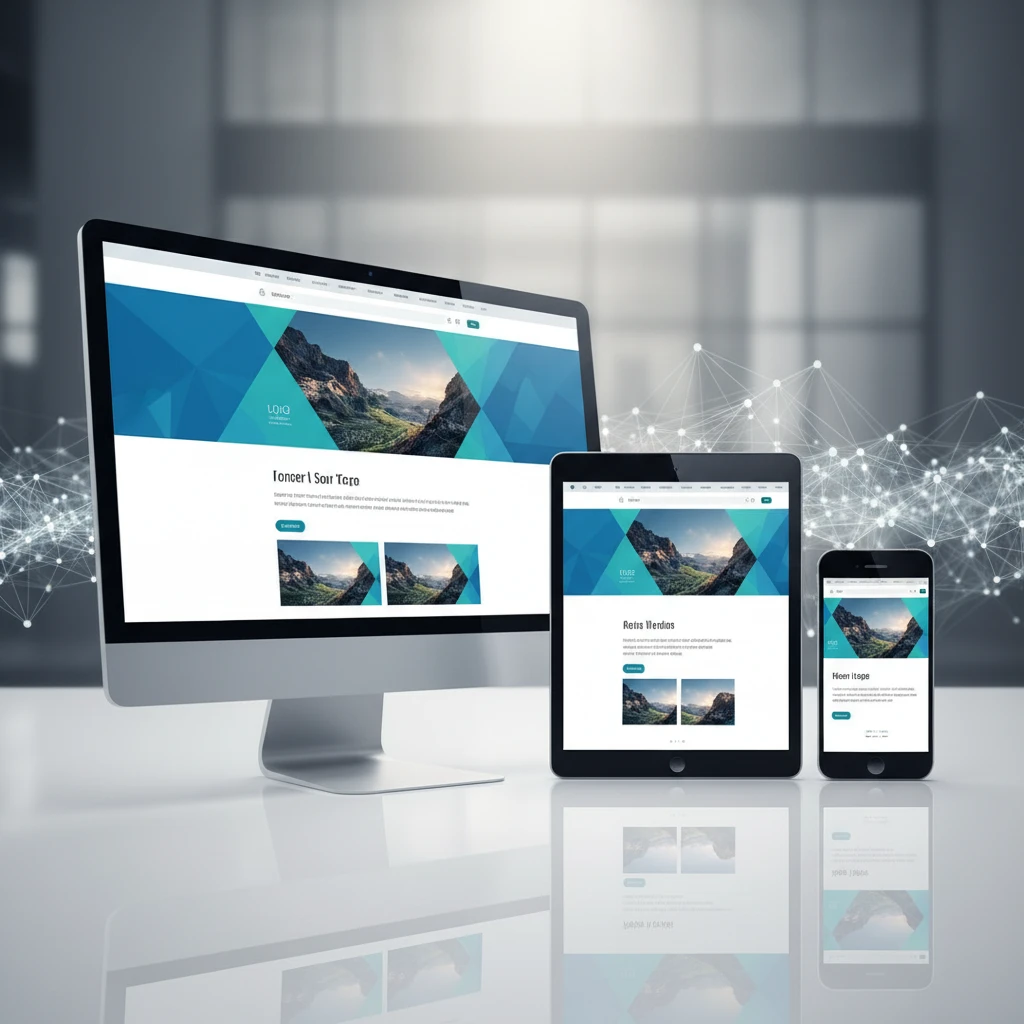
Building a responsive website with Elementor means reaching your entire audience effectively. It’s about embracing a design philosophy that prioritizes usability and accessibility across the ever-evolving spectrum of devices. This approach is crucial for engagement, conversion, and overall brand perception, making Elementor an indispensable ally for modern web creators.
Why Responsive Design Isn’t Optional in 2026 (And How Elementor Paves the Way)
The Shifting Device Landscape: Mobile-First is Standard
The way people access the internet has fundamentally changed. By 2026, the majority of web traffic originates from mobile devices, making a mobile-first approach to web design not just advisable, but essential for business success. This isn’t about supporting mobile; it’s about prioritizing it. Users are impatient; if a website is slow or difficult to navigate on their phone, they will leave, often never to return. This shift demands that designers and developers consider the smallest screens first, ensuring a fluid and intuitive experience. Elementor’s intuitive interface and robust features allow you to build with this mobile-centric mindset from the ground up, ensuring your content is engaging and accessible no matter the user’s preferred device.
This pervasive mobile usage extends beyond simple browsing. Online shopping, accessing information, and even complex professional tasks are now frequently performed on smartphones and tablets. Consequently, websites must be optimally designed for touch interactions, smaller viewports, and potentially slower network conditions. Neglecting this reality means alienating a significant portion of your potential audience. Elementor’s visual builder streamlines the process of adapting designs for various screen sizes, allowing you to proactively address the mobile-first imperative without extensive coding knowledge.
User Experience as a Ranking Factor: Google’s Viewpoint
Google, the dominant search engine, has long emphasized user experience (UX) as a critical ranking factor. In 2026, this focus has only intensified. Websites that provide a poor user experience, including those that are not responsive, are penalized in search results. Google’s algorithms are designed to reward sites that are easily navigable, fast-loading, and provide content that is accessible on all devices. A non-responsive site signals to search engines that it is not providing a satisfactory experience for a large segment of users, directly impacting its ability to rank highly for relevant queries. This makes implementing responsive design a direct investment in your website’s organic visibility.
Furthermore, Google’s Core Web Vitals and other UX-related metrics are paramount. A responsive design contributes significantly to these metrics by ensuring that pages load quickly and remain stable across devices. When users can easily interact with your content, engage with calls to action (like those found in Elementor’s conversion-focused templates), and find the information they need without frustration, they spend more time on your site. This positive engagement is a strong signal to Google that your website is valuable and relevant. Elementor helps you achieve this by offering tools to optimize layouts and elements for performance, which directly influences these crucial ranking factors.
The Cost of Non-Responsive Websites: Lost Visitors & Conversions
The financial implications of a non-responsive website are substantial and often underestimated. When visitors encounter a site that is difficult to use on their mobile device, they don’t just leave; they often bounce to a competitor’s site. This direct loss of traffic translates into missed opportunities for sales, leads, and customer engagement. For e-commerce sites, this can mean immediate lost revenue. For lead generation sites, it’s a failure to capture potential customers. The cumulative effect of these lost interactions can severely hinder business growth and brand development. Elementor enables you to create a cohesive brand experience across all devices, mitigating these potential losses.
Beyond immediate traffic loss, a poor mobile experience erodes brand credibility. Users associate a clunky, difficult-to-navigate website with an unprofessional or outdated business. This perception can be incredibly damaging, especially in competitive markets where first impressions are critical. Imagine a potential client trying to access your services on the go, only to be met with a site that requires constant pinching and zooming. They are unlikely to trust that you can deliver professional services if your digital presence appears amateurish. Elementor empowers you to build visually appealing and highly functional websites that instill confidence and encourage conversions, regardless of the device used to access them.
Elementor’s Built-in Tools for Seamless Responsiveness
Understanding Device Previews: Desktop, Tablet, and Mobile Modes
Elementor’s most fundamental responsive tool is its integrated device preview functionality. Within the Elementor editor, you can toggle between three distinct modes: Desktop, Tablet, and Mobile. This allows you to visualize precisely how your website will appear and behave on each of these primary device categories. It’s not just a static image; you can actively make design adjustments within each preview mode, ensuring that changes made for one device don’t negatively impact others. This real-time feedback loop is invaluable for catching and correcting responsive issues early in the design process. Properly utilizing these modes is key to creating a truly adaptive user interface.
When you switch to tablet or mobile preview, Elementor dynamically adjusts the layout based on the standard screen widths for those devices. This gives you an accurate representation of your design’s fluidity. You can then fine-tune elements, adjust spacing, and even reorder content specifically for that screen size. For instance, you might notice that a multi-column layout that looks great on desktop becomes too cramped on mobile. The preview mode immediately highlights this issue, enabling you to switch to a stacked column layout for smaller screens. Mastering these previews is your first step toward building a flawless cross-device user journey.
Adjusting Elementor Widgets for Different Screen Sizes
Once you’ve identified responsive challenges using the device previews, Elementor provides granular control over individual widgets. Each widget in Elementor has responsive settings that allow you to modify its appearance and behavior based on the screen size. This includes options for adjusting margins, padding, font sizes, alignment, and even the display order of elements within a widget. For example, an image carousel that works perfectly on desktop might have navigation arrows that are too small or too close together on a touchscreen device. You can then use the widget’s responsive settings to enlarge the touch targets for improved usability on mobile.
Consider a text widget containing a list of features. On a desktop, you might display these features in a two-column layout. However, on a tablet or mobile device, this could appear cluttered. Elementor allows you to change the column count for specific widgets. You can set the text widget to display in one column on mobile devices, ensuring each feature has ample space and is easy to read. This level of control per widget means you can create highly optimized layouts without resorting to complex coding. It’s about making every single component on your page adapt intelligently to its viewing context.
The Power of Responsive Visibility Settings: Show/Hide Elements
Elementor’s responsive visibility settings are a powerful, yet often underutilized, feature for optimizing user experience across devices. This feature allows you to selectively show or hide specific elements, columns, or even entire sections based on the device type. This is incredibly useful for decluttering mobile interfaces, removing non-essential elements that might distract or slow down loading times on smaller screens, or highlighting critical information that might get lost in a complex desktop layout. For example, a detailed infographic that is perfect for desktop users might be too large or complex for a quick mobile view. You can simply choose to hide this element on tablet and mobile.
Conversely, you might want to present a specific call to action (CTA) prominently on mobile devices, perhaps a “Call Us” button that links directly to your phone number. You can set this CTA to be visible only on tablet and mobile screens, ensuring it’s easily accessible to users who are likely on the go. This strategic use of visibility settings ensures that users on different devices receive the most relevant and impactful content without unnecessary distractions. It’s a sophisticated way to tailor the user journey, making your website feel bespoke to each visitor. This feature is a cornerstone of crafting a truly user-centric responsive design.
Mastering Responsive Layouts with Elementor Sections and Columns
Column Stacking Order and How to Control It
When a website is viewed on a smaller screen, Elementor’s default behavior is to stack columns vertically. While this is often the desired outcome, there are times when you might want to control the exact order in which these columns appear. Elementor provides a straightforward way to manage this column stacking order. Within the settings for each column, you can adjust its order attribute. For example, if you have three columns – A, B, and C – arranged horizontally on desktop, you can specify that on mobile, they should stack in the order A, C, B, rather than the default A, B, C. This allows for strategic content prioritization on smaller screens.
This control is particularly important for user flow and logical presentation of information. Imagine a section with an image and text. If the text is traditionally placed to the right of the image on desktop, you might prefer it to appear above the image on mobile for a more narrative flow. By adjusting the column order, you can ensure that key information or calls to action are presented at the most advantageous point in the user’s scroll. This level of granular control over layout stacking is crucial for maintaining narrative coherence and ensuring that your website’s messaging remains clear and effective across all devices. It’s about making sure the content serves the user’s context.
Responsive Padding and Margin: Fine-Tuning Spacing
Spacing is a critical element of good design, and its importance is amplified in responsive layouts. What looks like perfectly balanced spacing on a desktop monitor can become cramped or overly stretched on a mobile screen. Elementor allows you to control padding and margin for sections, columns, and widgets independently for desktop, tablet, and mobile views. This means you can reduce the top and bottom margin of a section on mobile to save precious screen real estate, or increase the padding within a button on touch devices to make it easier to tap. Fine-tuning these values ensures that your design maintains visual harmony and readability across all screen sizes.
For instance, if your hero section has generous padding on the sides for a desktop view, that same padding might push your main text content too far into the center on a narrow mobile screen. By accessing the responsive padding settings, you can adjust the left and right padding to be much smaller, or even zero, for mobile devices, allowing your text to occupy more of the available width. Similarly, if elements feel too close together on a tablet, you can add a bit more margin between them specifically for that view. This detailed control over spacing is vital for preventing a cluttered look and ensuring that your website feels professionally designed and user-friendly on every device.
Setting Responsive Heights: Avoiding Unwanted White Space
Managing the height of sections and columns is another key aspect of responsive design. On a desktop, a section might have a fixed or minimum height to accommodate content and create visual impact. However, on a mobile device, this fixed height can lead to excessive white space if the content is shorter or if the responsive layout causes elements to shrink. Elementor provides options to set responsive heights, allowing you to ensure that your layouts adapt dynamically. You can set a minimum height for a section, and Elementor will ensure it’s at least that tall, but it can grow taller as needed to fit its content, preventing awkward gaps. This ensures that the page feels consistently filled.
Consider a hero section designed to fill the entire viewport on desktop. On a smaller mobile screen, this fixed height might force users to scroll excessively just to see the primary content. Elementor’s responsive height controls enable you to adapt this. You can set a smaller minimum height for mobile devices, ensuring the section occupies a more appropriate proportion of the screen. This prevents content from being pushed too far down and improves the initial user impression. By intelligently managing section and column heights, you create a more cohesive and efficient browsing experience, ensuring that no valuable screen space is wasted and that content is always presented optimally.
Typography That Adapts: Font Sizes and Styles Across Devices
Using Relative Units (em, rem, vw) for Scalable Text
When setting typography in Elementor, leveraging relative units like `em`, `rem`, and `vw` (viewport width) is fundamental for creating truly scalable text that adapts to different screen sizes. Unlike absolute units such as pixels (`px`), which represent a fixed size, relative units are defined in relation to another value. For example, `rem` units are relative to the root HTML element’s font size, making them excellent for ensuring consistent scaling across your entire website. `vw` units, on the other hand, are relative to the viewport width, meaning text will dynamically resize as the screen width changes, providing a fluid and responsive typographic scale.
Using `rem` for base font sizes and then `em` for elements within components (like line-height relative to the element’s font size) allows for a cascading and predictable scaling effect. This means that if you adjust the base font size for a particular device category, all text using `rem` and `em` units will adjust proportionally. This approach simplifies the management of typography across numerous devices and screen resolutions, ensuring that your content remains legible and aesthetically pleasing. It’s a key technique for achieving a highly adaptable and readable text experience, which is crucial for user engagement.
Elementor’s Typography Settings for Responsiveness
Elementor excels at making responsive typography accessible directly within its visual editor, without requiring you to write custom CSS for basic adjustments. When you select a text widget or a heading, you’ll find the typography options, including font family, size, weight, and line height. Crucially, each of these settings can be independently adjusted for desktop, tablet, and mobile views. This means you can set a larger font size for your headlines on desktop, a slightly smaller one for tablets, and an even more concise size for mobile screens, ensuring that your headlines remain impactful without breaking layouts. This granular control allows for precise typographic hierarchy on every device.
Beyond just font size, you can also adjust line height and letter spacing responsively. For instance, longer lines of text on mobile devices might benefit from increased line height for better readability. Elementor’s interface makes it easy to click the device icon next to a setting and input different values for each screen size. This empowers you to fine-tune the visual presentation of your text content, ensuring it’s not only legible but also aesthetically aligned with your design’s overall intent on any device. This feature transforms typography from a static element into a dynamic component of your responsive design.
When to Use Custom CSS for Advanced Typography Control
While Elementor’s built-in responsive typography settings cover a vast majority of use cases, there will be instances where you require more advanced control or specific typographic effects. This is where custom CSS becomes invaluable. For highly unique font pairings, complex text animations, or intricate styling that goes beyond standard options, you can use Elementor’s “Advanced CSS” feature within sections, columns, or widgets, or the global “Custom CSS” area in the WordPress Customizer. This allows you to implement bespoke solutions for truly distinctive typographic treatments.
For example, you might want to implement a fluid typography approach where font sizes scale smoothly between a minimum and maximum value based on viewport width, which can be achieved with CSS `clamp()` function. Or, perhaps you need to apply a specific font style that isn’t available in Elementor’s font library by default. In these scenarios, leveraging custom CSS provides the ultimate flexibility. It enables you to create highly personalized typographical experiences that perfectly match your brand’s aesthetic and meet specific design challenges. Elementor’s ability to integrate custom CSS ensures that you’re never limited by its default settings, allowing for unparalleled creative expression.
Optimizing Images and Media for a Faster, Responsive Experience
In today’s digital landscape, website speed is paramount, especially on mobile devices where bandwidth and processing power can be limited. Optimizing images and media is a fundamental aspect of creating a fast-loading and truly responsive website. Large, unoptimized media files are a common culprit for slow page load times, leading to user frustration and higher bounce rates. Elementor provides a suite of tools to manage these assets effectively, ensuring your designs look great and perform well across all screen sizes. It’s not just about aesthetics; it’s about delivering a seamless user experience that encourages engagement and conversions. By paying close attention to how your images and videos are handled, you can significantly impact your site’s perceived performance and user satisfaction.
Understanding Image Formats for Different Devices
Choosing the right image format is crucial for balancing quality and file size, directly impacting responsiveness. For modern web development, the distinction between JPEG, PNG, and modern formats like WebP and AVIF becomes significant. JPEGs are ideal for photographs and complex images with many colors, offering good compression. PNGs, conversely, are better for graphics with transparency or sharp lines, though they can result in larger file sizes. WebP and AVIF are newer formats that offer superior compression and quality compared to their predecessors, often resulting in significantly smaller files without a perceptible loss in visual fidelity. Implementing these formats strategically can dramatically reduce page load times on mobile devices. For example, serving a WebP image to a modern browser while providing a JPEG fallback for older browsers ensures broad compatibility and optimal performance. This approach requires a clear understanding of your target audience’s device usage and browser preferences. You can also leverage responsive image techniques through custom code or specific plugins if Elementor’s built-in options aren’t sufficient for complex scenarios.
Elementor’s Image Widget Responsive Options
Elementor’s Image widget is more than just a placeholder; it’s a tool for responsive image management. Within the widget’s settings, you can control how images scale and adapt to different screen sizes. The responsive mode feature allows you to adjust spacing, margins, and padding specifically for tablets and mobile phones, ensuring your images don’t overflow their containers or become too small to view. Furthermore, you can set specific image sizes to be loaded for different breakpoints, preventing a large desktop image from being downloaded on a small mobile screen. Another critical feature is the ability to set custom CSS classes to target images with specific styling rules. This granular control empowers designers to fine-tune the appearance and behavior of images without resorting to complex code for every adjustment. For instance, you might set a maximum width for an image on mobile to prevent it from taking up too much vertical space. Exploring the ‘Advanced’ tab within the Image widget will reveal these crucial responsive controls, enabling precise adjustments.
Lazy Loading and its Impact on Mobile Performance
Lazy loading is an essential optimization technique that defers the loading of images and other media until they are actually visible in the user’s viewport. This significantly improves initial page load times, especially on pages with many images below the fold. By default, browsers will load all content, including images that the user might never scroll to see. Lazy loading, however, instructs the browser to wait. When a user scrolls down the page, the images come into view and are then loaded. This is particularly impactful for mobile users who often have slower internet connections and are more sensitive to initial load times. Elementor itself offers lazy loading for images and iframes through its core settings. You can enable this feature in the Elementor > Settings > General menu. While Elementor’s built-in solution is convenient, ensure it doesn’t conflict with other optimization plugins you might be using. The primary benefit is a faster perceived load time and reduced bandwidth consumption for users who don’t view the entire page content.
Advanced Responsive Techniques with Elementor Pro
Elementor Pro unlocks a deeper level of control for crafting responsive websites, moving beyond basic scaling and padding adjustments. It introduces features designed for dynamic content and complex layouts that must adapt seamlessly across a multitude of devices. These advanced tools enable designers to create highly personalized user experiences tailored to specific screen sizes and user contexts. For instance, conditional display allows content to be shown or hidden based on device type, user role, or other criteria, ensuring that only relevant information is presented. Responsive navigation menus, often transforming into hamburger menus on smaller screens, are also critical for usability. Elementor Pro’s Theme Builder further empowers users to design and control the responsive behavior of their site’s headers, footers, and other global elements, ensuring consistency and a professional look across the entire website. Mastering these Pro features is key to delivering sophisticated, high-performance responsive designs.
Conditional Display for Dynamic Content
Conditional Display in Elementor Pro is a powerful feature that allows you to dynamically show or hide specific widgets, columns, or sections based on defined rules. This is invaluable for creating truly responsive and user-centric experiences. Imagine showing a special promotional banner only to mobile users, or displaying different content blocks to logged-in versus guest users. The criteria for conditional display can include device type (desktop, tablet, mobile), user role, whether the user is logged in or out, and even specific WordPress query parameters. This level of control means you can optimize content delivery for every visitor, ensuring they see what’s most relevant and accessible to them. For example, a complex form might be hidden on mobile to avoid overwhelming the user, replaced by a simpler contact button. This technique prevents unnecessary elements from loading on certain devices, contributing to faster load times and a cleaner user interface. It’s a sophisticated way to tailor the user journey without needing separate page designs.
Creating Responsive Navigation Menus (Hamburger Menus)
Navigation is a cornerstone of user experience, and responsive navigation menus are essential for a functional website on all devices. On larger screens, a traditional horizontal menu works well. However, on smaller screens like tablets and smartphones, this menu often becomes too cramped or unusable. Elementor Pro’s Header Builder and Menu Widget natively support the creation of responsive navigation. You can configure the menu to automatically transform into a “hamburger” icon (three horizontal lines) on smaller screens, which, when clicked, reveals a full-screen overlay or a dropdown list of navigation links. This is a standard and expected behavior for mobile navigation. Within the widget’s responsive settings, you can control exactly at which breakpoint the menu collapses and customize the appearance of the hamburger icon and the expanded menu. Ensuring your navigation is intuitive and accessible on mobile is paramount for user retention and site discoverability. You can also explore advanced styling options to match your brand’s aesthetic.
Using Elementor’s Theme Builder for Responsive Headers & Footers
Elementor Pro’s Theme Builder is a game-changer for responsive design, offering granular control over your website’s global elements, most notably headers and footers. Instead of relying on your theme’s limitations, you can design custom headers and footers that adapt flawlessly to different screen sizes. For instance, you can design a compact header for mobile devices that includes only essential navigation and a logo, while a desktop version might feature a more elaborate layout with submenus and social icons. Within the Theme Builder interface, you can set device-specific visibility for entire sections, columns, or widgets, allowing you to hide elements on certain screen sizes and show others. This ensures that your header and footer remain functional and aesthetically pleasing, regardless of the device being used. This approach significantly enhances the overall responsiveness and user experience of your entire WordPress site, making it a crucial tool for modern web design. For deeper customization, you can also explore how to apply advanced CSS for unique responsive behaviors.
Beyond the Basics: Ensuring Cross-Browser and Cross-Device Compatibility
Achieving a truly responsive website extends beyond just ensuring elements scale correctly on different screen sizes. It necessitates rigorous testing and an understanding of potential compatibility issues across various browsers and devices. Modern web design demands that your site performs predictably and looks consistent whether viewed on a cutting-edge smartphone, an older tablet, or a desktop running a different operating system and browser. This involves anticipating how different browsers interpret CSS, JavaScript, and HTML, and how various screen resolutions and touch interactions might affect the user experience. Elementor provides a solid foundation, but final polish often requires attention to these finer details. It’s about creating an inclusive design that welcomes all users, regardless of their technological setup. Proactive testing and awareness of common pitfalls are key to delivering a polished, professional, and universally accessible website that builds trust and encourages engagement.
Testing Your Responsive Designs: Essential Tools and Methods
Thorough testing is non-negotiable for ensuring your Elementor designs are truly responsive. Relying solely on visual checks on your own devices is insufficient. A comprehensive testing strategy involves using a combination of tools and methods to simulate real-world user scenarios. Browser developer tools, discussed further below, are indispensable for quick checks. For broader coverage, consider using online responsive testing tools that provide screenshots and emulations of your website across a vast array of devices and screen resolutions. Services like BrowserStack or LambdaTest allow you to test on actual physical devices in the cloud, offering the most accurate results. Don’t forget to test different browser versions (e.g., Chrome, Firefox, Safari, Edge) and even older versions if your target audience is known to use them. Functionality testing is also critical: check if all interactive elements, forms, and navigation work correctly on every simulated device. Consider testing with touch gestures on emulated devices to ensure a smooth mobile experience.
Common Responsive Design Pitfalls and How to Avoid Them
Several common pitfalls can undermine even the most well-intentioned responsive designs. One frequent issue is the fixed-width element that doesn’t scale, leading to horizontal scrollbars on smaller screens. Always ensure elements have flexible widths or max-width properties applied. Another pitfall is content overlap, where elements stack improperly or obscure each other on certain screen sizes, often due to rigid spacing or z-index issues. Over-reliance on absolute positioning can also create problems, as it disconnects elements from the normal document flow, making them behave unpredictably during resizing. Ensure that images are set to `max-width: 100%;` to prevent them from exceeding their containers. Forgetting to test crucial interactive elements like forms and accordions on mobile is another mistake; these must be easily usable with touch input. Finally, overly complex layouts that work on desktop can become unwieldy on mobile. Simplify where possible and prioritize essential content for smaller screens. Addressing these common issues proactively will save significant debugging time and improve user satisfaction. You can find further guidance on fixing such problems in Elementor: Fix Common Website Responsiveness Issues.
The Role of Browser Developer Tools in Debugging Responsiveness
Browser developer tools are an indispensable asset for anyone building responsive websites with Elementor. Built directly into modern browsers like Chrome, Firefox, and Edge, these tools offer a powerful suite of features for inspecting and debugging your site’s layout and behavior across different screen sizes. The “Responsive Design Mode” (often accessible by pressing F12 or right-clicking and selecting “Inspect”) allows you to emulate various devices and screen resolutions directly within your browser window. You can select predefined device sizes or input custom dimensions. This mode enables you to see how your page renders at different breakpoints, inspect individual elements to understand their styling and box model, and even simulate touch events. Furthermore, you can use these tools to identify which CSS rules are being applied, test CSS changes in real-time, and diagnose JavaScript errors that might affect responsiveness. Mastering these developer tools is crucial for efficiently identifying and resolving responsive design issues before they reach your users.
Leveraging CopyElement for Responsive Design Acceleration
While Elementor provides the building blocks, CopyElement significantly accelerates the process of creating visually appealing and responsive websites. As a comprehensive library of pre-built UI components and professionally designed templates, CopyElement is tailored for WordPress users, particularly those leveraging Elementor. It offers a vast collection of ready-to-use sections and blocks that are already optimized for responsiveness, saving countless hours of manual design and coding. This allows web designers, developers, and agencies to focus on customization and content rather than starting from scratch. The platform’s emphasis on conversion-focused layouts and UI/UX design ensures that the components not only look good but also perform well across devices, driving better user engagement and business outcomes. By integrating CopyElement into your workflow, you can dramatically reduce development time while maintaining a high standard of design quality and responsiveness.
Pre-built Responsive Sections and Templates: A Time-Saver
One of the most significant advantages of CopyElement is its extensive library of pre-built responsive sections and complete website templates. These components are meticulously crafted to work seamlessly across desktops, tablets, and mobile devices, eliminating the need to manually adjust layouts for each breakpoint. Whether you need a hero section, a service block, a testimonial slider, or an entire landing page, CopyElement provides a wide array of options that are immediately implementable within Elementor. This dramatically speeds up the initial design phase. For instance, instead of spending hours designing a responsive pricing table, you can simply drag and drop a pre-designed CopyElement pricing section and customize the text and colors. This approach not only saves time but also ensures a consistent level of design quality and responsiveness throughout your website, as these templates are built by experienced designers adhering to modern best practices. Exploring industry-specific templates can further streamline the process for niche websites; see CopyElement: Industry-Specific Elementor Templates for 2026 for more details.
UI/UX Design Blocks Tailored for Multi-Device Experiences
CopyElement goes beyond mere aesthetic appeal by focusing on UI/UX principles tailored for multi-device experiences. The UI/UX design blocks are not just visually engaging; they are engineered to ensure intuitive navigation and optimal user interaction across all screen sizes. This means elements like call-to-action buttons, forms, and navigation components are designed with touch targets in mind for mobile users, while also offering rich functionality on desktops. Each block is developed with an understanding of common user journeys and conversion pathways. For example, the conversion-focused call-to-action designs within CopyElement are structured to be prominent and clear on mobile, ensuring that users can easily take the desired action. Similarly, form elements are designed for ease of use, with clear labels and accessible input fields, making them ideal for rapid development of user-friendly interfaces on any device. This thoughtful approach ensures your website is not only responsive but also highly effective in achieving its goals.
Ensuring CopyElement Components are Performance-Optimized for Responsiveness
Performance is a critical aspect of responsiveness, and CopyElement components are developed with this in mind. Unlike some template packs that can bloat your website with unnecessary code, CopyElement focuses on lean, optimized code. This means that each section and widget is built to load efficiently, minimizing HTTP requests and reducing file sizes where possible. For example, images within CopyElement templates are often optimized and utilize responsive image techniques. The underlying code structure of the components is designed to be lightweight, ensuring that they don’t negatively impact your site’s loading speed, particularly on mobile devices with limited bandwidth. When you implement a CopyElement template or section, you are starting with a foundation that is already conscious of performance, which is crucial for maintaining a fast and responsive user experience. This allows you to build complex, feature-rich websites without sacrificing speed or search engine rankings. This focus on performance is a key differentiator when selecting pre-built solutions.
Alternatives to Elementor for Responsive Website Building
While Elementor stands out as a robust and user-friendly page builder for WordPress, it’s not the only option for crafting responsive websites. Understanding the landscape of alternatives allows for informed decisions, especially when specific project needs or preferences arise. The choice often boils down to a trade-off between ease of use, flexibility, and the underlying technical architecture. For instance, some users might find that a more developer-centric approach offers finer control, while others prioritize the visual, drag-and-drop simplicity that Elementor excels at. Exploring other tools can reveal unique features that might better suit your workflow or the particular demands of a client’s project, ensuring the final website performs optimally across all devices.
Page Builders vs. Theme Customizers: Key Differences
The primary distinction in building responsive websites lies between dedicated page builders like Elementor and the native theme customizers offered by WordPress themes. Page builders generally provide a more extensive set of widgets, pre-designed blocks, and layout options, all managed within a visual interface. They often allow for granular control over individual elements and can override theme styles to achieve unique designs. Theme customizers, on the other hand, are typically more integrated with the theme’s overall structure. They offer options for global settings like typography, colors, header, and footer layouts, providing a more streamlined, albeit often less flexible, way to adjust your site’s appearance. While theme customizers are excellent for maintaining a consistent brand identity, page builders grant the freedom to create complex, custom layouts for specific pages, which is crucial for tailored user experiences and responsiveness.
Brief Overview of Other Popular WordPress Page Builders (e.g., Beaver Builder, Divi)
Beyond Elementor, several other powerful page builders cater to WordPress users seeking responsive design capabilities. Beaver Builder is renowned for its clean code, developer-friendliness, and a strong focus on stability and performance. It offers a live frontend editor and a modular design approach, making it a stable choice for long-term projects. Another prominent contender is Divi Builder, developed by Elegant Themes. Divi is known for its extensive library of pre-made layouts, advanced design options, and a visual builder that allows for real-time editing. It offers a vast array of modules and a global elements feature for consistent updates across your site. Each of these, like Elementor, provides responsive controls, enabling designers to tweak layouts, margins, and padding for different screen sizes, ensuring a seamless experience from desktops to mobile devices.
When to Consider a Different Tool for Your Responsive Needs
While Elementor is highly capable, there are specific scenarios where exploring alternatives for responsive website building might be more beneficial. If your project demands exceptionally lightweight and performance-optimized code above all else, a theme with a highly customizable native builder or a more code-centric approach might be preferable. For instance, if you are building a simple, content-focused blog where extensive design customization isn’t a priority, relying solely on your theme’s built-in options or a lightweight builder can lead to faster loading times. Additionally, if your team has a strong background in coding and desires absolute control over every aspect of the design and responsiveness, custom coding or using a framework that facilitates it could be a better fit. For users who find Elementor’s interface overwhelming or are looking for a different visual editing experience, exploring Beaver Builder’s structured approach or Divi’s all-in-one theme and builder package might be worthwhile.
Future-Proofing Your Website: Staying Ahead with Responsive Trends
The digital landscape is in constant flux, and ensuring your website remains responsive and relevant requires a forward-thinking approach. This involves anticipating technological shifts and adapting your design and development strategies accordingly. The goal isn’t just to build for today’s devices, but to create a foundation that can gracefully accommodate the innovations of tomorrow. This means prioritizing clean code, flexible layouts, and an understanding of emerging user interfaces. By proactively embracing new methodologies and tools, you can ensure your online presence continues to engage visitors effectively, regardless of how they access your content. Staying ahead of the curve is key to maintaining a competitive edge and delivering an optimal user experience consistently.
The Rise of Wearable Tech and Future Screen Sizes
The proliferation of devices extends far beyond traditional desktops, laptops, and smartphones. The increasing prevalence of wearable technology, such as smartwatches and augmented reality glasses, introduces entirely new screen dimensions and user interaction paradigms. Websites designed today must consider these evolving form factors, even if implicitly. This means embracing fluid grids and relative units that can adapt to vastly different pixel densities and aspect ratios. For instance, a complex design optimized for a 27-inch monitor will likely be unusable on a smartwatch. Future-proofing involves building layouts that gracefully degrade or adapt, offering essential information and functionality in minimalist interfaces. Thinking about content prioritization and touch targets becomes paramount, as direct manipulation and glanceable information take precedence on smaller, specialized screens. Exploring solutions that dynamically adjust content based on available screen real estate and user context will become increasingly vital.
AI’s Role in Automating Responsive Design
Artificial intelligence is rapidly transforming various aspects of web development, and responsive design is no exception. AI-powered tools are beginning to emerge that can assist in the creation and optimization of responsive layouts. These tools can analyze design patterns, predict user behavior across different devices, and even suggest or implement layout adjustments automatically. For example, AI could analyze your desktop design and propose a mobile-optimized version, handling element stacking, resizing, and navigation adaptations. Furthermore, AI can play a role in testing responsiveness by simulating user interactions on a vast array of virtual devices, identifying potential issues that might be missed during manual testing. As AI technologies mature, we can expect more sophisticated applications that automate much of the tedious work involved in ensuring a website looks and functions perfectly everywhere, freeing up designers and developers to focus on more creative and strategic aspects of their projects. This automation can significantly accelerate workflows and improve the consistency of responsive experiences.
Continuous Learning and Adaptation in the Responsive Web Design Space
The field of responsive web design is not static; it’s a dynamic area that demands continuous learning and adaptation. New devices, screen technologies, and user expectations emerge regularly, requiring designers and developers to stay informed and update their skillsets. This means actively following industry trends, experimenting with new techniques, and understanding how to leverage evolving browser features and CSS capabilities. For instance, the adoption of modern CSS techniques like Flexbox and Grid has revolutionized how layouts are built responsively, making it easier to create fluid and adaptable designs. Similarly, understanding accessibility standards and how they intersect with responsive design ensures that websites are not only accessible across devices but also to users with disabilities. Embracing a mindset of perpetual learning allows you to maintain expertise and ensure that the websites you build remain functional, engaging, and accessible for years to come, adapting to the ever-changing digital ecosystem.