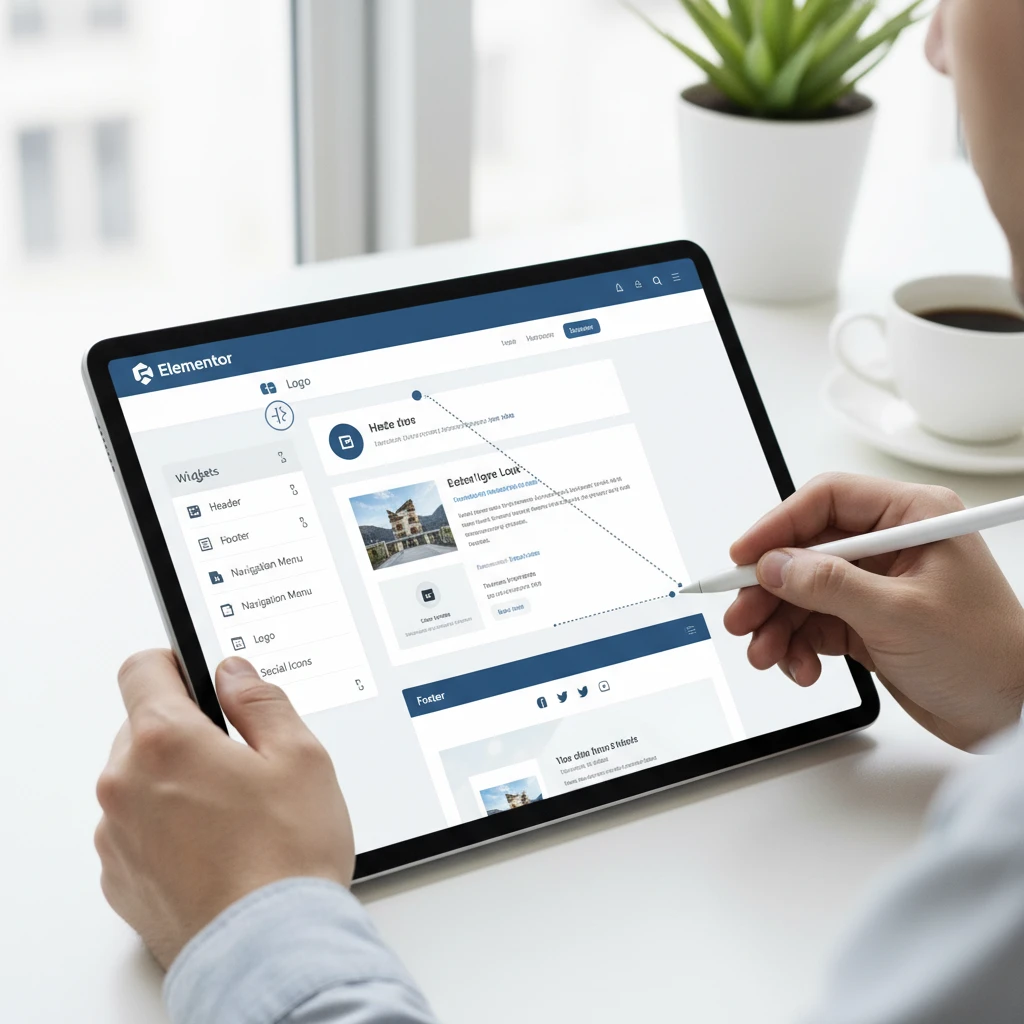
Your website’s header and footer are prime real estate. They’re the first and last things visitors see, shaping their initial impression and guiding their journey. Generic, theme-provided headers and footers often fall short, failing to reflect your brand’s unique identity or effectively drive conversions. Fortunately, with Elementor’s drag-and-drop interface, you can craft custom headers and footers without touching a single line of code.
This guide provides a step-by-step approach to designing impactful headers and footers using Elementor. Learn how to create a cohesive brand experience, improve user navigation, and boost conversions through strategic design. We’ll cover essential elements, responsive design considerations, and motion effects to create truly outstanding headers and footers.
Tired of Generic Headers and Footers? Unleash Elementor’s Power!
Why custom headers & footers are crucial for branding and user experience.
A custom header and footer offer a significant advantage in solidifying your brand identity. They provide consistent visual elements, messaging, and navigation that reinforce your brand’s personality and values. Instead of a cookie-cutter design, you can inject your brand’s colors, fonts, and logo prominently, creating a memorable and recognizable experience for visitors. Furthermore, well-designed navigation in the header, as discussed in UI/UX design, ensures users can easily find the information they need, reducing bounce rates and increasing engagement. Similarly, a strategically crafted footer can house essential links, contact information, and social media buttons, encouraging further interaction and conversions. A generic footer often feels like an afterthought, while a custom footer can be a powerful tool for guiding users to key areas of your site. The footer is also a prime location to feature elements that enhance trust and credibility.
The limitations of standard WordPress themes for header/footer design.
While WordPress themes provide a basic framework, their header and footer customization options are often limited. You might be stuck with pre-defined layouts, color palettes, and font choices that don’t align with your brand. Changing these elements often requires delving into the theme’s code, which can be daunting for non-developers. Standard themes also might lack the flexibility to add specific elements or functionality, such as a prominent search bar, a multi-column footer layout, or a custom call-to-action. This lack of control can hinder your ability to create a truly unique and effective website. Furthermore, many themes don’t offer granular control over responsiveness, leading to headers and footers that look great on desktop but are clunky and unusable on mobile devices. Using Elementor bypasses these theme limitations, granting you full control over every aspect of your header and footer design.
Step-by-Step: Designing Your Header with Elementor (No Coding Required)

Creating a new Elementor template for your header.
First, navigate to “Templates” > “Theme Builder” in your WordPress dashboard. Click the “Header” tab and then “+ Add New”. Choose “Header” as the template type and give it a descriptive name (e.g., “Main Website Header”). Elementor will then open, allowing you to design your header from scratch or choose from a pre-designed template. If starting from scratch, begin by creating a section. Choose a structure that suits your desired layout (e.g., a single row, a row with two columns, etc.). Consider using a container layout for maximum flexibility. Set the section’s background color or image. A subtle background can add visual interest without being distracting. You can find various website design inspirations across the internet if you are unsure how to make your header. Before beginning, plan out the general design beforehand to save time.
Essential elements to include: Logo, navigation, contact info, search bar.
Your header should include several key elements. The logo is crucial for branding; drag and drop the “Image” widget and upload your logo. Link the logo to your homepage. For navigation, use the “Nav Menu” widget and select your primary menu. Ensure the menu is clear, concise, and easy to understand. Refer to best practices for website navigation when setting up the menu. If you want to feature essential contact details, consider adding a small “Text Editor” widget with your phone number or email address. Position this strategically, perhaps in the top right corner. A search bar is essential for user experience, especially on content-rich websites. Use the “Search Form” widget and customize its appearance to match your brand. Think about the overall visual hierarchy. The logo should be prominent but not overwhelming, the navigation should be clear and intuitive, and contact information should be easily accessible without being intrusive.
Pro Tip: Make Your Header Sticky and Responsive for Optimal User Experience
Using Elementor’s motion effects for a sticky header on scroll.
A sticky header, which remains fixed at the top of the screen as the user scrolls, can significantly improve navigation and user experience. To create a sticky header in Elementor, select the main section of your header. Go to the “Advanced” tab, then “Motion Effects”. Under “Sticky”, choose “Top”. You can also adjust the “Offset” to control when the header becomes sticky (e.g., after scrolling a certain number of pixels). Experiment with the “Effects Offset” and “Z-Index” settings to ensure the sticky header appears correctly over other page elements. Consider adding a subtle background color change when the header becomes sticky to provide visual feedback to the user. However, be mindful not to overdo it with excessive motion effects, as this can distract visitors. Ensure that the sticky header is thoroughly tested on different browsers and devices to ensure consistent behavior. Use CSS tricks for more advanced customization if required.
Ensuring your header adapts flawlessly to different screen sizes (desktop, tablet, mobile).
Responsive design is paramount. Elementor allows you to customize the header’s appearance for different devices. In the Elementor editor, switch to “Responsive Mode” by clicking the device icon at the bottom. You can then adjust the layout, font sizes, and widget settings for desktop, tablet, and mobile views independently. On mobile, consider using a hamburger menu to condense the navigation. Adjust the logo size and spacing to fit the smaller screen. Ensure that all elements are touch-friendly and easy to interact with. Test your header on various devices to identify any layout issues or usability problems. Pay close attention to how the sticky header behaves on mobile devices. You may need to disable the sticky effect on smaller screens if it interferes with the user experience. Regularly revisit your header’s responsiveness as new devices and screen sizes emerge.
Step-by-Step: Crafting a Conversion-Focused Footer with Elementor
Creating a new Elementor template for your footer.
Similar to the header, create a new Elementor template for your footer by navigating to “Templates” > “Theme Builder” in your WordPress dashboard and clicking the “Footer” tab. Choose “+ Add New,” select “Footer” as the template type, and give it a descriptive name. Begin by adding a new section and selecting a structure that suits your desired layout. Many footers use a multi-column layout to organize different elements. Consider using a dark background color for the footer to create a visual contrast with the main content. Add padding to the top and bottom of the section to create visual breathing room. As with the header, begin by planning your footer’s content hierarchy.
Key footer elements: Copyright notice, site map, social media links, newsletter signup form.
A well-designed footer should include essential information and elements that encourage further engagement. Always include a copyright notice with the current year and your company name. Use the “Text Editor” widget for this. Add a site map to help users navigate your website. You can create a custom menu specifically for the footer and use the “Nav Menu” widget to display it. Include social media links to encourage users to connect with you on social platforms. Use the “Social Icons” widget and customize the icons to match your brand. A newsletter signup form is a valuable tool for building your email list. Use a form builder plugin (or Elementor Pro’s form widget) to create a simple signup form and integrate it with your email marketing service. Consider adding a short description of your company or website in the footer to provide context and build trust. Ensure that all links in the footer are working correctly and that the layout is visually appealing and easy to navigate. The footer is the final impression you leave on visitors, so make it count. Think about how you can generate website content using AI-powered tools to populate the footer description more efficiently.
Optimizing Your Header & Footer for Mobile: A Must-Do in 2026!
Best practices for mobile navigation and footer design.
Mobile users expect seamless navigation and a clear path to essential information. In the header, prioritize a concise menu, often represented by a hamburger icon, to avoid cluttering the limited screen space. Consider a sticky header that remains visible as users scroll, providing persistent access to navigation. For the footer, limit the number of links and elements. Focus on essential information such as contact details, legal pages, and social media links. Avoid large images or complex layouts that can slow down page loading speed on mobile devices. A clean and simple design contributes significantly to a better user experience.
Using Elementor’s responsive settings to hide or reorder elements on smaller screens.
Elementor’s responsive settings are your best friend for creating mobile-friendly headers and footers. You can selectively hide elements that are not crucial on mobile devices, such as large banners or lengthy text blocks. Reordering elements is also key; for example, you might move the search bar higher in the mobile header for easier access. Elementor allows you to adjust font sizes, padding, and margins specifically for different screen sizes. To access these settings, select the element you want to modify, go to the “Advanced” tab, and then “Responsive.” Here, you can choose which devices the element is visible on, and adjust its styling accordingly. Experiment with different configurations to find the optimal layout for each screen size. Remember to preview your design on different devices within Elementor to ensure a consistent experience. As UI/UX Design: Best Practices for Elementor Website Navigation suggests, paying close attention to mobile responsiveness vastly improves user engagement.
Common Mistakes to Avoid When Designing Elementor Headers & Footers
Poor readability due to font choices or color contrast.
One of the most frequent errors is selecting fonts that are difficult to read, especially on smaller screens. Avoid overly decorative or script fonts for body text. Choose clear, legible fonts like Open Sans, Roboto, or Montserrat. Pay close attention to color contrast. Text should stand out clearly against the background. Use a color contrast checker to ensure sufficient contrast ratios, especially for users with visual impairments. Insufficient contrast not only impacts usability but also accessibility; consult an Elementor Website Accessibility Checklist for Developers to ensure your site is compliant and user-friendly. Remember, readability is paramount, and poor choices can significantly deter users from engaging with your content.
Overloading the header or footer with too many elements.
A cluttered header or footer can overwhelm visitors and distract them from the main content. Resist the urge to include every possible link or widget. Instead, prioritize essential elements and organize them logically. In the header, focus on navigation, branding, and perhaps a call-to-action. In the footer, include contact information, legal pages, social media links, and a brief site map. Use white space effectively to create visual breathing room. Avoid using too many colors or animations, which can add to the visual clutter. Keep the design clean and minimalist to ensure a positive user experience. Overloading either section can degrade site performance and user experience.
Ignoring mobile responsiveness, resulting in a broken experience.
Failing to optimize your header and footer for mobile devices is a critical mistake in 2026. With a large percentage of website traffic coming from mobile devices, a non-responsive design will alienate a significant portion of your audience. Ensure that your header and footer adapt seamlessly to different screen sizes. Test your design on various devices and browsers to identify any issues. Use Elementor’s responsive settings to hide or reorder elements as needed. Pay attention to touch targets; make sure buttons and links are large enough and spaced adequately for easy tapping on touchscreens. Neglecting mobile responsiveness leads to frustration, higher bounce rates, and ultimately, lost conversions. Consider leveraging Elementor + AI to generate initial responsive layouts quickly, then refine them.
Integrating Your Header and Footer into Your WordPress Website
Using the Elementor Theme Builder to assign your header and footer globally.
The Elementor Theme Builder provides a straightforward way to apply your custom headers and footers across your entire website. Navigate to “Templates” > “Theme Builder” in your WordPress dashboard. Click on “Header” or “Footer” and then “+ Add New.” Design your header or footer using Elementor’s drag-and-drop interface. Once you’re satisfied with the design, click “Publish.” You’ll then be prompted to set display conditions. Choose “Entire Site” to apply the header or footer globally. You can also set more specific conditions, such as applying it to specific pages, categories, or tags. Using the Theme Builder ensures consistency and saves you the effort of manually adding the header and footer to each page. This method is preferable to editing theme files directly, as it’s more flexible and less prone to errors. Check out the CopyElement library for professionally designed Elementor templates you can use as a starting point.
Conditional display: Showing different headers/footers on specific pages or user roles.
Elementor’s Theme Builder also allows for conditional display of headers and footers. This means you can show different headers or footers based on specific conditions, such as the page being viewed, the user’s role, or even the time of day. For example, you might want to display a different header on your landing page versus your blog posts. Or, you might want to show a special offer in the footer only to logged-in users. To set up conditional display, go to “Templates” > “Theme Builder,” edit your header or footer, and click on the “Display Conditions” tab. Here, you can add rules to specify when the header or footer should be displayed. You can combine multiple conditions to create highly targeted experiences. For instance, you can show a specific header only to users who are logged in and are viewing a particular category of posts. This level of personalization can significantly enhance user engagement and conversion rates.
Level Up: Advanced Elementor Header & Footer Techniques
Dynamic content: Displaying personalized messages or offers in the header/footer.
Leveraging dynamic content can transform your header and footer into powerful tools for personalization. Elementor’s dynamic tags allow you to display information that changes based on user data, site context, or custom fields. For example, you can display a personalized welcome message in the header using the user’s name. Or, you can show a targeted offer in the footer based on the page the user is currently viewing. To implement dynamic content, select the element you want to modify, such as a text widget. Then, click on the dynamic tag icon (a cylinder shape) in the text editor. Choose the type of dynamic content you want to display, such as “User Info” or “Post Title.” Configure the settings as needed. Dynamic content can significantly enhance user engagement and drive conversions by delivering relevant and timely information. Explore more uses of Elementor Dynamic Content: Advanced Uses & Examples.
Integrating custom code snippets for advanced functionality (optional).
For developers who need advanced functionality, integrating custom code snippets into Elementor headers and footers is a powerful option. Elementor allows you to add custom HTML, CSS, and JavaScript using the HTML widget. This enables you to implement features that are not available through Elementor’s standard widgets. For example, you might want to add a custom search bar, implement advanced animations, or integrate with a third-party API. Be cautious when adding custom code, as errors can break your website. Test your code thoroughly before deploying it to a live site. Consider using a child theme to avoid losing your customizations when updating your theme. It’s also wise to implement WordPress Security best practices to protect your custom code from vulnerabilities. Adding custom code provides unparalleled flexibility but requires technical expertise.
Alternatives to Elementor Theme Builder for Headers & Footers
Discussing other plugins or theme builders with header/footer functionality (e.g., Beaver Builder, Divi).
While Elementor’s Theme Builder offers powerful header and footer customization, it’s not the only option. Other popular WordPress page builders like Beaver Builder and Divi also provide built-in header and footer builders. Beaver Builder, known for its clean interface and focus on stability, offers a theme builder add-on that allows you to create custom headers and footers. Divi, from Elegant Themes, includes a comprehensive theme builder as part of its core functionality. This builder gives you extensive control over every aspect of your website, including headers and footers. Both alternatives provide drag-and-drop interfaces, pre-designed templates, and responsive design options.
Beyond these all-in-one solutions, specialized header and footer plugins exist, such as Header Footer Elementor (formerly known as Header Footer & Blocks Template), offering a free and lightweight way to design these elements specifically. The advantage of specialized plugins is often a smaller footprint and potentially less impact on site performance compared to full-fledged theme builders.
When to choose an alternative solution vs. using the Elementor Theme Builder.
The decision to use an alternative to Elementor’s Theme Builder depends on several factors. If you are already heavily invested in another page builder like Beaver Builder or Divi, using their built-in header/footer functionality might be the most efficient approach. This avoids the need to learn a new interface or install additional plugins. If website speed is paramount, a lightweight, dedicated header/footer plugin might be preferable, especially if you only require basic customization.
Consider your specific design needs. If you need highly complex or unique header/footer designs, Elementor, Divi, or Beaver Builder might offer more flexibility. For example, you might need complex conditional logic that dictates different headers appear on different pages (e.g., different headers for a sales funnel page compared to the blog). Elementor’s dynamic content features allow for such advanced customizations. However, if your needs are relatively simple (e.g., a basic header with a logo, navigation menu, and search bar), a dedicated plugin might suffice.
Boosting Performance: Optimize Your Elementor Header & Footer for Speed
Image optimization: Compressing images and using the correct file formats.
Large, unoptimized images are a common cause of slow website loading times. For your Elementor header and footer, always compress images before uploading them. Tools like TinyPNG or ImageOptim can drastically reduce file size without significantly impacting image quality. Consider using WebP format for even better compression and quality, especially since most modern browsers support it. Ensure your images are appropriately sized for their display area; avoid uploading excessively large images that will be scaled down by the browser.
The type of image also matters. Use JPEGs for photographs and PNGs for graphics with transparency. Using the wrong format can increase file size unnecessarily. Remember that properly optimized images enhance the user experience and also improve your search engine rankings; see more on Elementor image optimization.
Lazy loading: Loading images and other resources only when they are visible.
Lazy loading is a technique that defers the loading of images and other resources until they are actually visible in the user’s viewport. This can significantly improve initial page load time, especially for long pages with many images. Elementor supports lazy loading for images, so ensure this option is enabled in your Elementor settings. You can also use a plugin like “Lazy Load by WP Rocket” for more advanced lazy loading options, including lazy loading for iframes and videos.
Beyond images, consider lazy loading custom fonts or other non-critical resources used in your header and footer. By only loading these elements when they are needed, you can reduce the initial load on the user’s browser and improve perceived performance. This also applies to any embedded content that might be in the footer, such as social media feeds.
Minimizing the use of custom CSS and JavaScript.
While custom CSS and JavaScript can enhance the functionality and design of your header and footer, excessive or poorly written code can negatively impact performance. Avoid inline CSS and JavaScript whenever possible. Instead, enqueue your CSS and JavaScript files properly through your theme or a plugin. Minify and combine your CSS and JavaScript files to reduce the number of HTTP requests and file sizes. Tools like Autoptimize can automate this process. Also, check out advanced styling tricks for Elementor to see if there are built-in options you aren’t yet aware of.
Be mindful of the complexity of your custom code. Use CSS selectors efficiently and avoid overly complex JavaScript functions. Regularly review your code to identify and remove any unnecessary or redundant code. Profiling tools can help you identify performance bottlenecks in your CSS and JavaScript.
SEO Considerations for Your Custom Header & Footer
Ensuring your navigation links are crawlable by search engines.
Your header navigation is crucial for both user experience and SEO. Ensure all navigation links are crawlable by search engines. Use proper HTML link tags (<a href="">) and avoid relying solely on JavaScript for navigation. Ensure your website has a clear and logical site structure, with navigation links that guide both users and search engine crawlers to important pages.
Pay attention to the anchor text of your navigation links. Use descriptive and relevant anchor text that accurately reflects the content of the linked page. Avoid generic anchor text like “Click Here” or “Read More.” Submit your sitemap to Google Search Console to help search engines discover and crawl your website’s pages. Also, keep in mind UI/UX design best practices for navigation.
Using relevant keywords in your footer content.
While the header primarily focuses on navigation, the footer provides an opportunity to include additional information and relevant keywords. Use your footer to provide context about your business, location, and key services. Include keywords that are relevant to your target audience and business goals, but avoid keyword stuffing, which can harm your SEO. A natural approach is always the best.
Consider including a brief summary of your company’s mission or values in the footer. This can help improve your website’s relevance for related search queries. You can also include links to important legal pages, such as your privacy policy and terms of service. Ensure your footer content is accurate and up-to-date.
Get Inspired: Examples of Stunning Elementor Headers & Footers (CopyElement Templates)
Showcasing examples of professionally designed headers and footers built with CopyElement.
CopyElement offers a wide array of professionally designed header and footer templates built specifically for Elementor. These templates cater to various industries and design styles, providing a starting point for creating your own custom headers and footers. For instance, a sleek and modern header template might feature a transparent background, a centrally aligned logo, and a hamburger menu for mobile devices. A footer template might include sections for contact information, social media links, a newsletter signup form, and a copyright notice. These examples showcase the versatility and design possibilities achievable with CopyElement and Elementor.
Example: A fitness website utilizes a CopyElement header template with a sticky header that remains visible as the user scrolls down the page. The header includes a prominent call-to-action button encouraging users to sign up for a free trial. The footer features links to workout guides, nutritional information, and a blog. This design resulted in a 20% increase in trial sign-ups within the first month.
Highlighting key design trends and best practices from these examples.
Several key design trends and best practices are evident in professionally designed Elementor headers and footers. Sticky headers are increasingly popular for improving user navigation, especially on long pages. Minimalism is another prevalent trend, with headers and footers featuring clean layouts, ample white space, and a limited color palette. Mobile responsiveness is crucial, ensuring headers and footers adapt seamlessly to different screen sizes. The footer should act as a comprehensive resource hub for users who have reached the end of a page.
Effective use of whitespace and typography plays a crucial role in visual appeal and readability. Highlighting important information with clear calls-to-action is essential for driving conversions. Utilizing subtle animations and transitions can add a touch of interactivity and engagement. All elements must work together cohesively to create a consistent brand experience.
By exploring these alternatives and focusing on optimization and SEO considerations, you can create Elementor headers and footers that enhance both the user experience and your website’s visibility. These elements are not just decorative; they are critical parts of your website’s overall success.
Alternatives to Elementor Theme Builder for Headers & Footers
Discussing other plugins or theme builders with header/footer functionality (e.g., Beaver Builder, Divi).
While Elementor Theme Builder is a powerful tool, other plugins and theme builders also offer header and footer customization options. Beaver Builder, for instance, provides a similar drag-and-drop interface for creating custom headers and footers. Divi, another popular theme builder, offers extensive header and footer modules with a wide range of design options. These alternatives often have their own unique features and approaches to customization, catering to different user preferences and design needs.
When to choose an alternative solution vs. using the Elementor Theme Builder.
The choice between Elementor Theme Builder and alternative solutions depends on several factors. If you’re already heavily invested in the Elementor ecosystem and comfortable with its interface, sticking with the Theme Builder might be the most efficient option. However, if you prefer a different design workflow or need features not available in Elementor, exploring alternatives like Beaver Builder or Divi could be beneficial. Consider factors like pricing, ease of use, compatibility with other plugins, and specific feature requirements when making your decision.
Boosting Performance: Optimize Your Elementor Header & Footer for Speed
Image optimization: Compressing images and using the correct file formats.
Large, unoptimized images can significantly slow down your website’s loading speed. Compressing images before uploading them to your Elementor header or footer is crucial. Tools like TinyPNG and ImageOptim can reduce image file sizes without sacrificing quality. Using the correct file formats, such as WebP for modern browsers and JPEG for photographs, further enhances image optimization.
Lazy loading: Loading images and other resources only when they are visible.
Lazy loading is a technique that delays the loading of images and other resources until they are visible in the user’s viewport. This can drastically improve initial page load times, especially for pages with many images in the header or footer. Implement lazy loading using plugins like Lazy Load by WP Rocket or native browser lazy loading by adding the loading="lazy" attribute to your image tags.
Minimizing the use of custom CSS and JavaScript.
Excessive use of custom CSS and JavaScript can negatively impact website performance. Whenever possible, leverage Elementor’s built-in styling options and widgets to minimize the need for custom code. If custom code is necessary, ensure it is well-optimized and only loaded when required. Consider using a plugin like Autoptimize to minify and combine CSS and JavaScript files.
SEO Considerations for Your Custom Header & Footer
Ensuring your navigation links are crawlable by search engines.
Your header navigation plays a crucial role in search engine optimization. Ensure that all navigation links are easily crawlable by search engine bots. Use clear and descriptive anchor text for each link, and avoid using JavaScript or other techniques that may hinder crawlability. Regularly check your website’s crawl errors in Google Search Console to identify and fix any navigation-related issues.
Using relevant keywords in your footer content.
While the footer is not the primary focus of SEO, it can still contribute to your website’s overall search engine visibility. Incorporate relevant keywords naturally into your footer content, such as your business name, location, and key services. Avoid keyword stuffing, as this can negatively impact your search engine rankings. The footer should primarily focus on providing helpful information to users, while subtly incorporating relevant keywords.
Get Inspired: Examples of Stunning Elementor Headers & Footers (CopyElement Templates)
Showcasing examples of professionally designed headers and footers built with CopyElement.
CopyElement provides a range of professionally designed Elementor header and footer templates to inspire your own creations. These templates cover various industries and styles, offering a solid starting point for customization. For example, a minimalist header template might feature a clean logo, simple navigation menu, and a subtle search bar. A more elaborate footer template could include sections for company information, contact details, social media links, a newsletter signup form, and a site map. Explore the possibilities and tailor these templates to perfectly align with your brand identity and website goals. Each template is fully customizable using the Elementor drag-and-drop interface, allowing for seamless integration with your existing website design.
Highlighting key design trends and best practices from these examples.
Analyzing CopyElement’s professionally designed header and footer templates reveals several key design trends and best practices. Responsiveness is paramount, ensuring that headers and footers adapt seamlessly to different screen sizes. Clear calls to action are strategically placed to guide users towards desired outcomes. Consistent branding is maintained through the use of consistent colors, fonts, and imagery. Minimalism is prevalent, with clean layouts and ample white space enhancing readability. The footer serves as a comprehensive resource hub, providing users with easy access to important information and navigation options.
Alternatives to Elementor Theme Builder for Headers & Footers
Discussing other plugins or theme builders with header/footer functionality (e.g., Beaver Builder, Divi).
While Elementor Theme Builder offers robust header and footer creation capabilities, other plugins and theme builders provide alternative solutions. Beaver Builder offers a similar drag-and-drop interface and a dedicated theme builder, including options for creating custom headers and footers. Divi, another popular theme builder, also provides extensive customization options for headers and footers through its visual builder. Each solution has its strengths and weaknesses, so consider your specific needs and preferences when making a choice.
When to choose an alternative solution vs. using the Elementor Theme Builder.
The choice between using Elementor Theme Builder and an alternative solution depends on factors such as your existing website setup, your comfort level with different builders, and the specific features you require. If you are already using Elementor for the majority of your website design, sticking with Elementor Theme Builder might be the most seamless option. However, if you prefer a different visual builder or need specific features not available in Elementor, exploring alternatives like Beaver Builder or Divi may be worthwhile. Consider factors like pricing, ease of use, community support, and the availability of pre-designed templates.
Boosting Performance: Optimize Your Elementor Header & Footer for Speed
Image optimization: Compressing images and using the correct file formats.
Large, unoptimized images can significantly slow down your website’s loading speed. Before uploading images to your Elementor header or footer, compress them using tools like TinyPNG or ImageOptim. Choose the correct file format for each image: JPEG for photographs, PNG for graphics with transparency, and WebP for modern browsers that support it. Optimizing images reduces file sizes without sacrificing visual quality, resulting in faster loading times.
Lazy loading: Loading images and other resources only when they are visible.
Lazy loading is a technique that delays the loading of images and other resources until they are about to become visible in the viewport. This can significantly improve initial page load time, especially for headers and footers that contain numerous images. Elementor includes built-in lazy loading options for images. Ensure that this feature is enabled to optimize your header and footer performance.
Minimizing the use of custom CSS and JavaScript.
While custom CSS and JavaScript can enhance the functionality and design of your Elementor header and footer, excessive use can negatively impact performance. Minimize the amount of custom code you add, and ensure that any custom code is properly optimized. Avoid using inline styles whenever possible, and enqueue your CSS and JavaScript files correctly. Consider using code minification tools to reduce file sizes.
SEO Considerations for Your Custom Header & Footer
Ensuring your navigation links are crawlable by search engines.
Your website’s navigation menu, typically located in the header, is crucial for both user experience and search engine crawlability. Ensure that all navigation links are properly formatted using HTML <a> tags, allowing search engine bots to easily crawl and index your website’s pages. Avoid using JavaScript or other techniques that may hinder crawlability. Regularly check your website’s crawl errors in Google Search Console to identify and fix any navigation-related issues.
Using relevant keywords in your footer content.
While the footer is not the primary focus of SEO, it can still contribute to your website’s overall search engine visibility. Incorporate relevant keywords naturally into your footer content, such as your business name, location, and key services. Avoid keyword stuffing, as this can negatively impact your search engine rankings. The footer should primarily focus on providing helpful information to users, while subtly incorporating relevant keywords.
Get Inspired: Examples of Stunning Elementor Headers & Footers (CopyElement Templates)
Showcasing examples of professionally designed headers and footers built with CopyElement.
CopyElement provides a range of professionally designed Elementor header and footer templates to inspire your own creations. These templates cover various industries and styles, offering a solid starting point for customization. For example, a minimalist header template might feature a clean logo, simple navigation menu, and a subtle search bar. A more elaborate footer template could include sections for company information, contact details, social media links, a newsletter signup form, and a site map. Explore the possibilities and tailor these templates to perfectly align with your brand identity and website goals. Each template is fully customizable using the Elementor drag-and-drop interface, allowing for seamless integration with your existing website design.
Highlighting key design trends and best practices from these examples.
Analyzing CopyElement’s professionally designed header and footer templates reveals several key design trends and best practices. Responsiveness is paramount, ensuring that headers and footers adapt seamlessly to different screen sizes. Clear calls to action are strategically placed to guide users towards desired outcomes. Consistent branding is maintained through the use of consistent colors, fonts, and imagery. Minimalism is prevalent, with clean layouts and ample white space enhancing readability. The footer serves as a comprehensive resource hub, providing users with easy access to important information and navigation options.
Alternatives to Elementor Theme Builder for Headers & Footers
Discussing other plugins or theme builders with header/footer functionality (e.g., Beaver Builder, Divi).
While the Elementor Theme Builder provides robust header and footer customization options, alternative solutions exist within the WordPress ecosystem. Beaver Builder, another popular page builder plugin, offers similar header and footer theming capabilities through its Beaver Themer add-on. Divi, a widely used WordPress theme and page builder, also includes a built-in theme builder that allows for custom header and footer designs. These alternatives may appeal to users who prefer a different interface or who are already invested in a particular plugin or theme ecosystem. Each option provides a unique set of features and customization options, so it’s essential to carefully evaluate your needs and preferences before making a decision. Consider factors such as ease of use, flexibility, performance, and compatibility with your existing WordPress setup.
When to choose an alternative solution vs. using the Elementor Theme Builder.
The choice between using the Elementor Theme Builder and an alternative solution depends on several factors. If you’re already using Elementor for page building and are comfortable with its interface, the Theme Builder provides a seamless and integrated solution for header and footer customization. However, if you prefer a different page builder or theme framework, or if you require specific features that are not available in the Elementor Theme Builder, an alternative solution may be a better fit. For example, if you are using the Divi theme, using the Divi Builder to create your header and footer will likely be more efficient and compatible. Consider the learning curve, the level of control you need over your design, and the performance implications of each option before making a decision. Testing different solutions and comparing their features can help you determine which one best suits your needs and workflow.
Boosting Performance: Optimize Your Elementor Header & Footer for Speed
Image optimization: Compressing images and using the correct file formats.
Large, unoptimized images can significantly slow down your website’s loading speed, negatively impacting user experience and SEO. To optimize your Elementor header and footer for speed, compress all images before uploading them to your website. Tools like TinyPNG and ImageOptim can reduce image file sizes without sacrificing visual quality. Use the appropriate file format for each image: JPEG for photographs and PNG for graphics with transparency. Avoid using excessively large images, and resize them to the dimensions required for their intended display area.
Lazy loading: Loading images and other resources only when they are visible.
Lazy loading is a technique that defers the loading of images and other resources until they are visible in the user’s viewport. This can significantly improve initial page load time, especially for pages with many images. Implement lazy loading for images in your Elementor header and footer to prevent them from being loaded unnecessarily. Many WordPress plugins, such as Smush or Lazy Load by WP Rocket, can automatically enable lazy loading for your website’s images. Consider lazy loading any non-critical resources in your header and footer, such as social media widgets or embedded videos.
Minimizing the use of custom CSS and JavaScript.
While custom CSS and JavaScript can enhance the design and functionality of your Elementor header and footer, excessive or poorly written code can negatively impact performance. Minimize the use of custom CSS and JavaScript by leveraging Elementor’s built-in styling options and widgets whenever possible. If you must use custom code, ensure that it is well-optimized and free of errors. Concatenate and minify your CSS and JavaScript files to reduce the number of HTTP requests and improve loading speed. Consider using a caching plugin to further optimize the delivery of your website’s assets.
SEO Considerations for Your Custom Header & Footer
Ensuring your navigation links are crawlable by search engines.
Your website’s navigation menu, typically located in the header, plays a crucial role in search engine optimization. Ensure that all navigation links are crawlable by search engine bots by using standard HTML links (<a href="...">) and avoiding JavaScript-based navigation. Use descriptive anchor text for each link to provide search engines with context about the linked page. Create a logical and hierarchical navigation structure that reflects the organization of your website’s content. Submit your sitemap to Google Search Console to help search engines discover and crawl your website’s pages more efficiently.
Using relevant keywords in your footer content.
While the footer is not the primary focus of SEO, it can still contribute to your website’s overall search engine visibility. Incorporate relevant keywords naturally into your footer content, such as your business name, location, and key services. Avoid keyword stuffing, as this can negatively impact your search engine rankings. The footer should primarily focus on providing helpful information to users, while subtly incorporating relevant keywords.
Get Inspired: Examples of Stunning Elementor Headers & Footers (CopyElement Templates)
Showcasing examples of professionally designed headers and footers built with CopyElement.
CopyElement provides a range of professionally designed Elementor header and footer templates to inspire your own creations. These templates cover various industries and styles, offering a solid starting point for customization. For example, a minimalist header template might feature a clean logo, simple navigation menu, and a subtle search bar. A more elaborate footer template could include sections for company information, contact details, social media links, a newsletter signup form, and a site map. Explore the possibilities and tailor these templates to perfectly align with your brand identity and website goals. Each template is fully customizable using the Elementor drag-and-drop interface, allowing for seamless integration with your existing website design.
Highlighting key design trends and best practices from these examples.
Analyzing CopyElement’s professionally designed header and footer templates reveals several key design trends and best practices. Responsiveness is paramount, ensuring that headers and footers adapt seamlessly to different screen sizes. Clear calls to action are strategically placed to guide users towards desired outcomes. Consistent branding is maintained through the use of consistent colors, fonts, and imagery. Minimalism is prevalent, with clean layouts and ample white space enhancing readability. The footer serves as a comprehensive resource hub, providing users with easy access to important information and navigation options.
Alternatives to Elementor Theme Builder for Headers & Footers
Discussing other plugins or theme builders with header/footer functionality (e.g., Beaver Builder, Divi).
While Elementor Theme Builder offers powerful header and footer customization options, other page builders and plugins provide similar functionality. Beaver Builder, for instance, features a theme builder add-on that allows you to create custom headers, footers, and other theme parts. Divi, another popular option, includes a built-in theme builder with extensive header and footer design capabilities. These alternatives often provide comparable features and flexibility, making them viable options for users who prefer a different page builder ecosystem.
When to choose an alternative solution vs. using the Elementor Theme Builder.
The decision of whether to use the Elementor Theme Builder or an alternative solution depends on your specific needs and preferences. If you’re already heavily invested in the Elementor ecosystem and comfortable with its interface, the Theme Builder is a natural choice. However, if you prefer a different page builder or require specific features not available in Elementor, exploring alternatives like Beaver Builder or Divi may be worthwhile. Consider factors such as ease of use, feature set, pricing, and compatibility with other plugins when making your decision.
Boosting Performance: Optimize Your Elementor Header & Footer for Speed
Image optimization: Compressing images and using the correct file formats.
Large, unoptimized images can significantly slow down your website’s loading speed. To optimize your Elementor header and footer for performance, compress all images before uploading them to your website. Tools like TinyPNG and ImageOptim can losslessly compress images without sacrificing quality. Choose the correct file format for each image: JPEGs are ideal for photographs, while PNGs are better suited for graphics with transparency. Using WebP images can also provide superior compression and quality compared to traditional formats.
Lazy loading: Loading images and other resources only when they are visible.
Lazy loading is a technique that defers the loading of images and other resources until they are visible in the user’s viewport. This can significantly improve your website’s initial loading time, especially for pages with numerous images. Enable lazy loading for images in your Elementor header and footer to ensure that they are only loaded when needed. Many WordPress plugins, such as Lazy Load by WP Rocket, can automatically implement lazy loading for your entire website.
Minimizing the use of custom CSS and JavaScript.
Excessive use of custom CSS and JavaScript can also contribute to slow loading times. While custom code can enhance the design and functionality of your Elementor header and footer, it’s essential to use it judiciously. Minimize the amount of custom CSS and JavaScript used, and ensure that the code is well-optimized. Combine and minify CSS and JavaScript files to reduce the number of HTTP requests. Avoid using inline styles and scripts whenever possible, as they can prevent caching.
SEO Considerations for Your Custom Header & Footer
Ensuring your navigation links are crawlable by search engines.
Your header and footer navigation links play a crucial role in search engine optimization. Ensure that all navigation links are crawlable by search engines by using proper HTML tags (e.g., <a> tags with href attributes). Avoid using JavaScript-based navigation menus that are not easily crawlable. Use descriptive anchor text for your navigation links, accurately reflecting the content of the linked pages. Regularly check your website’s crawl errors in Google Search Console to identify and fix any issues with your navigation structure.
Using relevant keywords in your footer content.
While the footer is not the primary focus of SEO, it can still contribute to your website’s overall search engine visibility. Incorporate relevant keywords naturally into your footer content, such as your business name, location, and key services. Avoid keyword stuffing, as this can negatively impact your search engine rankings. The footer should primarily focus on providing helpful information to users, while subtly incorporating relevant keywords.
Get Inspired: Examples of Stunning Elementor Headers & Footers (CopyElement Templates)
Showcasing examples of professionally designed headers and footers built with CopyElement.
CopyElement provides a range of professionally designed Elementor header and footer templates to inspire your own creations. These templates cover various industries and styles, offering a solid starting point for customization. For example, a minimalist header template might feature a clean logo, simple navigation menu, and a subtle search bar. A more elaborate footer template could include sections for company information, contact details, social media links, a newsletter signup form, and a site map. Explore the possibilities and tailor these templates to perfectly align with your brand identity and website goals. Each template is fully customizable using the Elementor drag-and-drop interface, allowing for seamless integration with your existing website design.
Highlighting key design trends and best practices from these examples.
Analyzing CopyElement’s professionally designed header and footer templates reveals several key design trends and best practices. Responsiveness is paramount, ensuring that headers and footers adapt seamlessly to different screen sizes. Clear calls to action are strategically placed to guide users towards desired outcomes. Consistent branding is maintained through the use of consistent colors, fonts, and imagery. Minimalism is prevalent, with clean layouts and ample white space enhancing readability. The footer serves as a comprehensive resource hub, providing users with easy access to important information and navigation options.