FAQ sections are a staple of effective website design, but often, they become static and outdated, failing to truly engage visitors. Imagine a scenario where your FAQ adapts in real-time to user queries, showcasing the most relevant information. With Elementor, this dynamic approach is achievable without writing a single line of code. This guide will show you how to create a dynamic FAQ section that enhances user experience and boosts your site’s SEO.
We’ll explore the power of dynamic content, leveraging Elementor’s flexible features and integrations with plugins like Advanced Custom Fields (ACF) and Custom Post Type UI (CPT UI). By the end of this tutorial, you’ll be equipped to transform your website’s FAQ from a static afterthought into a valuable, interactive resource that keeps your audience informed and engaged.
Tired of Static FAQs? Level Up with Dynamic Content in Elementor (No Coding Required!)
Why Dynamic FAQs Matter for User Experience and SEO
Dynamic FAQs significantly improve the user experience by providing more relevant and personalized answers. Instead of a long, generic list, a dynamic FAQ can prioritize questions based on popularity, user location, or search queries. This leads to quicker access to information, reduced bounce rates, and increased customer satisfaction. For example, a user searching for “shipping costs” will immediately see those FAQ entries, rather than having to scroll through irrelevant content. Furthermore, effective dynamic FAQ sections can drive down support requests, freeing up your team to focus on more complex issues. This streamlined approach ensures visitors find what they need efficiently, directly contributing to higher engagement and potentially increased conversions. Think of it as providing a tailored experience, much like how leveraging custom fields can elevate dynamic websites; as explained further here. This makes it easier to keep your finger on the pulse of user needs.
From an SEO perspective, dynamic FAQs can boost your website’s visibility. By dynamically generating content that answers specific user queries, you increase the chances of ranking for long-tail keywords. Search engines favor websites that offer comprehensive and up-to-date information. Dynamic FAQs also encourage internal linking, which helps search engine crawlers understand your site’s structure and content hierarchy. For example, linking from an FAQ about product warranties to the actual warranty page can improve the page’s ranking. The constantly updated nature of dynamic content signals to search engines that your site is active and relevant. This strategy, combined with schema markup for FAQs, provides richer search results, potentially increasing click-through rates and driving more organic traffic. An investment in dynamic FAQs is an investment in future growth. Consider exploring this as an element of a wider strategy to optimize website loading speed, as faster sites tend to rank higher.
The Limitations of Traditional, Static FAQ Sections
Traditional, static FAQ sections suffer from several limitations. They are often time-consuming to update. Every time a new question arises or an existing answer needs modification, you have to manually edit the HTML or use a basic text editor within your CMS. This can be a tedious process, especially for large FAQ sections. Moreover, static FAQs are not easily searchable or filterable, meaning users may have to scroll through a long list of questions to find what they’re looking for. This can lead to frustration and a poor user experience.
Another major drawback is their lack of personalization. Static FAQs display the same content to all users, regardless of their location, browsing history, or specific needs. This generic approach can result in irrelevant information being presented, making it harder for users to find the answers they need. Consider the hypothetical case of an e-commerce store. Example: A static FAQ might list return policies for all product categories, even if a user is only interested in electronics. A dynamic FAQ, on the other hand, could prioritize return policies based on the specific product the user is viewing. Furthermore, static FAQs do not easily adapt to changing business needs or evolving customer queries. This inflexibility can render them outdated and ineffective over time. This means that your hard won leads might bounce and could be difficult to recapture.
Understanding the Power of Dynamic Content in Elementor
What is Dynamic Content and How Does it Work?
Dynamic content refers to website content that changes based on various factors such as user behavior, location, time of day, or data stored in a database. Instead of displaying the same static information to every visitor, dynamic content adapts to provide a more personalized and relevant experience. In the context of Elementor, dynamic content is typically powered by custom fields and custom post types, which allow you to store structured data and display it flexibly on your website. For example, you might use a custom field to store the answer to an FAQ question and then dynamically display that answer in an Elementor template.
The process typically involves these steps: First, define the structure of your data using custom post types and custom fields. Then, populate these fields with your FAQ content. Finally, use Elementor’s dynamic tags to connect the content of these fields to elements on your page, such as text widgets or headings. When a user views the page, Elementor retrieves the data from the custom fields and displays it in the designated areas. This data can be filtered, sorted, and displayed in various formats using Elementor’s widgets and settings. This process transforms your Elementor site into a responsive resource that keeps users engaged.
Benefits of Using Dynamic Data for FAQs
There are several key benefits to using dynamic data for FAQs. The most notable advantage is improved content management. Dynamic FAQs simplify the process of updating and maintaining your FAQ section. Instead of manually editing static HTML, you can simply update the data in your custom fields, and the changes will automatically be reflected on your website. This saves time and reduces the risk of errors. This can be a game-changer for larger sites or agencies with many clients.
Dynamic data also enables enhanced personalization. By using user-specific data, you can tailor the FAQ content to individual visitors. This can significantly improve the user experience by providing more relevant answers and reducing the time it takes to find the information they need. Example: If a user is logged in and has a specific subscription level, the FAQ can display information relevant to that subscription. Another benefit is scalability. Dynamic FAQs can easily handle a large number of questions and answers without becoming unwieldy. As your business grows and your FAQ section expands, dynamic data ensures that your content remains organized and easily accessible. Ultimately, the benefits are a more effective, engaging and scalable site. As Elementor continues to evolve, expect even more features aimed at enhancing dynamic content capabilities, keep up to date on Elementor trends to stay ahead.
Key Elementor Features for Dynamic FAQ Creation
Elementor offers several features that are essential for creating dynamic FAQs. First, there’s the Loop Grid widget. This versatile widget allows you to display dynamic content from custom post types in a visually appealing grid layout. You can customize the layout, styling, and content of each item in the grid to create a unique and engaging FAQ section. The Loop Grid is essential for making your FAQ section visually consistent while pulling in the dynamic data.
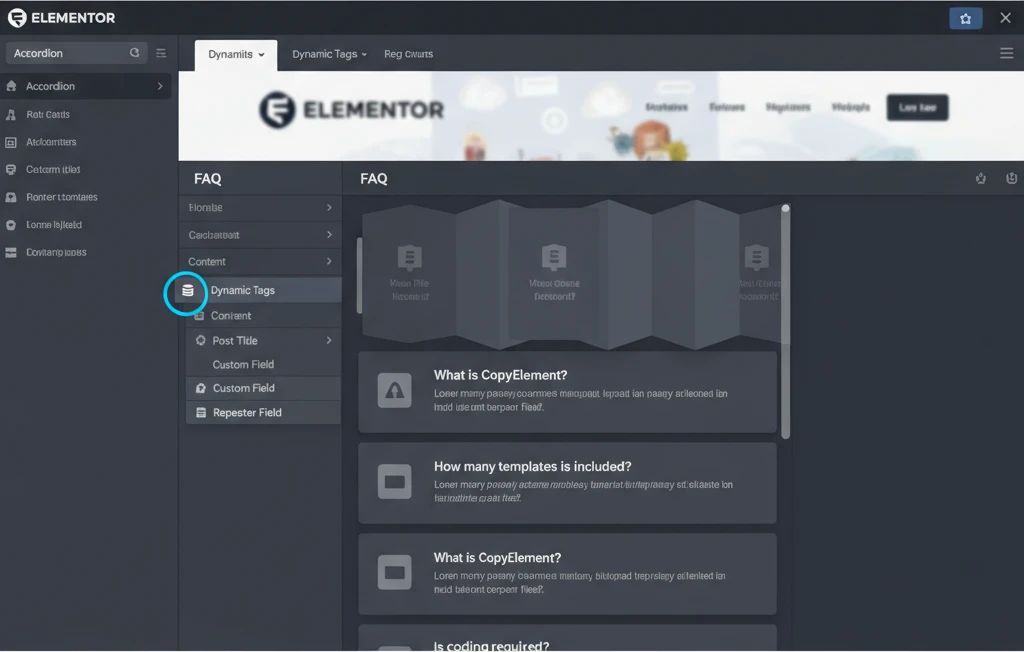
Next, the Dynamic Tags are a critical feature, allowing you to connect custom field data to any Elementor widget. This means you can display the answer to an FAQ question in a text widget, the question itself in a heading widget, and even use dynamic tags to create links to other relevant pages. For example, the Post Excerpt widget could provide a short preview, encouraging visitors to click and read the full answer. Also, Elementor’s template system allows you to design reusable templates for your FAQ items. This ensures consistency across your FAQ section and simplifies the process of creating new FAQs. You can design a single template and then use it to display all of your FAQ content. This is also key for maintaining a consistent design across your website.
Step-by-Step: Building Your Dynamic FAQ Section with Elementor (Visual Guide)
Creating a Custom Post Type for FAQs (Using Custom Post Type UI or Similar)
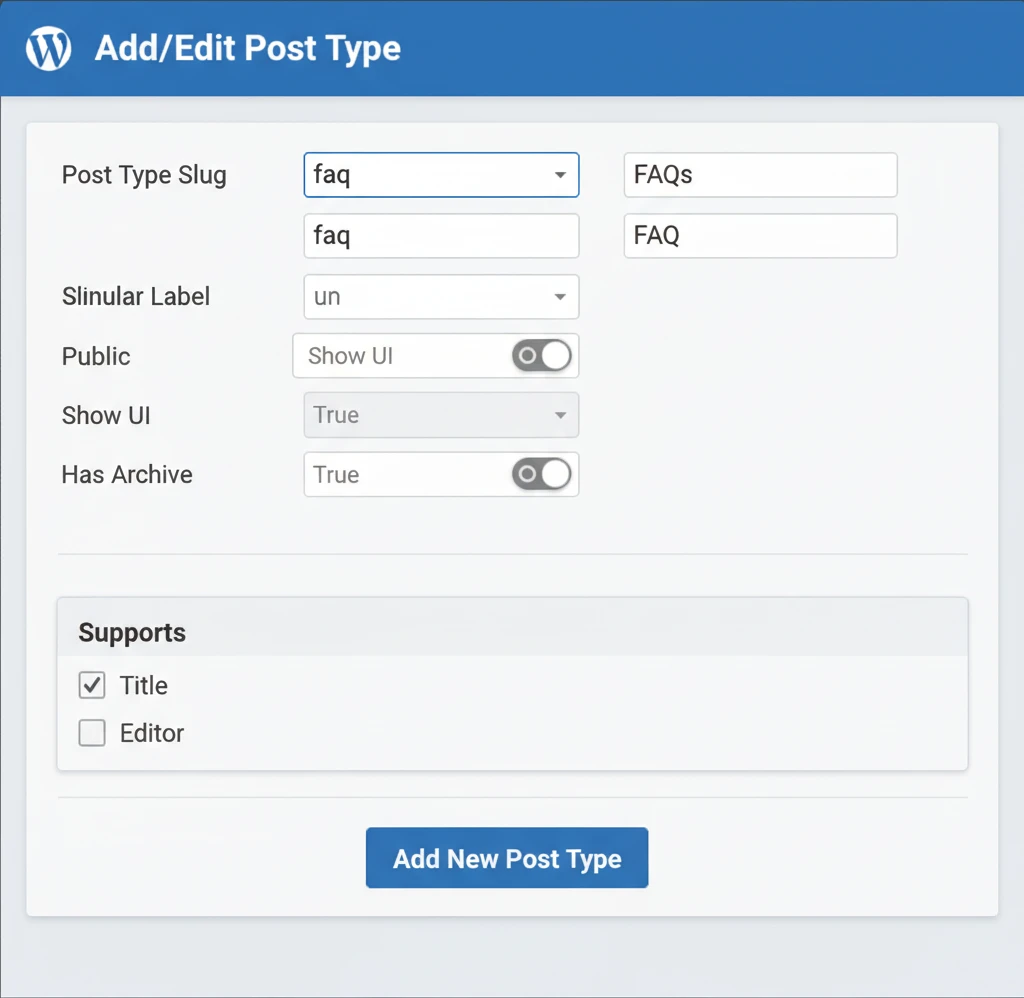
The first step in creating a dynamic FAQ section is to create a Custom Post Type specifically for your FAQs. This allows you to organize your FAQ content separately from your regular posts and pages. A popular plugin for creating custom post types is Custom Post Type UI (CPT UI). Once installed and activated, navigate to the CPT UI settings and create a new post type called “faq”. Set the labels appropriately (e.g., “FAQ”, “FAQs”, “Add New FAQ”).
In the settings, enable the features you need, such as “title” and “editor” (for the question and answer, respectively). You might also want to enable “revisions” to track changes to your FAQs over time. Decide whether you want the FAQ to be hierarchical (like pages) or non-hierarchical (like posts). For most FAQs, non-hierarchical is sufficient. Once you’ve configured the settings, save the post type. You should now see a new “FAQ” menu item in your WordPress admin panel. This isolated content helps keep your website organized and performant.
Adding Custom Fields to Your FAQ Post Type (Using Advanced Custom Fields – ACF)
Next, you’ll need to add custom fields to your FAQ post type to store additional information, such as a short excerpt or a category for each FAQ. A powerful plugin for managing custom fields is Advanced Custom Fields (ACF). Install and activate the ACF plugin. Then, create a new field group called “FAQ Fields”. Assign this field group to your “FAQ” post type. Add the necessary fields. At a minimum, you’ll want a “Question” field (text) and an “Answer” field (wysiwyg editor). You could also add fields for “Category” (taxonomy) or “Order” (number) if you want to categorize or sort your FAQs.
Configure each field according to its type. For example, set the “Question” field to be a required text field. For the “Answer” field, choose the wysiwyg editor type to allow for rich text formatting. You can also add instructions or placeholder text to help content editors fill out the fields correctly. Once you’ve added all the necessary fields, save the field group. Now, when you create or edit an FAQ post, you’ll see the custom fields you defined, allowing you to easily add structured data to each FAQ. This structured data will be what drives the dynamic nature of your FAQ section. Ensuring you’ve set up your custom fields correctly is important for a smooth user experience. This is key to enabling building a multi-language website easily, if applicable.
Populating Your FAQs with Content in the Custom Post Type
Now that you have your custom post type and custom fields set up, it’s time to start populating your FAQs with content. Navigate to the “FAQ” menu item in your WordPress admin panel and click “Add New”. Enter the question in the “Title” field and the answer in the “Answer” custom field. If you added any other custom fields, fill them out as well. For instance, assign a category to the FAQ or set an order number to control its position in the FAQ list. Create several FAQ posts, each with its own unique question and answer. Be sure to use clear and concise language that is easy for users to understand. Make sure to use the various functions within the CMS/editor to help organize the answer.
Consider the following example: Example: One FAQ might be “What is your return policy?” with the answer outlining the specific steps and timeframes for returns. Another FAQ could be “How do I track my order?” with the answer providing instructions and links to the order tracking page. After you’ve added several FAQs, you’ll have a solid foundation for building your dynamic FAQ section in Elementor. Adding content at this stage allows you to populate the grid for the user. This step is critical to showcasing the value of your site.
Designing Your Dynamic FAQ Section with Elementor’s Loop Grid/Carousel
Choosing the Right Elementor Widget for Displaying Your FAQs
Elementor offers several widgets that can be used to display your dynamic FAQs, but the Loop Grid and the Posts widget (with custom skin) are often the most suitable. The Loop Grid widget is particularly powerful because it’s designed specifically for displaying custom post types in a flexible and visually appealing grid layout. You can customize the layout, styling, and content of each item in the grid to create a unique and engaging FAQ section.
The Posts widget, on the other hand, offers more advanced filtering and sorting options. With custom skin options, it allows you to create your own custom design templates for each FAQ item. Choosing between these depends on your specific needs and design preferences. If you need a highly customizable grid layout, the Loop Grid is a great choice. If you need more advanced filtering options or want to create a unique design for each FAQ item, the Posts widget with a custom skin might be a better option. Consider using CopyElement’s pre-built sections to streamline your design process; learn more about how CopyElement can help build a complete website quickly.
Styling the FAQ Section for Visual Appeal and Readability
Once you’ve chosen the right widget, it’s important to style your FAQ section for visual appeal and readability. Use Elementor’s styling options to customize the appearance of the FAQ items, including the fonts, colors, spacing, and borders. Make sure the text is easy to read and that the layout is clean and uncluttered. Use clear headings and subheadings to organize the content and make it easy for users to scan. Consider using icons or images to add visual interest and break up the text.
Pay attention to the overall design of your website and choose styles that complement your brand. For example, use your brand colors and fonts to create a cohesive look and feel. Use negative space effectively to create a sense of balance and visual hierarchy. Consider the user experience when making styling decisions. For example, use a larger font size for the questions to make them more prominent. Use a different background color for the answers to visually separate them from the questions. Test different styling options to see what works best for your website and your audience. The goal is to create an FAQ section that is both visually appealing and easy to use.
Optimizing for Mobile Responsiveness
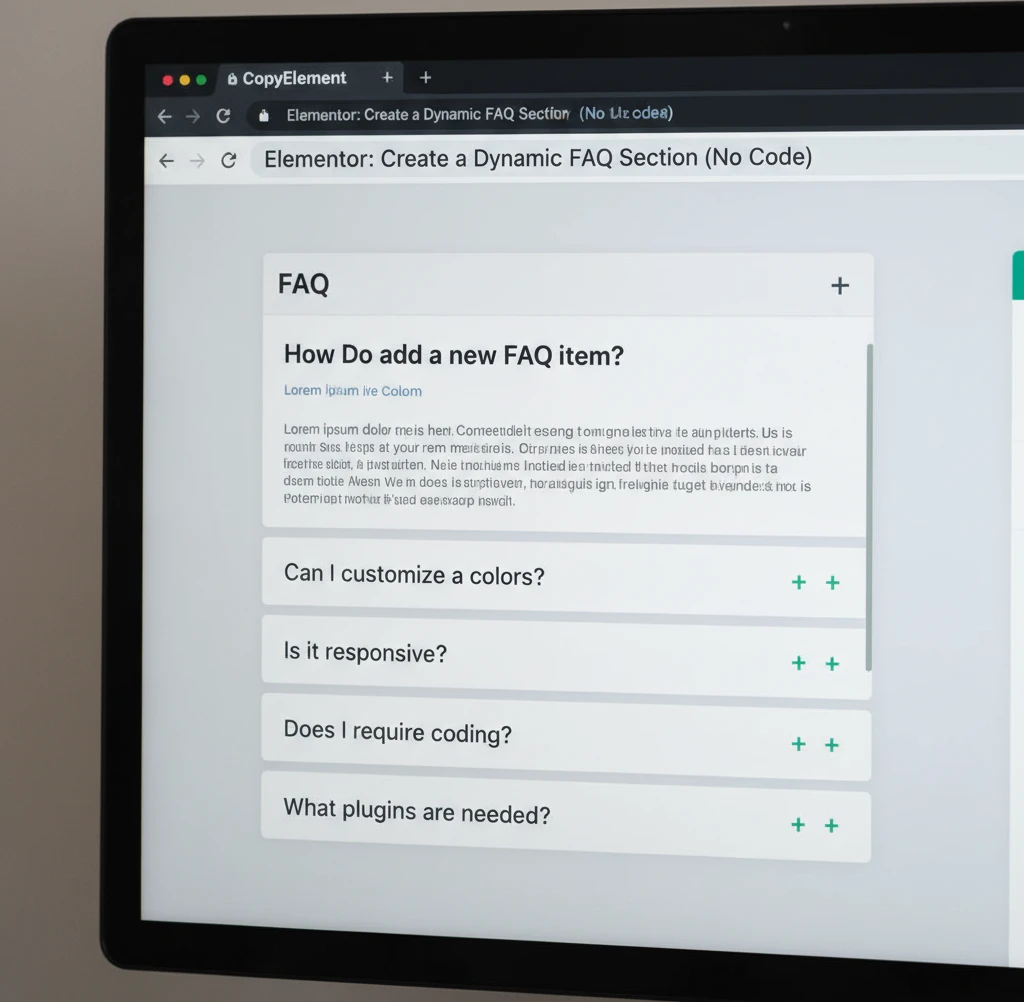
Finally, it’s crucial to ensure that your FAQ section is fully responsive and looks great on all devices. Use Elementor’s responsive editing mode to adjust the layout and styling of your FAQ section for different screen sizes. Pay particular attention to the font sizes, spacing, and column widths. Make sure the text is legible on smaller screens and that the layout doesn’t break or become distorted. Test your FAQ section on different devices to ensure that it looks and functions correctly.
Consider using mobile-specific styling to optimize the user experience on smartphones and tablets. For example, you might want to use a smaller font size for the questions or stack the columns vertically to make the layout more compact. You may also want to hide certain elements that are not essential on mobile devices. Use Elementor’s visibility settings to show or hide elements based on screen size. Regularly check your FAQ section on mobile devices to ensure that it remains responsive and user-friendly. Neglecting mobile responsiveness can significantly hurt your SEO and alienate a large segment of your audience.
Connecting Your Custom Fields to the Elementor Widget (The Dynamic Magic!)
The real power of a dynamic FAQ section lies in its ability to display information pulled directly from your website’s database. This is achieved by connecting your custom fields to an appropriate Elementor widget. For instance, if you’re using a custom post type called “FAQ” with fields for “Question” and “Answer,” you’ll need to instruct Elementor to fetch data from these specific fields. The decision of which fields to use should be determined during the planning of your custom post types, so carefully consider the data you intend to display.
Before diving in, make sure you have created the necessary custom fields using a plugin like Advanced Custom Fields (ACF) or Toolset. These plugins allow you to define the structure of your FAQ data beyond the standard title and content. A common pitfall is creating too many fields that could have been consolidated. For example, avoid creating separate “Keyword 1,” “Keyword 2,” and “Keyword 3” fields. Instead, use a single “Keywords” field and use delimiters (e.g., commas) to separate the values.
Example: Let’s say you have a website for a SaaS product. You create a custom post type called “Pricing FAQs.” Each FAQ post has fields for “Question,” “Answer,” “Category” (e.g., “Free Plan,” “Pro Plan”), and “Last Updated.” By dynamically connecting these fields to your Elementor FAQ section, you can automatically display relevant information and easily update your FAQs in one central location. By strategically leveraging Elementor’s custom fields, you ensure your FAQs are always up-to-date.
Using Elementor’s Dynamic Tags to Pull FAQ Data
Elementor’s dynamic tags are the bridge that connects your custom fields to your website’s front-end. These tags allow you to insert dynamic content—data that changes based on the context—into various Elementor widgets. When creating your FAQ section, you’ll use dynamic tags to populate the question and answer sections with the data stored in your custom fields. This ensures that when you update the content in the custom field, the corresponding section on your website is automatically updated as well. It is critical that you select the appropriate tag for the data you wish to output. For example, you would use a plain text tag for basic text, and a rich text tag to allow HTML and formatting.
To use dynamic tags, select the Elementor widget you want to populate (e.g., a Heading widget for the question or a Text Editor widget for the answer). Then, instead of typing the content directly, click the “Dynamic Tags” icon (it looks like a database cylinder). This will open a list of available dynamic tags, including your custom fields. Select the appropriate custom field to link it to the widget. Ensure that your custom fields are configured correctly (e.g., text fields are set to return text, image fields are set to return URLs).
A common pitfall is selecting the wrong dynamic tag type, which can result in unexpected output. For example, trying to display an image URL in a Text Editor widget will show the URL itself instead of the image. Ensure that your dynamic tag type corresponds to the widget you are using and the type of data stored in your custom field. In particular, be aware of escaping. Certain data, if directly printed to the page, could open your website to script injection vulnerabilities. Ensure that you properly sanitize and escape data from your custom fields before it is output to the page.
Mapping Question and Answer Fields to the Correct Elements
Once you’ve selected the dynamic tags, you need to map them to the correct elements within your Elementor widget. This involves assigning the “Question” custom field to the heading element of your FAQ item and the “Answer” custom field to the body text element. This mapping ensures that the correct information is displayed in the correct place. Incorrect mapping can lead to confusion for website visitors and render your FAQ section useless. For example, if the “Answer” field is mapped to the heading element, the actual question would not be displayed, making it impossible for users to find the information they need.
Many widgets, especially those within the Elementor Pro suite, have dedicated areas for mapping dynamic data. When using simpler widgets (like a basic Text Editor), the entire content area becomes dynamic. However, for more complex widgets (like an Accordion), you may need to specify the specific element (e.g., the title of the accordion section, the content of the accordion section) that will be populated by your dynamic content. The most common mistake is forgetting that these elements are controlled separately.
For widgets like the Accordion, which are frequently used for FAQs, you’ll often find separate fields for the title and content. Map the “Question” field to the title and the “Answer” field to the content. This ensures that each FAQ item displays the question as the accordion title and the corresponding answer when the accordion is expanded. Remember to thoroughly test your mapping to ensure that everything is displaying correctly.
Troubleshooting Common Dynamic Data Connection Issues
Sometimes, the connection between your custom fields and Elementor widgets may not work as expected. One common issue is that the data isn’t displaying at all. This often occurs when the custom field hasn’t been populated with any data. Double-check that you’ve entered information into each field for at least one FAQ post to test the connection. Also, ensure you are actually viewing a single FAQ post within your Elementor template. Dynamic data will not populate correctly when previewing an archive or a listing of multiple FAQs. Furthermore, your query settings may be incorrect. Ensure that your query is set to retrieve the correct custom post type (in this case, “FAQ”).
Another issue arises from incorrect field names or typos. Double-check that the field names you’re using in Elementor exactly match the field names you defined in your custom field plugin. Even a single character difference can break the connection. Also, certain caching plugins may interfere with dynamic content updates. Try clearing your website’s cache to see if that resolves the issue. If you are using a page builder plugin like Elementor, ensure that it and any related plugins are up-to-date. Outdated plugins can sometimes cause compatibility issues with dynamic data.
If the data is displaying, but it’s not formatted correctly, the problem may lie in the field type or the dynamic tag settings. For example, if you’re displaying a date field as plain text, it may appear as a timestamp instead of a formatted date. Use the appropriate dynamic tag settings to format the data correctly. Refer to the documentation for your custom field plugin and Elementor for specific guidance on troubleshooting dynamic data connections. If you’re still stuck, searching the Elementor support forums is an excellent way to find answers to common questions.
Adding Accordion Functionality for a Better User Experience
Displaying a long list of FAQs without any organization can be overwhelming for users. Implementing an accordion is a great way to organize your FAQs, allowing users to expand each question to reveal its answer. This not only improves the user experience but also makes the page cleaner and easier to navigate. The choice of which widget to use should be based on the required level of customization. Elementor Pro’s built-in accordion widget is an excellent choice for simple designs. However, if you want more advanced features, consider using a third-party addon or a custom-built widget.
The key benefit of using an accordion for FAQs is that it keeps the content concise. Instead of users having to scroll through a lengthy list of questions and answers, they can quickly scan the titles and choose to expand only the questions that are relevant to them. The user experience improves greatly if the user is able to find the answers they want quickly and easily. This makes your website more user-friendly and encourages visitors to engage with your content for longer periods of time. Always strive to provide a seamless and enjoyable user experience on your website. A poor user experience may cause a user to look for answers elsewhere.
Example: Imagine an e-commerce store that sells handmade jewelry. They have dozens of FAQs regarding shipping, returns, materials, and care instructions. Displaying all of these questions and answers on a single page would create a wall of text that would likely deter users from finding the information they need. By using an accordion, they can organize the FAQs into categories (e.g., “Shipping & Returns,” “Materials & Care”) and allow users to expand the relevant questions within each category. This makes it much easier for customers to find the information they’re looking for, leading to a more positive shopping experience and potentially higher sales.
Using an Accordion Widget Inside Your Dynamic Loop
To dynamically populate the accordion with your FAQs, you’ll typically use Elementor’s “Loop Grid” or a similar widget that allows you to create a dynamic loop. This loop will iterate through each FAQ post and generate an accordion item for each one. Inside the loop, you’ll place an Accordion widget. Then, you’ll use dynamic tags to populate the accordion’s title and content with the “Question” and “Answer” custom fields from each FAQ post. This allows you to create a fully dynamic FAQ section that automatically updates whenever you add, edit, or delete an FAQ post.
The loop settings are crucial for ensuring that the correct FAQs are displayed. You’ll need to specify the custom post type (e.g., “FAQ”) as the data source for the loop. You can also add filtering criteria to display only FAQs from a specific category or with certain tags. The number of items displayed per page is also important. If you have a large number of FAQs, you may want to implement pagination or an infinite scroll feature to avoid overwhelming users. Without pagination, you may also negatively impact the page load speed.
A common pitfall is forgetting to set the “Query” parameter correctly within the Loop Grid widget. If the query is not configured properly, the loop may not display any FAQs or may display the wrong FAQs. Ensure that you’ve selected the correct custom post type and that any filtering criteria are set up correctly. Remember to thoroughly test your dynamic loop to ensure that it’s displaying the FAQs as expected.
Styling the Accordion for a Seamless Integration
Once you have your dynamic accordion set up, it’s essential to style it to match your website’s overall design. Elementor provides a wide range of styling options for the Accordion widget, allowing you to customize the colors, fonts, spacing, and borders to create a seamless integration with your brand. The visual appearance of your FAQ section contributes to the overall user experience, so it’s important to pay attention to the details. If the style of the FAQ section is inconsistent with the overall design, it can look out of place and detract from the user experience.
Pay particular attention to the colors and typography. Use colors that complement your website’s color scheme and choose fonts that are easy to read. The size and spacing of the text are also important. Make sure the questions are large enough to be easily readable, and that the spacing between the lines is sufficient to prevent the text from feeling cramped. Furthermore, consider the visual cues that indicate which accordion item is currently expanded. A change in background color, a different icon, or a subtle animation can all help users understand which answer they are currently viewing.
Remember to test your accordion’s styling on different devices to ensure that it looks good on both desktop and mobile screens. Elementor’s responsive design features allow you to customize the styling for each device separately, ensuring that your FAQ section is always optimized for the user’s screen size. By carefully styling your dynamic accordion, you can create an FAQ section that is both functional and visually appealing, enhancing the overall user experience of your website.
Ensuring Accessibility for All Users
Accessibility is a crucial aspect of website design that is often overlooked. When creating your dynamic FAQ section, it’s essential to ensure that it’s accessible to all users, including those with disabilities. This includes providing proper semantic HTML, using appropriate ARIA attributes, and ensuring that the content is readable and understandable. An accessible FAQ section not only benefits users with disabilities but also improves the overall user experience for everyone.
Use semantic HTML elements (e.g., and ) for the accordion structure, if possible, as these elements provide built-in accessibility features. If you’re using the Elementor Accordion widget, ensure that it generates proper ARIA attributes for screen readers. These attributes help screen readers understand the structure and functionality of the accordion, allowing users with visual impairments to navigate the content effectively. Also, use descriptive labels and headings to make it clear what each section is about.
Ensure the content is readable and understandable for all users. Use clear and concise language, avoid jargon, and provide alternative text for images. Also, make sure the color contrast between the text and background is sufficient for users with visual impairments. There are various tools available to check the color contrast of your website. Regularly test your FAQ section with a screen reader to identify any accessibility issues and make necessary adjustments. Refer to the Elementor accessibility checklist for more detailed guidelines. By prioritizing accessibility, you can create an FAQ section that is inclusive and user-friendly for everyone.
Advanced Customization: Filtering and Sorting Your Dynamic FAQs
For websites with a large number of FAQs, simply displaying them in a long list, even with an accordion, may not be the most efficient way to help users find the information they need. Implementing filtering and sorting options can significantly improve the user experience by allowing users to narrow down the FAQs based on specific criteria. This is particularly useful for websites that cover a wide range of topics or have a large number of products or services.
Consider adding filtering options based on category, topic, or product. This allows users to quickly narrow down the FAQs to those that are relevant to their specific interests. You can also add a search bar to allow users to search for specific keywords within the FAQs. This is particularly useful for users who have a specific question in mind and don’t want to browse through a long list of FAQs. Make sure to test any filtering or sorting implementation to ensure its accuracy. An inaccurate filter can lead users away from answers they seek.
Example: A web hosting company might have FAQs related to different types of hosting (shared, VPS, dedicated), different platforms (WordPress, Drupal, Joomla), and different features (email, security, backups). By allowing users to filter the FAQs based on these criteria, they can quickly find the answers that are relevant to their specific hosting plan and needs.
Implementing Category-Based Filtering
Category-based filtering is a common and effective way to help users narrow down FAQs. This involves assigning categories to your FAQs and then providing users with a way to select the category they are interested in. When a user selects a category, only the FAQs that belong to that category are displayed. This makes it much easier for users to find the information they need, especially on websites with a large number of FAQs. Categories must be carefully considered based on the content of the FAQ section. Don’t create categories that have only one or two entries.
To implement category-based filtering, you’ll typically use a combination of custom fields and Elementor widgets. First, create a custom field for categories and assign categories to each FAQ post. Then, use an Elementor widget (e.g., a dropdown menu or a set of checkboxes) to display the available categories. When a user selects a category, you’ll need to use JavaScript to filter the FAQs based on the selected category. Note that Elementor by itself does not have built-in filtering abilities. Consider using an Elementor addon or writing custom Javascript code. If you are not comfortable coding Javascript, use a third-party plugin that will provide filtering functionality.
A common pitfall is not providing a “All Categories” option. If users are forced to select a specific category, they may miss FAQs that are relevant to them but don’t fit neatly into any one category. Providing an “All Categories” option allows users to view all of the FAQs at once, providing a fallback option for those who are unsure which category to select.
Adding a Search Bar for Quick FAQ Discovery
A search bar is an essential feature for any website with a large amount of content. It allows users to quickly find the information they need by searching for specific keywords. In the context of an FAQ section, a search bar allows users to enter their question or a few keywords related to their question and quickly find relevant FAQs. This is particularly useful for users who have a specific question in mind and don’t want to browse through a long list of FAQs. A robust search function will enhance the usability of the entire site.
To add a search bar to your FAQ section, you can use Elementor’s “Search Form” widget or a third-party search plugin. Configure the search bar to search specifically within the FAQ custom post type. This ensures that the search results are limited to FAQs and don’t include other types of content on your website. Also, optimize your FAQ content for search by using relevant keywords in the questions and answers.
Consider implementing “fuzzy search” functionality, which allows users to find results even if they misspell a word or use slightly different wording. Fuzzy search can significantly improve the user experience by making it easier for users to find the information they need, even if they don’t know the exact keywords to use. Also consider search suggestions. As the user types into the search box, display a list of suggested search terms based on popular FAQs. These suggestions can help guide users to the information they need more quickly and efficiently.
Sorting FAQs by Date, Popularity, or Relevance
In addition to filtering, sorting options can also improve the user experience of your FAQ section. Sorting allows users to arrange the FAQs based on different criteria, such as date, popularity, or relevance. This can be useful for different purposes. For example, sorting by date can help users find the most recent FAQs, while sorting by popularity can help users find the FAQs that are most frequently asked. The choice of which data to sort by should be based on analytics data.
To implement sorting, you’ll need to use a combination of custom fields and Elementor widgets. First, create custom fields for the data you want to sort by (e.g., “Date,” “Number of Views,” “Relevance Score”). Then, use an Elementor widget (e.g., a dropdown menu or a set of radio buttons) to allow users to select the sorting criteria. When a user selects a sorting criterion, you’ll need to use JavaScript or PHP to reorder the FAQs based on the selected criteria. It’s crucial to think about the performance of your chosen method and ensure that your website remains fast and responsive. Be aware that certain methods will be harder on your server and may result in slow loading times, especially on sites with less robust hosting.
For a website with frequently updated FAQs, sorting by date (“Most Recent First”) is often the most useful option. For a website with FAQs that vary greatly in popularity, sorting by “Most Popular First” can help users quickly find the answers to the most common questions. Sorting by relevance requires implementing a search algorithm that analyzes the FAQ content and assigns a relevance score to each FAQ based on the user’s search query.
SEO Best Practices for Your Dynamic FAQ Section (2026)
A well-optimized FAQ section can significantly improve your website’s search engine ranking and drive more organic traffic. By following SEO best practices, you can ensure that your FAQ section is easily discoverable by search engines and provides valuable information to users. A key strategy is to think of the questions in the FAQ as keywords that users are actively searching for. By answering these questions in a clear and concise manner, you can attract more organic traffic from users who are looking for information related to your business or industry.
In the current search landscape of 2026, user experience is paramount. Ensure your FAQ section is not only informative but also easy to navigate, mobile-friendly, and loads quickly. Google’s algorithms increasingly favor websites that provide a seamless and enjoyable user experience. Also, focus on creating high-quality, original content that answers users’ questions thoroughly and accurately. Avoid simply regurgitating information that can be found elsewhere on the web. Provide unique insights and perspectives to add value for your users.
The overall goal of SEO is to help the right users find the right content. By focusing on SEO best practices, you can ensure that your FAQ section is not only a valuable resource for your website visitors but also a powerful tool for driving organic traffic and improving your website’s overall search engine ranking.
Using Schema Markup for FAQs (FAQPage Schema)
Schema markup is a form of structured data that helps search engines understand the content on your website. By adding schema markup to your FAQ section, you can provide search engines with explicit information about the questions and answers, making it easier for them to display your FAQs in search results. Specifically, the FAQPage schema is designed to identify FAQ pages to search engines. Implementing FAQPage schema can significantly improve your website’s visibility in search results.
To implement FAQPage schema, you can use a plugin or manually add the schema markup to your FAQ section’s HTML code. The schema markup should include the question, answer, and URL of each FAQ item. There are various tools available to help you generate and validate schema markup. Google’s Rich Results Test is a valuable tool for testing whether your schema markup is implemented correctly. Search engines may penalize websites that use incorrect or misleading schema markup, so it’s important to ensure that your schema markup is accurate and up-to-date.
The FAQPage schema should be structured to accurately represent the questions and answers on your page. Each question and answer should be enclosed in a separate element with the appropriate schema properties (itemprop="mainEntity" and itemtype="https://schema.org/Question" for the question, and itemprop="acceptedAnswer" and itemtype="https://schema.org/Answer" for the answer). By implementing FAQPage schema correctly, you can increase the chances of your FAQs appearing in rich snippets in search results, making your website more visible and attractive to potential visitors.
Optimizing Question Titles for Relevant Keywords
The question titles in your FAQ section are prime real estate for targeting relevant keywords. By optimizing your question titles for keywords that users are likely to search for, you can increase the chances of your FAQs appearing in search results. Conduct keyword research to identify the keywords that are most relevant to your business or industry. Use these keywords in your question titles in a natural and conversational way. Avoid keyword stuffing, which can negatively impact your search engine ranking.
Consider using long-tail keywords in your question titles. Long-tail keywords are longer, more specific phrases that users are likely to use when searching for information. Targeting long-tail keywords can help you attract more qualified traffic to your website. For example, instead of using the keyword “web hosting,” you might use the long-tail keyword “best web hosting for small businesses.” Be specific about the subject matter to target the audience that is most likely to click on your website. A click-through from an interested party is better than a click from an ambivalent user.
A common pitfall is writing question titles that are too generic or vague. For example, a question title like “What is web hosting?” is not as effective as a question title like “What is the difference between shared hosting and VPS hosting?” The more specific your question titles are, the more likely they are to attract relevant traffic from search engines. Also, consider what the user would actually type into a search engine to find the answer. Try to match this phrasing.
Ensuring Internal Linking to Relevant Content
Internal linking is an important SEO strategy that involves linking from one page on your website to another. By linking from your FAQ section to relevant content on your website, you can help search engines understand the relationship between different pages and improve your website’s overall search engine ranking. Internal links also help users navigate your website and find more information about the topics they are interested in. Links can also be used to drive the user to different parts of the sales funnel. For example, a question about the features of a product could link to a conversion-focused call to action design on a product page.
Identify opportunities to link from your FAQ answers to relevant blog posts, product pages, and other resources on your website. Use descriptive anchor text for your internal links, which is the visible text that users click on. The anchor text should be relevant to the content of the linked page. Avoid using generic anchor text like “click here” or “learn more.” Instead, use more specific and descriptive anchor text that tells users what they can expect to find on the linked page.
For example, if you’re answering a question about website security, you might link to a blog post about website security best practices with the anchor text “website security tips.” Another example would be linking the phrase “custom header” to a page about how to create a custom header. Remember to only link to truly relevant content. Irrelevant links will not improve your SEO and may negatively impact the user experience.
Performance Optimization: Keeping Your Dynamic FAQ Section Fast and Efficient
A dynamic FAQ section offers many benefits, but it’s crucial to ensure it doesn’t negatively impact your website’s loading speed. Implement performance optimization techniques to maintain a smooth user experience. Poor performance can lead to user frustration and higher bounce rates, directly affecting your conversion rates. Remember that perceived performance is just as important as actual performance; a site that feels fast will be favored by users.
Caching Strategies for Dynamic Content
Caching is essential for any dynamic website, and it’s even more important for dynamic FAQ sections. Implement both server-side caching and browser caching to reduce the load on your server. Server-side caching stores generated FAQ content, serving it to subsequent visitors without needing to regenerate it each time. Browser caching allows users’ browsers to store static assets (like CSS, JavaScript, and images) locally, further reducing loading times. Consider using a caching plugin specifically designed for WordPress, such as WP Rocket or LiteSpeed Cache, configuring it properly is key to achieving optimal results. Ignoring caching can result in noticeable lag, especially on pages with complex dynamic queries.
Image Optimization for Any Visual Elements
If your FAQ section includes images or icons, proper optimization is critical. Use appropriately sized images and compress them without sacrificing too much quality. Consider using WebP format, which offers better compression than JPEG or PNG. Lazy loading can further improve performance by only loading images when they are visible in the user’s viewport. Tools like TinyPNG or ImageOptim can help you compress images effectively. For example, reducing image sizes from 500KB to 150KB can dramatically improve page load times, especially on mobile devices. Remember to use descriptive alt text for all images to improve accessibility and SEO.
Minimizing HTTP Requests
Each element on your webpage (images, scripts, stylesheets) requires an HTTP request to the server. Reducing the number of HTTP requests can significantly improve page loading speed. Combine CSS and JavaScript files into fewer files. Minify CSS and JavaScript code to reduce file sizes. Avoid using excessive plugins, as each plugin can add additional HTTP requests. Using a Content Delivery Network (CDN) can also help by distributing your website’s assets across multiple servers, reducing latency for users in different geographic locations. A useful plugin is Autoptimize, which can assist with minifying and combining files. Addressing this element can have a cascading positive effect on overall website performance.
Real-World Examples: Inspiration for Your Dynamic FAQ Design
Exploring real-world examples can provide valuable inspiration for your dynamic FAQ section. Studying how different industries implement this feature can spark creative ideas and help you understand best practices. Analyzing these examples can help you tailor your FAQ section to meet the specific needs of your audience. Consider both the design aspects and the functionality to create a comprehensive and user-friendly experience. Don’t be afraid to experiment and adapt ideas to fit your brand and website’s unique style.
Showcase of Different Industry Implementations
Dynamic FAQs can be tailored to suit various industries. An e-commerce website might use a dynamic FAQ to answer questions about shipping, returns, and payment options, dynamically displaying answers based on the product category being viewed. A SaaS company might use it to address questions about pricing plans, features, and integration options. A healthcare provider could use it to provide information about specific medical conditions or procedures. A university might use it to answer student queries about admissions, courses, and financial aid. The key is to categorize your FAQs effectively and use dynamic content to display the most relevant information to the user. For example, a clothing retailer could display FAQ topics related to sizing charts or care instructions when a user is browsing a specific item.
Highlighting Unique Design Approaches
Beyond functionality, the design of your dynamic FAQ section plays a crucial role in user engagement. Consider using visually appealing icons or illustrations to make the FAQ section more attractive. Implement an intuitive search function that allows users to quickly find answers to their questions. Use accordions or collapsible sections to organize the FAQs and prevent the page from becoming too long. Consider using different font styles and sizes to highlight important information. Some websites use chatbots to guide users to the relevant FAQ topics. For instance, a travel agency might use a dynamic FAQ with interactive maps to answer questions about visa requirements for different destinations. Another design element to consider is the use of color, ensuring that the color scheme aligns with the overall branding of the website.
Focusing on User Experience Improvements
Ultimately, the goal of a dynamic FAQ section is to improve the user experience. Ensure that the FAQs are easy to understand and provide clear, concise answers. Use a conversational tone to make the FAQs more approachable. Offer users the option to provide feedback on the helpfulness of each FAQ. Track which FAQs are most frequently accessed to identify areas where you can improve your content. Integrate the FAQ section seamlessly into the overall website design. One example of a successful UX improvement is implementing breadcrumbs to help users navigate back to the main FAQ page or related topics. Regularly review and update your FAQs to ensure they remain accurate and relevant. Always prioritize the user’s needs and make it as easy as possible for them to find the information they’re looking for. Ensure your design conforms with website accessibility guidelines.
Troubleshooting Common Issues with Dynamic FAQ Sections in Elementor
Even with careful planning, you might encounter issues when implementing a dynamic FAQ section in Elementor. Identifying and resolving these problems promptly is crucial for maintaining a positive user experience. Common issues include dynamic content not displaying correctly, performance problems, and responsiveness issues. Understanding the root causes of these problems is essential for effective troubleshooting.
Dynamic Content Not Displaying Correctly
One of the most common issues is dynamic content failing to display correctly. This can be caused by several factors, including incorrect settings in your dynamic content source (e.g., custom fields, ACF), conflicts with other plugins, or errors in your Elementor templates. Double-check your dynamic content settings to ensure they are correctly configured. Deactivate plugins one by one to identify any conflicts. Clear your website’s cache and your browser’s cache. Use Elementor’s preview mode to troubleshoot display issues in real-time. If you’re using custom code, ensure that it is error-free. For example, if you’re using ACF (Advanced Custom Fields), verify that the field names are entered correctly in your Elementor template. Sometimes, simply re-saving the Elementor template can resolve display issues.
Performance Problems and Slow Loading Times
Performance problems, such as slow loading times, can significantly impact the user experience. This can be caused by unoptimized images, excessive HTTP requests, lack of caching, or poorly written code. Optimize your images using tools like TinyPNG or ImageOptim. Minify CSS and JavaScript files to reduce their size. Implement caching using a plugin like WP Rocket or LiteSpeed Cache. Use a CDN to distribute your website’s assets across multiple servers. Review your plugins and deactivate any that are unnecessary. Inspect the website’s performance using tools like Google PageSpeed Insights to identify areas for improvement. If you are loading large amounts of data dynamically, consider implementing pagination or lazy loading to improve performance. Remember, website speed optimization is key to keeping users engaged.
Responsiveness Issues on Different Devices
Ensuring your dynamic FAQ section is responsive across different devices is essential for a seamless user experience. Test your website on various devices and screen sizes to identify any responsiveness issues. Use Elementor’s responsive editing mode to adjust the layout and styling for different devices. Ensure that your images are responsive and scale properly on smaller screens. Avoid using fixed-width elements that can cause overflow issues. Use media queries in your CSS to apply different styles based on screen size. Consider using a mobile-first approach, designing for mobile devices first and then adapting the design for larger screens. A poorly responsive FAQ section can frustrate users on mobile devices and lead to a higher bounce rate. Preview mode and device emulators are critical at this stage.
Next Steps: Expanding Your Dynamic Content Skills in Elementor
Mastering the art of creating dynamic FAQ sections is just the beginning. There are numerous other ways to leverage dynamic content in Elementor to create more engaging and personalized website experiences. By expanding your skills in this area, you can build more sophisticated and effective websites. Focus on understanding the underlying principles of dynamic content and how to apply them in different contexts.
Exploring Other Dynamic Content Applications (e.g., Testimonials, Team Members)
Once you’ve mastered dynamic FAQs, you can apply the same principles to other types of content, such as testimonials, team member profiles, and product listings. Dynamic testimonials can be used to display different testimonials based on the product or service being viewed. Dynamic team member profiles can be used to showcase different team members based on their department or expertise. Dynamic product listings can be used to display different products based on the user’s search query or browsing history. This allows you to create more targeted and relevant content for your audience. The core skill of using custom fields to drive Elementor content is broadly applicable. You can even build dynamic websites using Elementor custom fields that display unique content.
Leveraging Dynamic Content for Personalized User Experiences
Dynamic content can be used to create personalized user experiences that are tailored to each individual visitor. This can include displaying different content based on the user’s location, browsing history, or past purchases. For example, you could display different promotions to users based on their location or show them products that are similar to those they have previously purchased. This level of personalization can significantly increase engagement and conversion rates. You could use cookies or user accounts to track user behavior and personalize the content accordingly. Integrating with a CRM system can further enhance personalization by leveraging customer data to display highly relevant content. Remember to respect user privacy and obtain consent before tracking their behavior. Implementing personalized experiences through dynamic content represents a significant step toward creating a more engaging and effective website.
By focusing on performance, exploring design inspiration, troubleshooting common issues, and expanding your skills, you can create dynamic FAQ sections that enhance your website’s user experience. Dynamic FAQ sections offer a powerful way to provide relevant information to your users efficiently. Experiment with different approaches to find what works best for your audience and your website’s goals.