This guide delves into how Elementor’s versatile toolkit can be harnessed to create websites that feel natural and effortless for visitors. We’ll explore the foundational principles of UX and how Elementor empowers designers to implement them effectively, ensuring your website stands out for its user-centric approach.
Crafting Seamless User Journeys with Elementor’s Design Canvas
The Elementor design canvas provides a dynamic and visual interface that, when wielded with a user-centric mindset, can transform complex website development into an intuitive process. The core of crafting seamless user journeys lies in understanding and applying fundamental UX principles directly within the Elementor environment. This involves thinking critically about how a user will interact with your site from the moment they arrive, through their path to achieving their goals, and even to their eventual departure or conversion.
Decision criteria for a seamless journey include anticipating user needs, minimizing cognitive load, and providing clear, actionable pathways. Consider the typical visitor: what are they looking for? What steps will they take to find it? Elementor’s drag-and-drop interface is a significant advantage here, allowing for rapid prototyping and iteration. You can visually arrange elements, test different layouts, and observe how the structure flows, all without writing a single line of code. This immediate visual feedback loop is crucial for identifying potential usability issues early on. For instance, placing important information or calls-to-action in predictable locations reduces the effort a user needs to exert, thereby enhancing their overall satisfaction. The goal is to make the website feel like an extension of the user’s own intentions.
Understanding the Core Principles of Intuitive UX
At its heart, intuitive UX design is about making a digital product feel natural and easy to use, requiring minimal effort or conscious thought from the user. Key principles include discoverability (users can easily find what they need), affordance (elements clearly suggest how they can be used), and feedback (the system communicates its state and actions clearly). Another critical aspect is consistency; users develop mental models based on common design patterns, and deviating from these can cause confusion. For example, a button that looks like a link, or navigation that appears in an unexpected location, breaks the user’s mental model.
Pitfalls to avoid include overwhelming users with too many choices (choice paralysis), creating overly complex navigation, or using jargon that isn’t universally understood. A website that requires a steep learning curve to navigate is fundamentally failing its users. For instance, a complex checkout process with many unnecessary steps can lead to cart abandonment. Conversely, a well-designed process feels so straightforward that the user barely notices the individual steps involved. Applying these principles means prioritizing clarity, simplicity, and user goals above all else. Remember that users are often on your site with a specific objective in mind, and your design should facilitate that objective as efficiently as possible.
Elementor’s Role in Facilitating User-Centric Design
Elementor empowers user-centric design by providing a visual, frontend editing experience. This means designers and developers can see changes in real-time, allowing them to directly translate UX principles into tangible design choices. The platform’s extensive widget library offers pre-built components for common UI patterns, such as forms, buttons, and navigation elements, ensuring a degree of built-in usability. Furthermore, Elementor’s robust styling options allow for fine-tuning of visual cues, such as button states (hover, active) and form field feedback, which are essential for providing clear system responses.
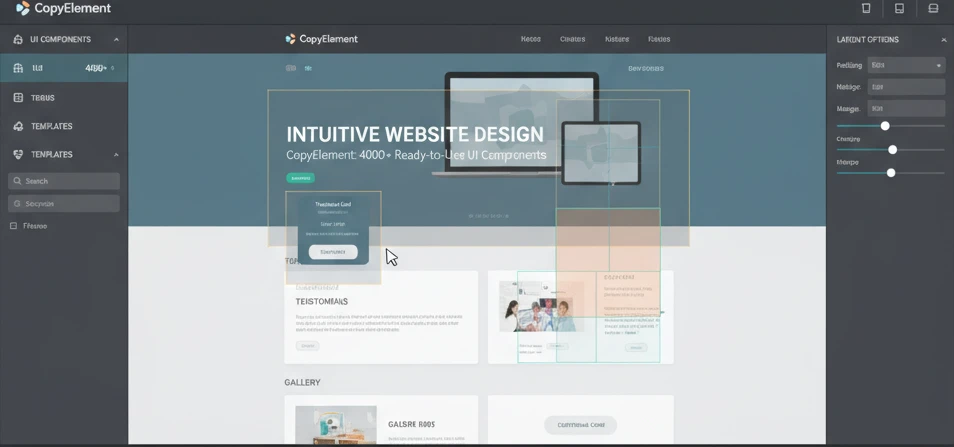
The ability to easily replicate and adapt pre-built sections and templates from resources like CopyElement can significantly speed up the process of creating user-friendly layouts. Instead of starting from scratch, you can leverage well-tested UI components that are designed with usability in mind. This accelerates development while maintaining a high standard of UX. For example, a pre-designed contact form widget, when styled appropriately, can guide users through the submission process with clear labels and validation messages, reducing errors and frustration. Elementor’s focus on a visual workflow means that UX considerations can be integrated throughout the design process, rather than being an afterthought, helping teams build faster WordPress websites with components.
Structuring for Clarity: Navigation and Information Architecture in Elementor
Effective navigation and information architecture (IA) are the bedrock of a positive user experience. They dictate how users find information, move between sections of a website, and understand its overall structure. In Elementor, these concepts translate into strategically placing navigational elements and organizing content logically. A well-structured site reduces user frustration, improves search engine crawlability, and ultimately leads to higher engagement rates. The goal is to create a site that feels predictable and easy to explore, where users can quickly locate what they’re searching for.
When designing for clarity, consider the mental models your users likely possess. Most are accustomed to certain navigational conventions, like a main menu at the top of the page and a footer with supplementary links. Adhering to these conventions, while still allowing for creative expression, is key. Elementor provides the flexibility to implement various navigation patterns, from simple top menus to more complex structures. The decision criteria for your IA should revolve around the primary user goals and the content hierarchy. Is it more important for users to find product categories, blog posts, or contact information first? Your structure and navigation should clearly reflect these priorities.
Designing Accessible and Logical Navigation Menus
Navigation menus are the primary guides for users exploring a website. In Elementor, the Nav Menu widget is a versatile tool for creating these essential components. To ensure logical design, prioritize clarity and conciseness in your menu labels. Avoid jargon or overly technical terms; use language that your target audience will readily understand. Decision criteria for menu items should include their importance to user goals and their frequency of use.
For accessibility, ensure sufficient contrast between menu text and background colors, and that the menu is keyboard-navigable. Users should be able to use the Tab key to move between menu items and Enter to select them. Pitfalls include creating menus that are too crowded, making it difficult to scan, or using ambiguous labels. For instance, a label like “Resources” is less informative than “Help & Resources” or “Blog & Guides” if those are the primary content types. A good example of logical navigation is a clear hierarchy: a main menu with broad categories, and dropdowns for sub-categories. This structure, easily achievable with Elementor’s Nav Menu widget, helps users navigate complex sites efficiently.
Implementing Breadcrumbs for Enhanced User Orientation
Breadcrumbs are a secondary navigation system that shows users their current location within the website’s hierarchy and allows them to easily backtrack. They are particularly useful for larger websites with multiple levels of content. Elementor allows for the implementation of breadcrumbs, often through theme builder templates or specific widgets provided by add-ons, ensuring this valuable UX element is not overlooked. The decision criteria for using breadcrumbs include the depth of your website’s content and the likelihood of users getting lost.
When designing breadcrumbs, ensure they are visually distinct from other page elements but not so prominent that they distract from the main content. The “current page” indicator should be clear, typically by making it a different color or style. Pitfalls include making the breadcrumb trail too long, which can become cumbersome, or not linking all parent levels back to their respective pages. For example, on a blog post about Elementor tips for beginners, the breadcrumb might read “Home > Blog > Elementor Tips > Advanced Layout Techniques.” This provides immediate context and easy navigation back to broader categories, demonstrating enhanced user orientation.
Leveraging Mega Menus for Complex Site Structures
For websites with a substantial amount of content or diverse product/service offerings, mega menus offer a powerful solution for organizing information. These large, expandable menus can display multiple columns of links, icons, and even images, allowing for a comprehensive yet visually manageable navigation experience. Elementor Pro, particularly when combined with theme builder features, allows for the creation of custom mega menus. The decision criteria for implementing a mega menu revolve around the complexity and scale of your site’s content and the need to present a wide range of options efficiently.
When designing a mega menu, grouping related links into distinct columns is crucial for clarity. Use clear headings for each group and consider visual aids like icons to improve scannability. Pitfalls include overwhelming users with too much information at once, poor organization leading to confusion, or excessively large menus that dominate the screen. For instance, an e-commerce site might use a mega menu to display product categories, sub-categories, featured products, and even promotional banners, all within a single dropdown. This approach, well-executed, can significantly improve the discoverability of content and streamline the user’s journey through a large inventory, acting as a powerful tool for agency workflow optimization.
Visual Hierarchy and Readability: Guiding the User’s Eye
Visual hierarchy is the principle of arranging elements on a page to show their order of importance. In website design, it guides the user’s eye through the content, ensuring they notice the most critical information first. This is intrinsically linked to readability, which refers to how easily text can be scanned and understood. Elementor provides a robust set of tools to establish a strong visual hierarchy and ensure excellent readability, crucial for engaging visitors and conveying your message effectively.
The decision criteria for establishing visual hierarchy include identifying your primary message, calls to action, and key content areas. These should be given prominence through size, color, contrast, and placement. Readability, on the other hand, is influenced by font choice, line spacing, text size, and sufficient contrast against the background. Elementor’s inline editing and preview capabilities allow designers to constantly assess and refine these elements, ensuring that the visual flow of the page is intuitive and that text remains accessible across various devices. A clear hierarchy and strong readability make your website not just attractive, but also highly functional.
Effective Use of Typography for Scannability
Typography plays a pivotal role in guiding the user’s eye and ensuring content is easily digestible. Elementor offers extensive control over fonts, allowing designers to establish a clear visual hierarchy through type selection and styling. The decision criteria for choosing typography should focus on legibility and brand alignment. For instance, using a distinct font for headings (larger, bolder) compared to body text (smaller, more readable) immediately signals importance and separates content types.
When aiming for scannability, consider using a combination of font sizes, weights, and styles. For example, making subheadings distinct from main headings and body text helps users quickly scan through an article and locate specific sections. Pitfalls include using too many different fonts, which can create visual clutter, or choosing fonts that are difficult to read at smaller sizes or on various screens. An example would be using an elegant serif font for headings to convey sophistication, paired with a clean, sans-serif font for body text to ensure maximum readability. This strategic use of typography, easily managed within Elementor’s text editor widgets, significantly enhances the user’s ability to consume information efficiently, contributing to a better website experience.
Strategic Application of Whitespace for Visual Breathing Room
Whitespace, also known as negative space, is the empty area around design elements. Far from being wasted space, it’s a powerful design tool that significantly enhances usability and visual appeal. In Elementor, controlling padding and margin around widgets, columns, and sections allows for precise management of whitespace. The decision criteria for using whitespace involve creating visual separation between elements, improving focus on key content, and reducing cognitive load for the user.
Strategic application of whitespace can make a design feel more polished, modern, and less cluttered. For example, ample space around a call-to-action button makes it stand out, drawing the user’s attention and encouraging a click. Conversely, insufficient whitespace can make a page feel cramped and overwhelming, hindering readability and user engagement. Pitfalls include cramming too much content into a small space or using uniform spacing that lacks visual rhythm. A well-designed layout in Elementor might feature generous padding around text blocks and between different sections, allowing each element to breathe and making the overall composition more pleasant to view and easier to navigate, a core aspect of intuitive website design.

Color Palette Selection for Brand Consistency and Usability
Color is a potent element in UX design, influencing user perception, brand recognition, and interaction. Selecting a cohesive color palette and applying it consistently across your Elementor-built website is crucial for both brand identity and usability. The decision criteria for color selection include brand guidelines, target audience preferences, and accessibility standards.
A well-defined color palette ensures that interactive elements like buttons and links are easily identifiable and that the overall design feels unified. For instance, using a primary brand color for calls-to-action makes them stand out, while secondary colors can be used for supporting elements. Pitfalls include using too many colors, creating a jarring experience, or choosing color combinations that have poor contrast, making text difficult to read for users with visual impairments. Elementor’s global color settings make it easy to manage your palette across the entire site, ensuring brand consistency and a visually harmonious user experience, which directly impacts how users perceive your site’s professionalism and trustworthiness.
Interactive Elements and Micro-interactions: Enhancing Engagement
Beyond static content, interactive elements and subtle micro-interactions are vital for creating an engaging and responsive user experience. These features provide feedback, guide users, and make a website feel more dynamic and alive. Elementor offers a range of widgets and customization options that allow designers to implement these elements effectively, transforming a passive browsing experience into an active engagement.
The decision criteria for incorporating interactivity should always prioritize user benefit. Will this animation clarify content? Does this interactive element make a task easier? Or is it merely a distraction? Micro-interactions, such as button hover effects or smooth transitions, are small moments that delight users and confirm their actions. Elementor’s capabilities allow for the creation of these subtle, yet impactful, details. The key is to ensure that interactivity enhances, rather than hinders, the user’s journey and overall goal achievement on the site.
Designing Clear Calls-to-Action (CTAs) with Elementor Widgets
Calls-to-action (CTAs) are the cornerstone of conversion-focused web design, prompting users to take a desired action, such as signing up, purchasing, or contacting. Elementor’s Button widget is a versatile tool for creating effective CTAs. The decision criteria for designing a clear CTA involve making it visually prominent, using action-oriented and concise text, and ensuring it’s placed strategically where users are most likely to convert.
To maximize effectiveness, CTAs should stand out from surrounding content through color, size, and placement. The text should be compelling and clearly indicate the benefit of clicking. For example, instead of a generic “Click Here,” use “Download Your Free Guide” or “Get a Quote Today.” Pitfalls include making CTAs too subtle, using ambiguous language, or having too many competing CTAs on a single page, leading to confusion. A well-designed CTA in Elementor might use a contrasting brand color, clear action text, and ample whitespace around it, making it an unmissable prompt for the user, directly contributing to higher conversion rates on pages like landing pages you might craft using Elementor’s conversion-focused templates.
Implementing Subtle Animations for Feedback and Guidance
Animations, when used judiciously, can significantly enhance user experience by providing feedback and guiding attention. Elementor allows for the addition of entrance animations to widgets and sections, as well as motion effects. The decision criteria for using animations should focus on their purpose: do they clarify an action, guide the user’s eye, or provide satisfying feedback? Overuse of animation can be distracting and negatively impact site performance.
For instance, a subtle fade-in animation as a section appears on scroll can create a more engaging and dynamic feel, confirming that content is loading. Button hover effects that change color or add a subtle shadow provide instant feedback that the button is interactive. Pitfalls include overly flashy or distracting animations that slow down the page or irritate users, such as rapidly blinking elements or lengthy transitions. A best practice in Elementor is to use entrance animations that are brief and purposeful, like a slight slide-in for content blocks, ensuring the website feels responsive without compromising usability. This approach elevates the overall feel of the site, contributing to its perceived professionalism and making it feel more like a cohesive product.
User Feedback Mechanisms: Forms and Notifications
Providing clear channels for user feedback and responding promptly is essential for building trust and improving user satisfaction. Elementor’s Form widget is a powerful tool for collecting user input, whether for contact, inquiries, or sign-ups. The decision criteria for designing forms include simplicity, clarity of fields, and clear confirmation messages.
Forms should be easy to fill out, with clearly labeled fields and inline validation to catch errors as they happen. After submission, a clear notification or confirmation message reassures the user that their input has been received. Pitfalls include overly long or complex forms, confusing error messages, or a lack of confirmation, leaving users unsure if their submission was successful. For example, a contact form in Elementor that uses clear labels, provides real-time validation for email format, and displays a success message like “Thank you for your message! We’ll be in touch soon.” demonstrates effective user feedback, directly contributing to a more positive interaction and a better overall user experience.
Mobile-First Design: Ensuring a Fluid Experience Across Devices
In today’s digital landscape, a significant portion of web traffic originates from mobile devices. Therefore, adopting a mobile-first design approach is not merely a trend but a fundamental necessity for creating an intuitive website experience. This means prioritizing the design and development of your website for smaller screens first, then progressively enhancing it for larger displays. This methodology ensures that your core content and functionality are accessible and user-friendly on the devices most people use daily. Elementor’s intuitive interface and robust features empower designers to implement this strategy effectively, leading to a seamless user journey regardless of the device.
When building with Elementor, thinking mobile-first involves considering how elements will stack, resize, and adapt. It means anticipating the unique challenges of smaller screens, such as limited space, touch-based interaction, and potentially slower connection speeds. A mobile-first strategy helps in streamlining content and features, focusing on what’s essential for a quick and effective user experience on the go. This approach often leads to cleaner, more focused designs that benefit all users, not just mobile visitors. It’s about creating a solid foundation that scales up gracefully, ensuring that every element serves a purpose and contributes to a positive user interaction.
Responsive Design Settings within Elementor
Elementor provides a suite of built-in tools to manage responsive design effortlessly. Within the Elementor editor, you can access device-specific settings for almost every element. This includes adjusting column widths, margins, padding, typography sizes, and even visibility for different screen sizes – desktop, tablet, and mobile. By clicking on the responsive mode icon at the bottom of the Elementor panel, you can switch between these views and make targeted adjustments. For instance, you might reduce the font size of a heading on mobile to prevent text overflow or increase the spacing between buttons to make them easier to tap. This granular control ensures that your design looks and functions precisely as intended on every device. It’s a powerful way to tailor the user experience without needing separate website versions.
A crucial aspect of Elementor’s responsive settings is the ability to control element visibility. You can choose to hide certain sections, columns, or widgets on specific devices. For example, a complex infographic might be essential for desktop users but could clutter a mobile view. By hiding it on mobile, you ensure a cleaner interface, while desktop users still get the full benefit. Conversely, a simplified call-to-action button might be prominently displayed on mobile but less emphasized on desktop. This strategic use of visibility settings allows for a highly optimized experience, delivering the most relevant content and interactions based on the user’s context. It’s an effective way to manage content hierarchy across different screen real estate.
Optimizing Layouts for Touchscreen Interactions
Designing for touchscreens requires a different mindset than designing for mouse-based interfaces. Elementor allows you to adapt your layouts to facilitate intuitive touchscreen interactions. This involves ensuring that buttons and clickable elements are sufficiently sized and spaced apart to prevent accidental clicks. A common pitfall is using designs that look good on desktop but are difficult to navigate with a finger. Consider the minimum touch target size recommended by usability guidelines (typically around 44×44 pixels). In Elementor, you can achieve this by adjusting padding and margins on buttons and links, and by ensuring that your chosen column layouts allow for adequate finger room. For elements like sliders or carousels, ensure they are swipe-enabled and provide clear visual cues for interaction.
Another key consideration for touch interactions is gestural design. While Elementor doesn’t directly implement complex gestures like pinch-to-zoom on page elements (this is usually handled by the browser), you can design elements that respond naturally to common gestures like swiping. For image galleries or product carousels, ensure they are configured to be swipeable. Furthermore, focus on providing clear visual feedback when an element is interacted with. This could involve changing the color of a button when tapped or providing a subtle animation. By implementing these touch-friendly design principles, you enhance the usability of your website on mobile devices, making it feel more responsive and engaging. The goal is to make users feel in control and that the interface is predictable and easy to manipulate.
Testing and Refinement on Various Screen Sizes
Thorough testing is paramount to ensure your Elementor-designed website provides an optimal user experience across all devices. While Elementor’s responsive modes offer a preview, they are not a substitute for testing on actual devices. Browsers’ developer tools can simulate various screen sizes, but the way a website renders and performs on a real iPhone or Android device can reveal subtle differences. Regularly test your website’s layout, functionality, and performance on a range of popular smartphones and tablets. Pay attention to how content reflows, if any elements overlap, and how quickly interactive elements respond. This hands-on approach helps identify issues that might be missed during the design phase.
The iterative process of testing and refinement is crucial. After identifying a responsive issue or a usability problem on a particular device, return to the Elementor editor and make the necessary adjustments. This might involve tweaking column percentages, adjusting padding, or even reconsidering the placement of certain widgets. Documenting your findings and the solutions implemented can create a valuable reference for future projects. Furthermore, consider using online tools that provide heatmaps or user session recordings if you’re looking to gain deeper insights into how users interact with your site on different devices. This data-driven approach to refinement ensures that your website not only looks good but also performs exceptionally well for every visitor, contributing to a superior overall user journey.
Form Design for Conversions: Simplifying User Input
Forms are critical gateways for lead generation, customer feedback, and user engagement on any website. In Elementor, designing effective forms goes beyond just aesthetics; it’s about optimizing the user experience to encourage submissions and maximize conversions. A well-designed form is intuitive, efficient, and minimizes user effort. When planning your forms, consider the user’s journey and what information is truly necessary. Every extra field, every ambiguous label, or every technical glitch can be a barrier that leads to abandonment. Therefore, focusing on clarity, simplicity, and user-friendliness within your Elementor forms is key to achieving your conversion goals.
Elementor’s Form widget is a powerful tool that, when used thoughtfully, can significantly improve conversion rates. It allows for the creation of visually appealing and highly functional forms that integrate seamlessly with your website’s design. The primary objective should always be to reduce friction for the user. This means making the process of filling out the form as straightforward and painless as possible. By adhering to best practices in form design and leveraging Elementor’s capabilities, you can create forms that not only look good but also perform exceptionally well in capturing valuable user information.
Essential Form Fields and Layout Best Practices
When designing forms in Elementor, selecting the right fields and arranging them logically is foundational to a good user experience. Start with the most critical information needed. Common essential fields include name, email address, and potentially a phone number or message box. For specific purposes, you might need dropdowns, radio buttons, or checkboxes. Elementor’s Form widget offers a wide array of field types to accommodate these needs. The layout of fields is also crucial. Generally, single-column layouts are preferred for their clarity, especially on mobile devices, as they guide the user’s eye downwards sequentially. Fields should be clearly labeled, with labels positioned above or to the left of the input field for maximum readability.
Consider the grouping of related fields. For instance, if you’re collecting address information, group street, city, state, and zip code together. This makes the form appear less daunting and helps users organize their thoughts. Elementor’s column and section structure can be used effectively to create these logical groupings. Avoid overwhelming the user with too many choices or lengthy text fields unless absolutely necessary. For instance, instead of a free-form text area that requires extensive typing, consider using radio buttons or checkboxes for predefined options. The goal is to make the data input process quick and error-free. Additionally, ensure that the submit button is prominent, clearly labeled (e.g., “Submit,” “Send Message,” “Get a Quote”), and visually distinct from other elements.
Reducing Friction: Minimal Fields, Clear Labels, and Error Handling
Friction in form design refers to any element that makes it difficult or frustrating for a user to complete a submission. The most effective way to reduce friction is to minimize the number of form fields. Every additional field increases the time and cognitive load required from the user, and each one is an opportunity for them to drop off. Before adding a field, ask yourself: “Is this information absolutely essential for achieving the form’s goal?” Often, you can gather less critical information later or through other channels. For example, asking for a full mailing address might be unnecessary for an initial contact form.
Beyond minimalism, clear and concise labels are paramount. Labels should be unambiguous and accurately describe the information required in the associated field. Using placeholder text within fields can be helpful for guidance, but it should never replace a proper label, as it disappears once the user starts typing and can cause accessibility issues. Elementor’s Form widget allows for easy label management. Furthermore, robust error handling is critical. When a user makes a mistake (e.g., enters an invalid email format), the error message should be clear, specific, and ideally located next to the problematic field. Avoid generic error messages. Elementor provides options for validating fields and displaying custom error messages, which significantly improves the user experience by guiding them to correct mistakes promptly. This proactive approach to error handling ensures a smoother and more successful submission process.
Utilizing Elementor’s Form Widget Features for User Experience
Elementor’s Form widget is designed with user experience and conversion optimization in mind. It offers a range of features that go beyond basic field creation. One key aspect is field validation. You can set fields as required, define specific formats (like email or URL), and even create custom validation rules. This ensures data integrity while providing immediate feedback to the user if they’ve made an error, preventing frustrating submission failures later. Another valuable feature is conditional logic, allowing you to show or hide fields based on previous user input. This creates dynamic forms that adapt to the user’s responses, making them feel more personalized and less overwhelming. For instance, if a user selects “Other” for a question, a text field might appear for them to specify their answer.
Elementor also facilitates post-submission actions, which are vital for a positive user experience and workflow management. After a user submits a form, you can configure Elementor to send email notifications to you or the user, redirect them to a thank-you page, or even integrate with third-party services like Mailchimp or HubSpot. A well-crafted thank-you message or page confirms their submission and can provide next steps, reinforcing a positive interaction. Additionally, consider the visual design of your form. Elementor’s styling options allow you to match your forms perfectly to your website’s branding, using custom colors, typography, and spacing to create a cohesive and professional look. This attention to detail contributes significantly to building trust and enhancing the overall perception of your brand. By leveraging these features, you can create forms that are not just functional but also a pleasure to use, ultimately driving better results. This is part of how Elementor helps craft Elementor landing pages that convert.
Page Load Speed and UX: The Unseen Impact on User Satisfaction
In the digital realm of 2026, user patience is a finite resource. Page load speed is no longer a secondary consideration; it’s a critical determinant of user satisfaction and engagement. Visitors expect websites to load almost instantaneously. Studies consistently show that even a few seconds of delay can lead to significant increases in bounce rates and drops in conversion rates. For users interacting with a website built on Elementor, slow loading times can negate even the most brilliant design or compelling content. Therefore, optimizing your Elementor website for speed is an indispensable part of delivering an intuitive and positive user experience. This involves a multifaceted approach, from leveraging Elementor’s built-in tools to implementing effective optimization strategies for your site’s assets.
The connection between speed and user experience is profound. A fast-loading website feels professional, reliable, and respectful of the user’s time. Conversely, a slow website can feel broken, untrustworthy, and frustrating, leading users to seek alternatives. This has direct implications for search engine rankings as well, with speed being a significant ranking factor. By focusing on page load speed, you’re not just improving technical performance; you’re directly enhancing the perceived quality and usability of your website. Elementor provides a robust platform for building visually rich websites, but this richness can sometimes impact performance if not managed carefully. Thus, understanding and implementing speed optimization techniques is vital for anyone using Elementor to build websites.
Elementor’s Performance Optimization Features
Elementor itself offers several features designed to help improve website performance. One of the most impactful is the ability to control asset loading. You can selectively disable unused Elementor widgets and features site-wide or on specific pages. This reduces the amount of code and scripts that need to be loaded, thereby speeding up page delivery. To access these settings, navigate to Elementor > Settings in your WordPress dashboard and explore the options under “General” and “Advanced.” Another key feature is the option to disable Elementor’s default Eicons font library if you’re not using the icons, or to load them only when needed. This helps cut down on unnecessary HTTP requests.
Furthermore, Elementor Pro offers advanced features that can aid in performance. For example, the Theme Builder allows for a more streamlined approach to website design, often resulting in leaner code compared to traditional themes. By creating custom headers, footers, and single post templates, you can ensure that only the necessary elements are loaded for each part of your site. For users looking to further optimize, Elementor also provides options to disable unused CSS and JavaScript files generated by the plugin, which can significantly reduce the overall file size of your pages. Leveraging these built-in capabilities is the first step towards building a faster, more responsive website with Elementor, making your site more enjoyable for visitors and building faster WordPress websites with components.
Image Optimization Strategies for Faster Loading
Images are often the largest contributors to page size, making image optimization a cornerstone of fast page load speeds, especially when using Elementor’s visually rich designs. The first step is to choose the right image format. JPEGs are ideal for photographs with complex colors and gradients, while PNGs are better for graphics with transparency or sharp lines. For web use, WebP is increasingly becoming the standard due to its superior compression and quality compared to older formats. Elementor allows you to upload various formats, but ensuring you’re using the most efficient one before uploading is crucial.
Beyond format selection, compressing images is vital. Tools like TinyPNG, ShortPixel, or Imagify can significantly reduce file sizes without a noticeable loss in quality. Many of these tools offer WordPress plugins that can automate compression upon upload. Elementor users should ensure that any images they add to their designs are already optimized before being placed. Another effective strategy is lazy loading. This technique defers the loading of images that are not immediately visible in the user’s viewport, only loading them as the user scrolls down the page. Elementor has built-in lazy loading options, which can be enabled in its settings, or you can use dedicated plugins. This dramatically speeds up the initial page load time, providing a much smoother experience for users as they navigate your content. Properly optimizing images ensures that the beautiful designs created with Elementor don’t come at the cost of performance. For more in-depth strategies, consider resources on best practices for Elementor speedy site design with ready components.
Minimizing Plugin Conflicts for a Smoother Experience
While WordPress plugins add immense functionality, an excessive number of plugins, or poorly coded ones, can lead to significant performance issues and conflicts. This is particularly true when using a page builder like Elementor, which already incorporates a substantial amount of functionality. Each plugin adds its own scripts, styles, and database queries, which can slow down your website and potentially clash with Elementor or other plugins. The key is to be judicious about which plugins you install and activate. Regularly audit your installed plugins and deactivate or delete any that are no longer necessary or are redundant.
When a performance issue arises, plugin conflict testing is a critical troubleshooting step. The common method involves deactivating all plugins except Elementor, then reactivating them one by one, checking your website’s speed and functionality after each activation. This helps pinpoint the problematic plugin. Additionally, ensure all your plugins, including Elementor and your theme, are updated to their latest versions, as updates often include performance improvements and bug fixes. Be wary of plugins that claim to “speed up WordPress” without clearly explaining their methods, as some might achieve speed by disabling essential functionalities. Focusing on the quality and necessity of each plugin you use, alongside Elementor, is essential for maintaining a fast and stable website experience. Some resources may cover how to optimize website speed with component caching, which is another vital layer of optimization.
Accessibility Considerations: Designing for Everyone with Elementor
Creating an inclusive web presence means designing websites that are usable by everyone, regardless of their abilities or disabilities. Web accessibility is not just a compliance issue; it’s a fundamental aspect of good UX and ethical design. Elementor, as a powerful website builder, offers the tools and flexibility to create accessible websites. This involves understanding principles of accessible design and applying them thoughtfully within the Elementor interface. By prioritizing accessibility, you ensure that your content and functionality are perceivable, operable, understandable, and robust for all users, including those who rely on assistive technologies like screen readers or keyboard navigation.
Adopting an accessibility-first mindset means considering diverse user needs from the outset of your design process. This includes people with visual impairments, hearing impairments, motor disabilities, cognitive differences, and situational limitations. Elementor empowers you to implement many accessibility best practices directly. By focusing on semantic structure, keyboard operability, and clear visual design, you can build websites that are not only beautiful and functional but also welcoming and usable by the widest possible audience. This commitment to accessibility ultimately enhances the user experience for everyone and expands your potential audience reach. It aligns with the goal of building professional, conversion-focused websites that are accessible to all potential customers. Some insights into improving website elements can be found in articles about elevating UX with interactive website elements, which often overlap with accessibility improvements.
Semantic HTML and ARIA Attributes in Elementor
The foundation of web accessibility lies in using semantic HTML correctly. Semantic HTML elements (like `